
Airtable Job Board
Getting Started
The Airtable Job board element allows you to integrate Airtable and embed job data from Airtable’s API. It is particularly useful if you are willing to display job data from Airtable on your website. This article will cover how you can add and edit the Airtable Job Board element. Follow all instructions accordingly.
Table of Contents
Adding the Airtable Job Board element
Follow the steps below to add an Airtable Job Board to your site.
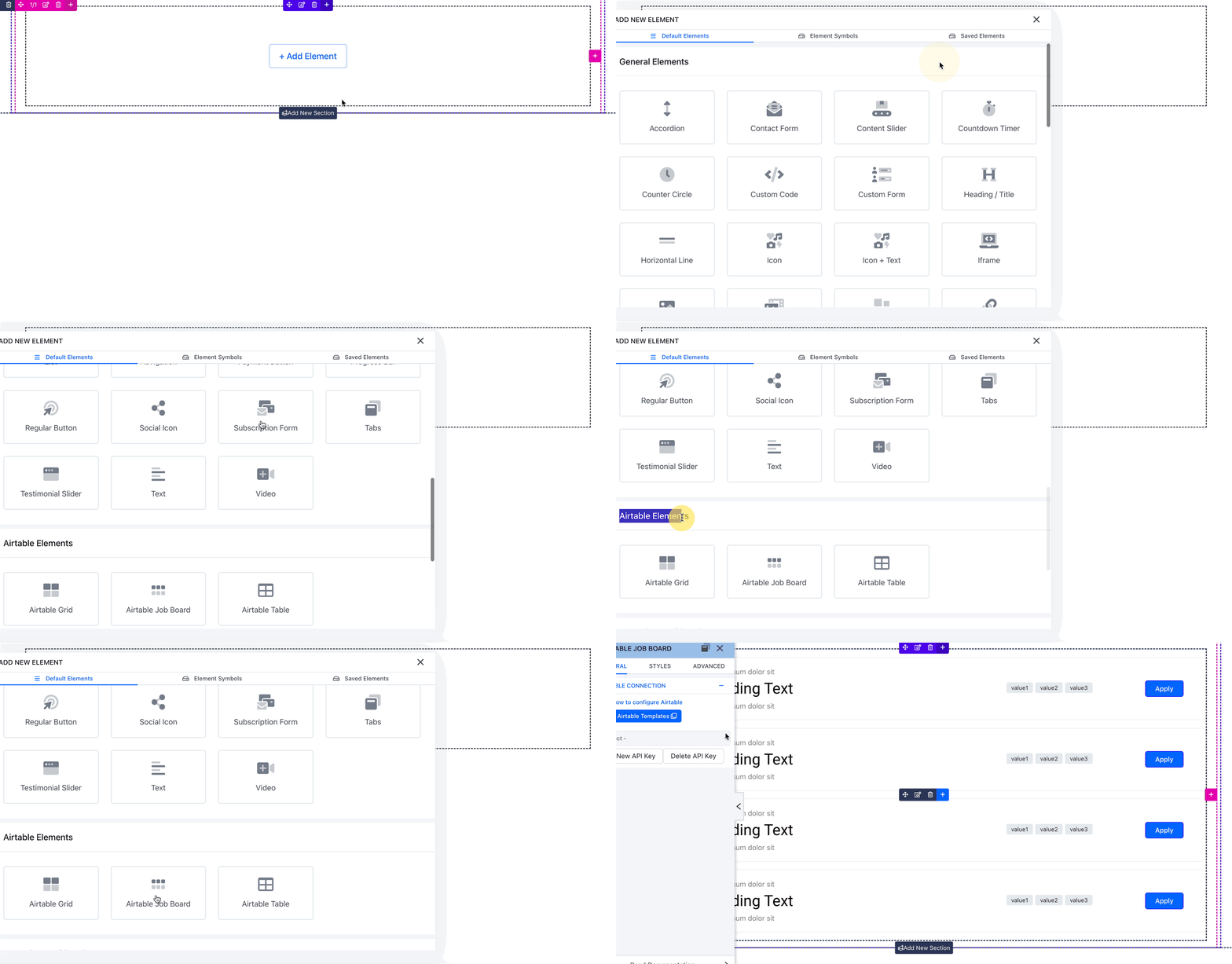
- Click on Add Element in an empty row and section
- From the Airtable Elements section, select Airtable Job Board
Refer to the GIF below:
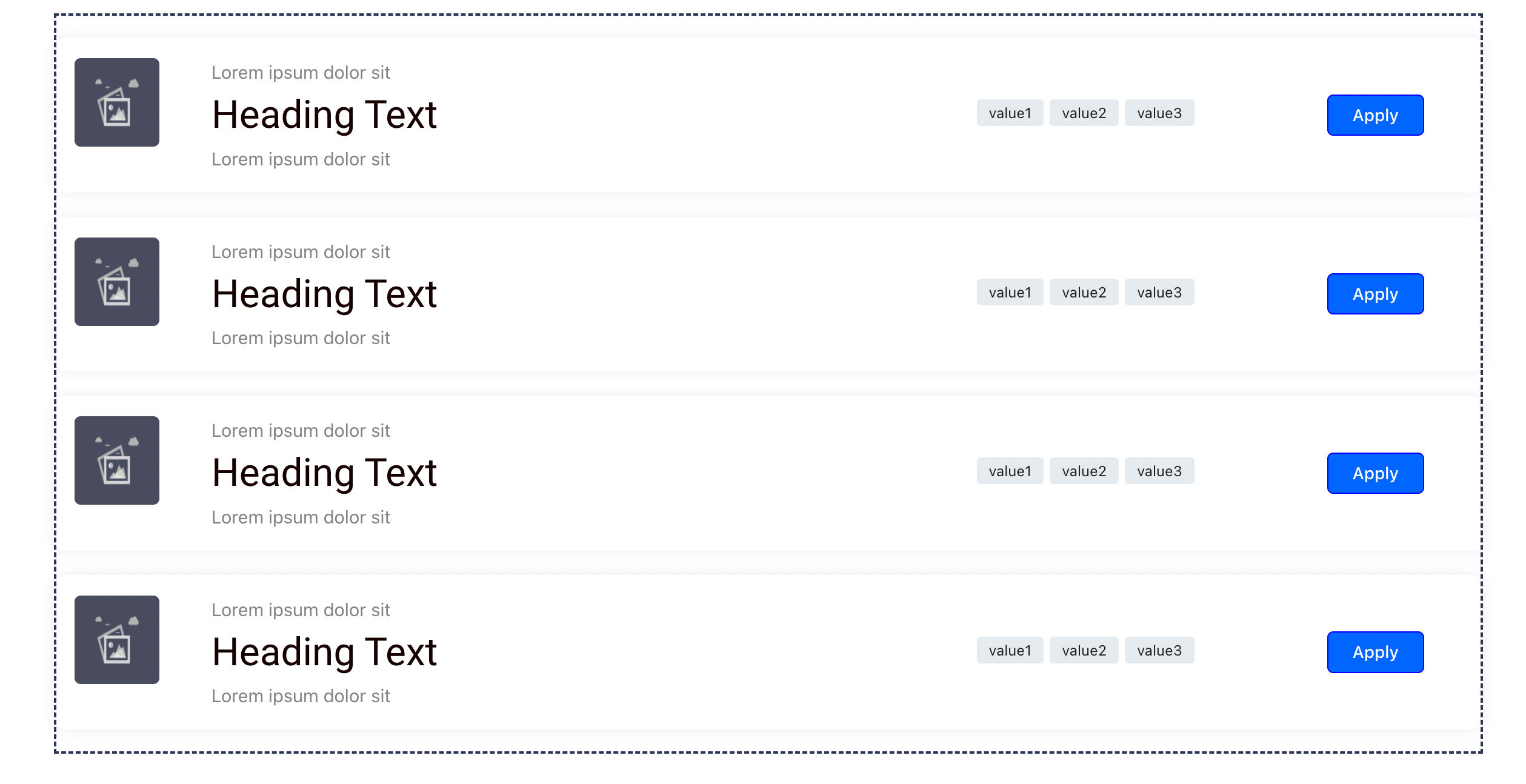
The Airtable Job Board element
Airtable Connection
To integrate Airtable, follow the instructions and steps given below:
- Expand the Airtable Connection option in the Airtable Job Board editor and click on Clone Airtable Templates.
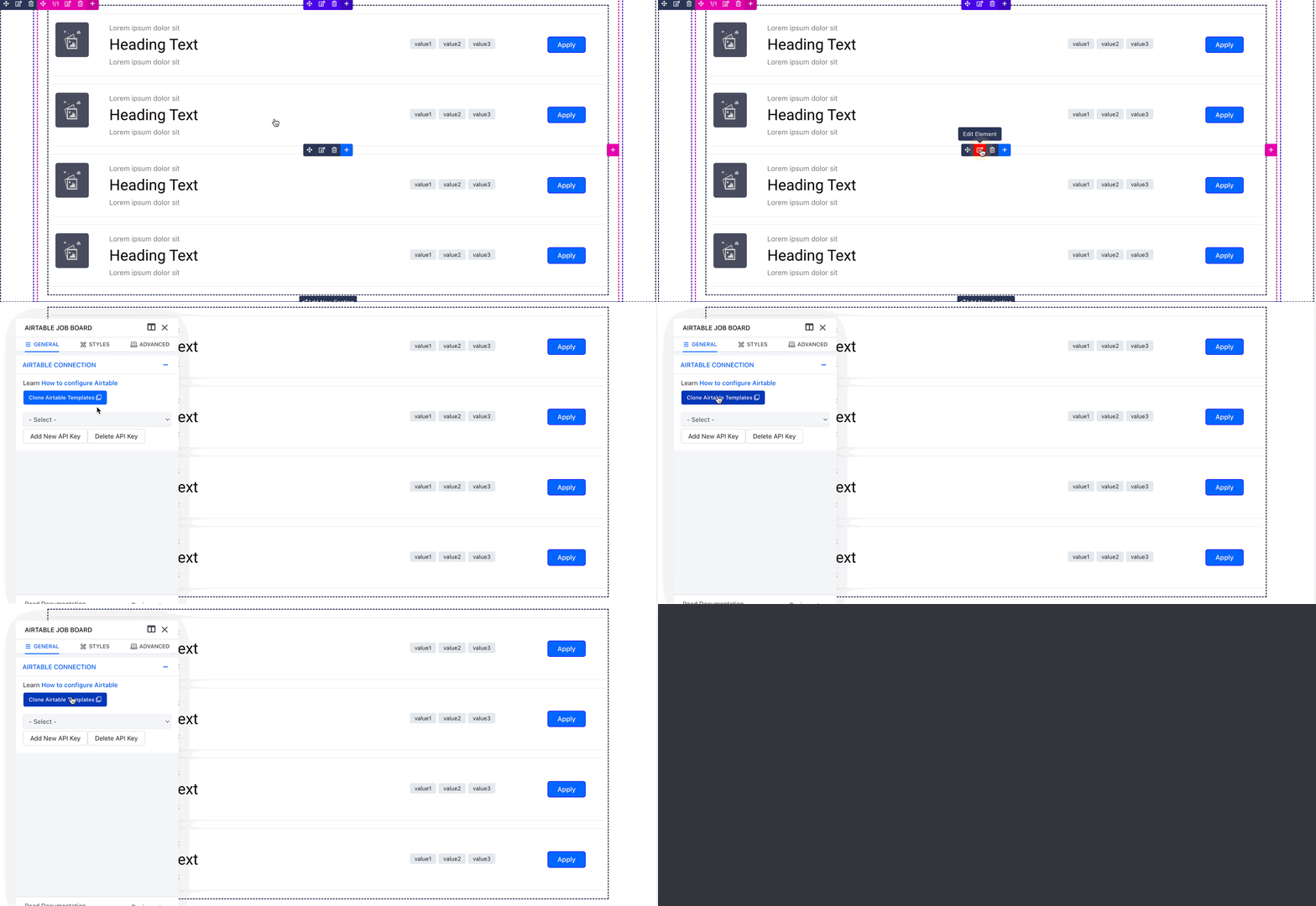
- You will be redirected to a preset Airtable base
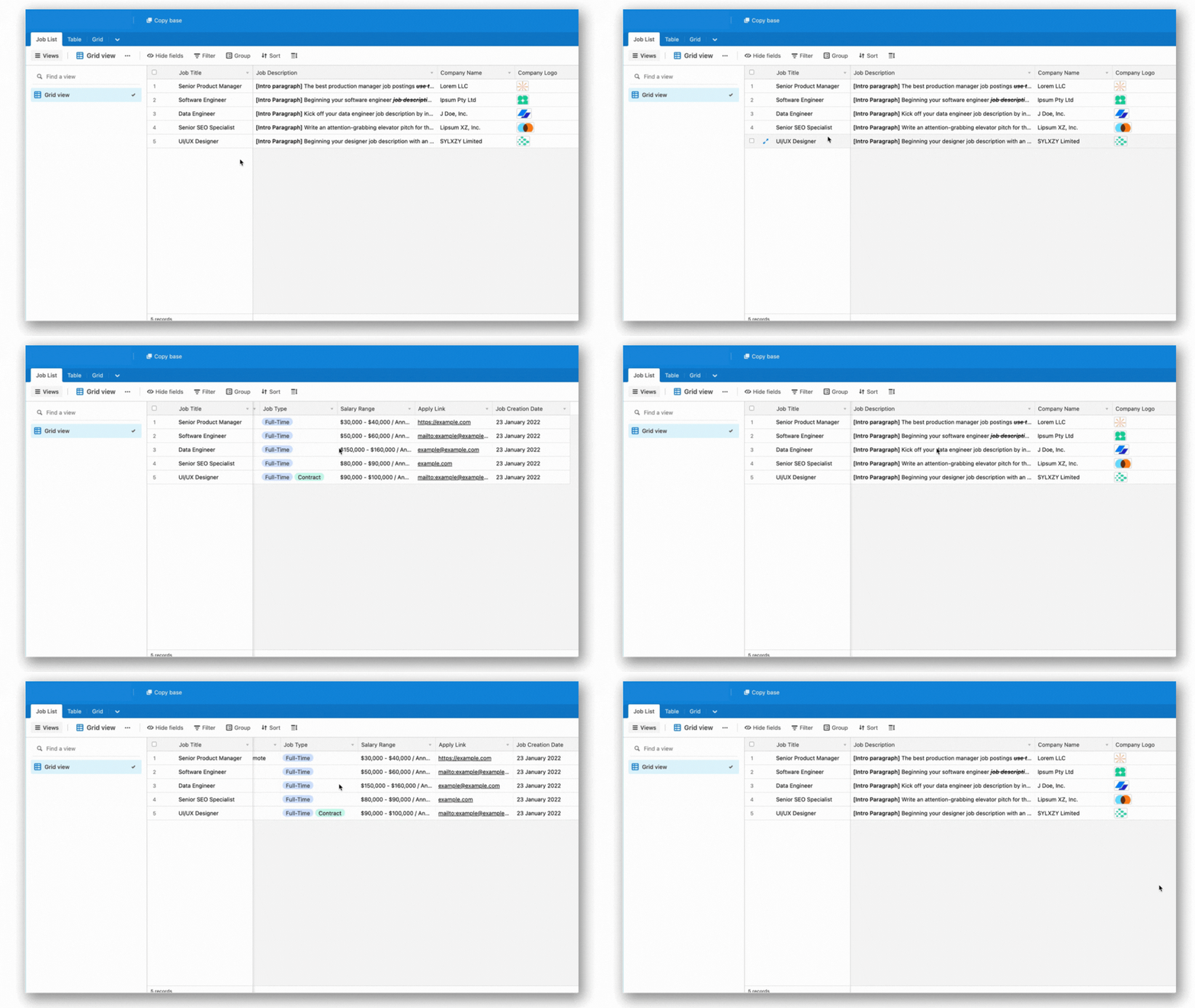
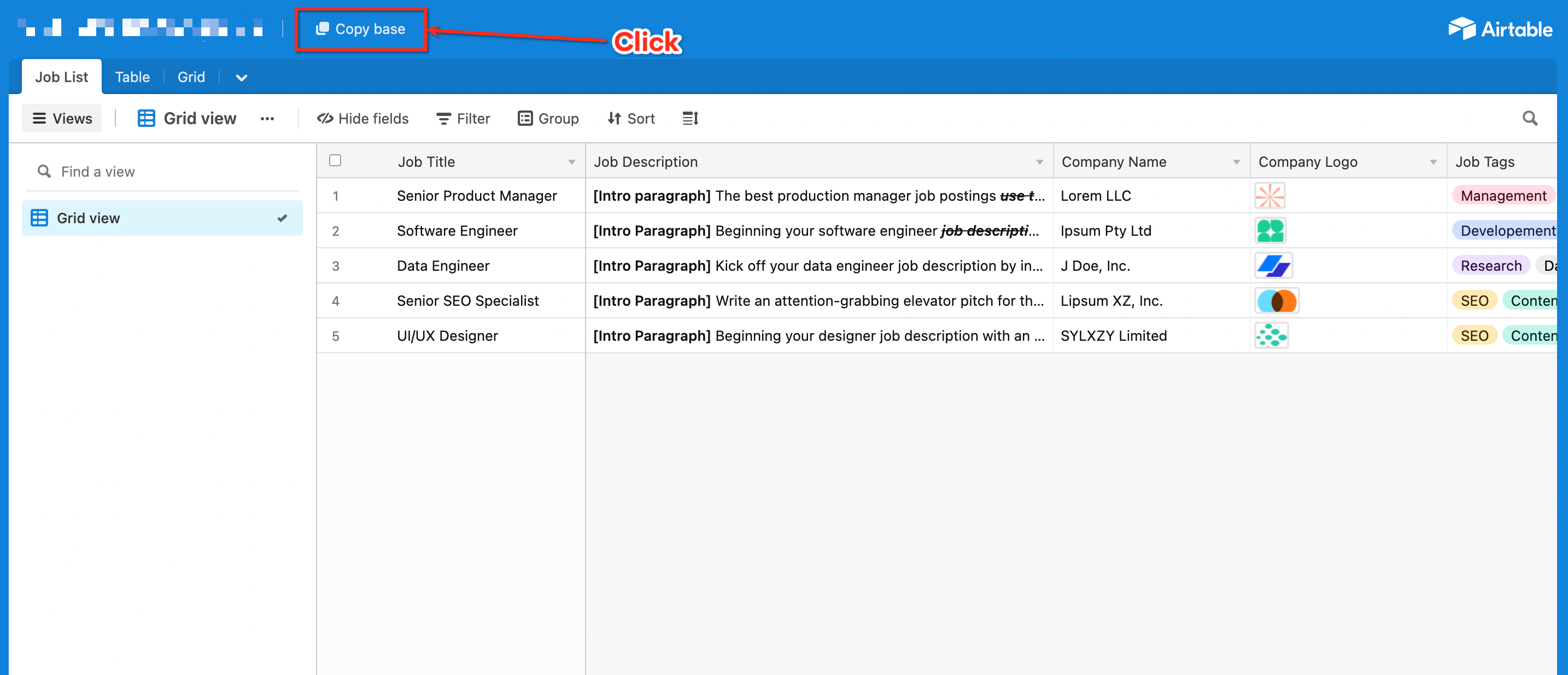
- Click on Copy base
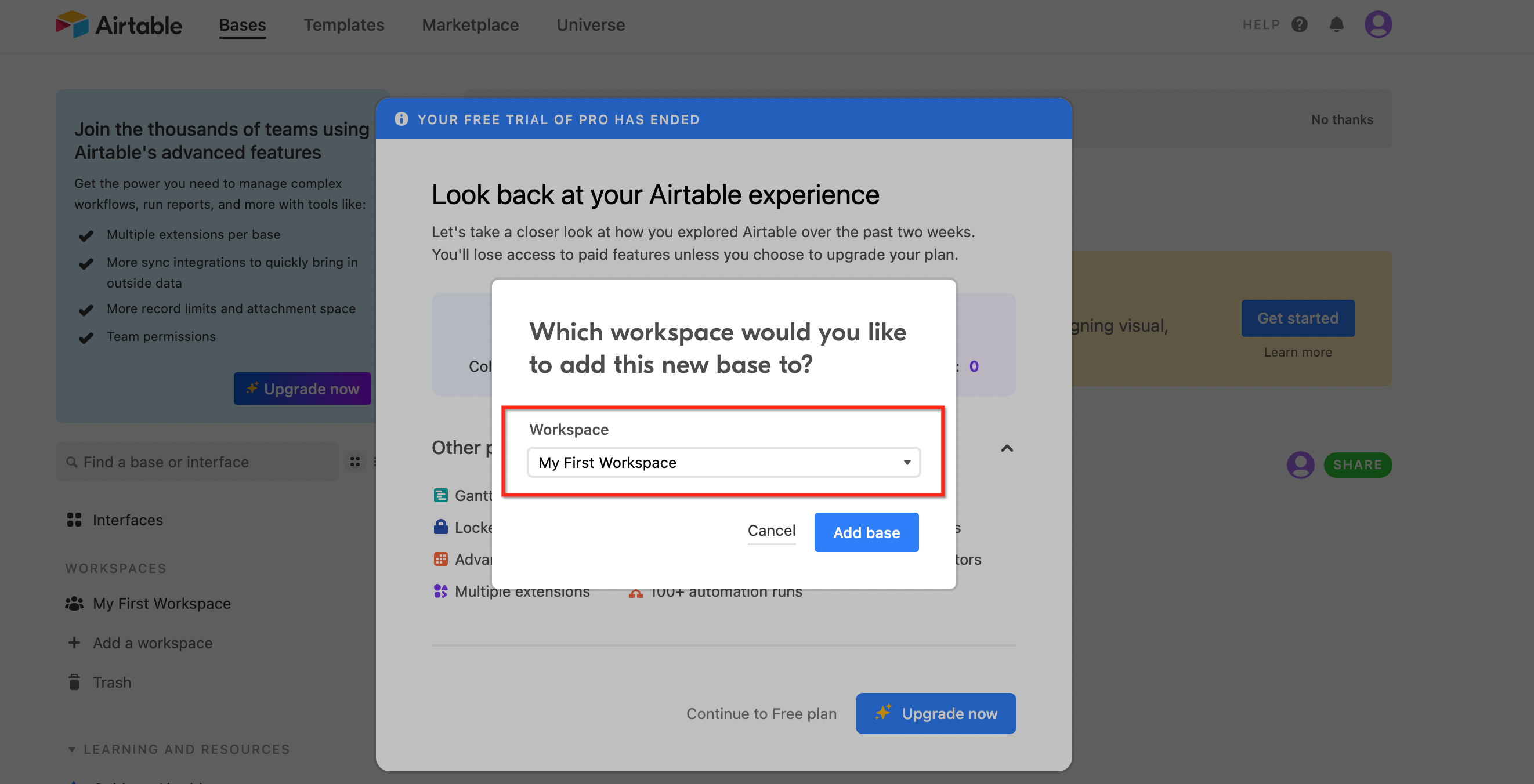
- Choose a workspace to copy the base to and click on Add base
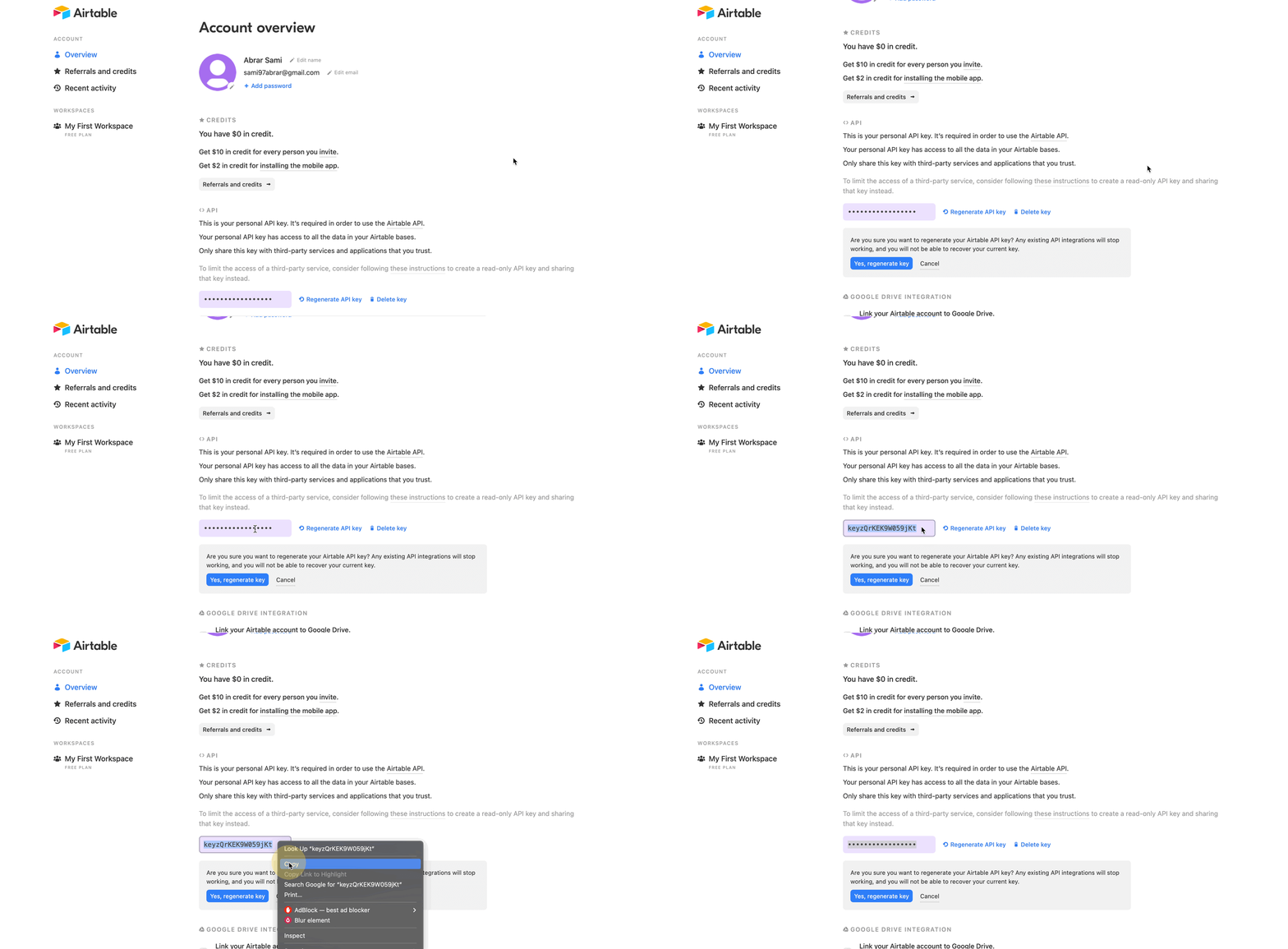
- After this, go to the URL
www.airtable.com/account

- From here, copy the API key as shown below
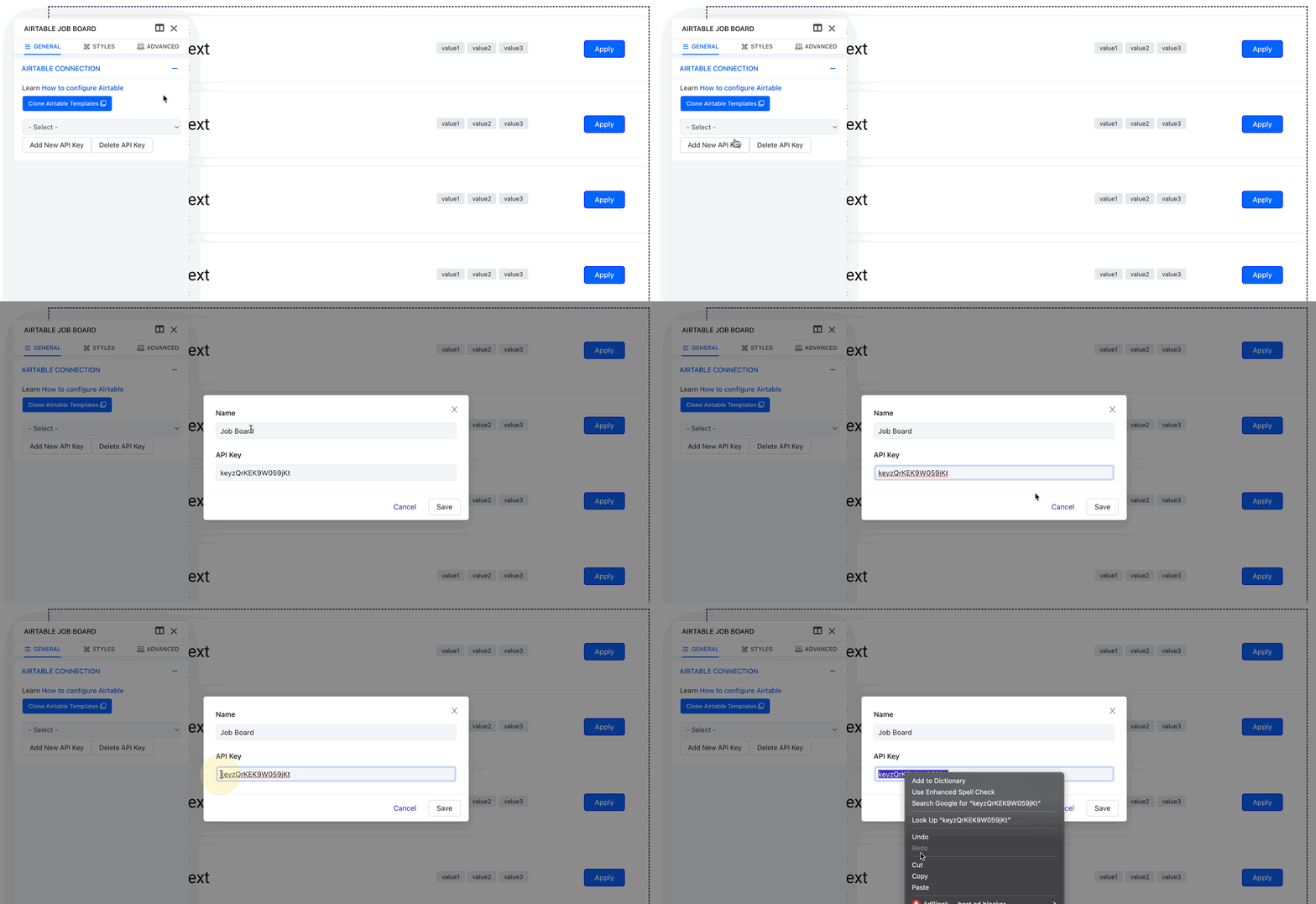
- Go to the builder and select Add New API Key from the Airtable Job Board editor. Then give it a name and paste the API key you copied in the previous step.
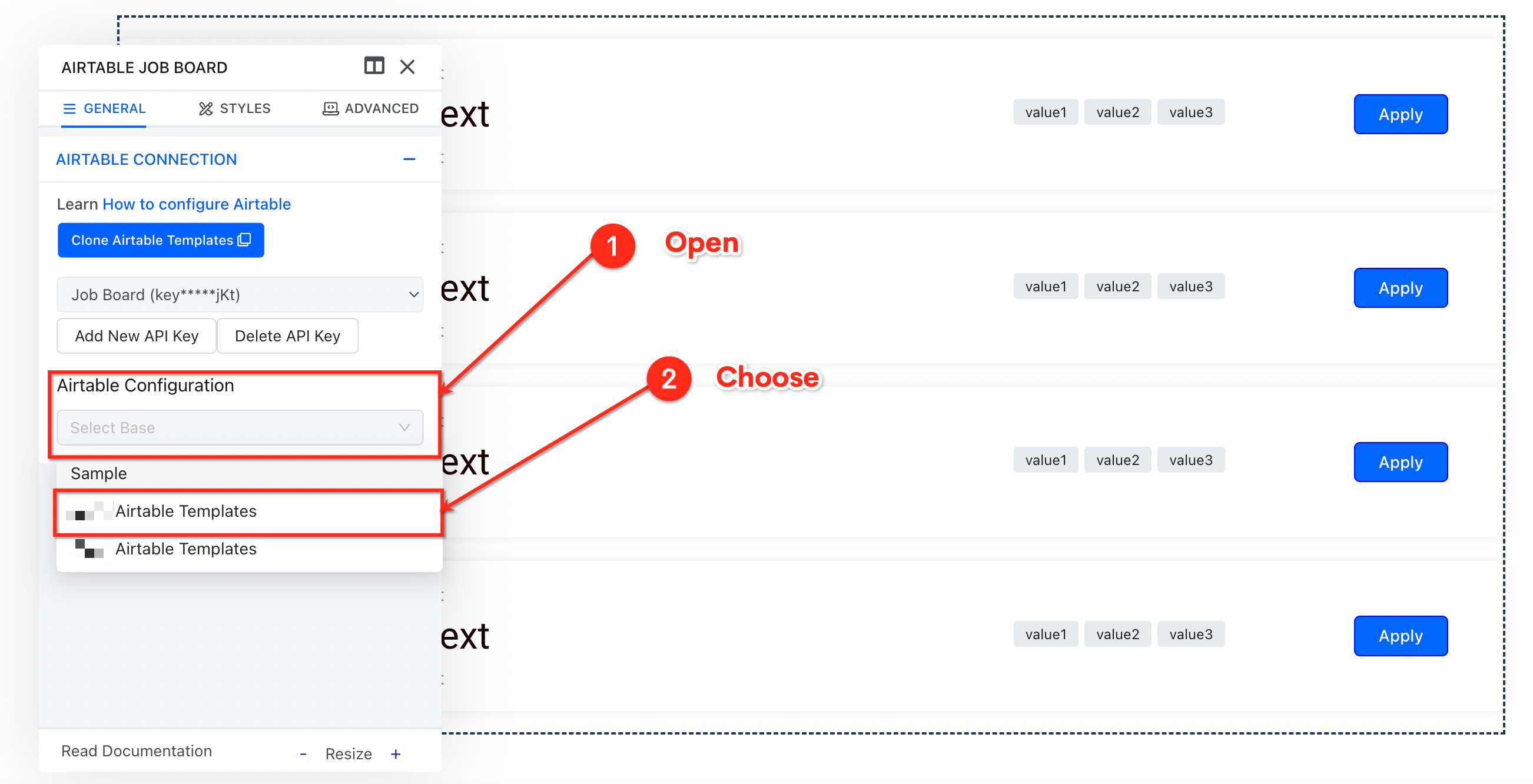
- Choose the base and configure your Airtable Job board element
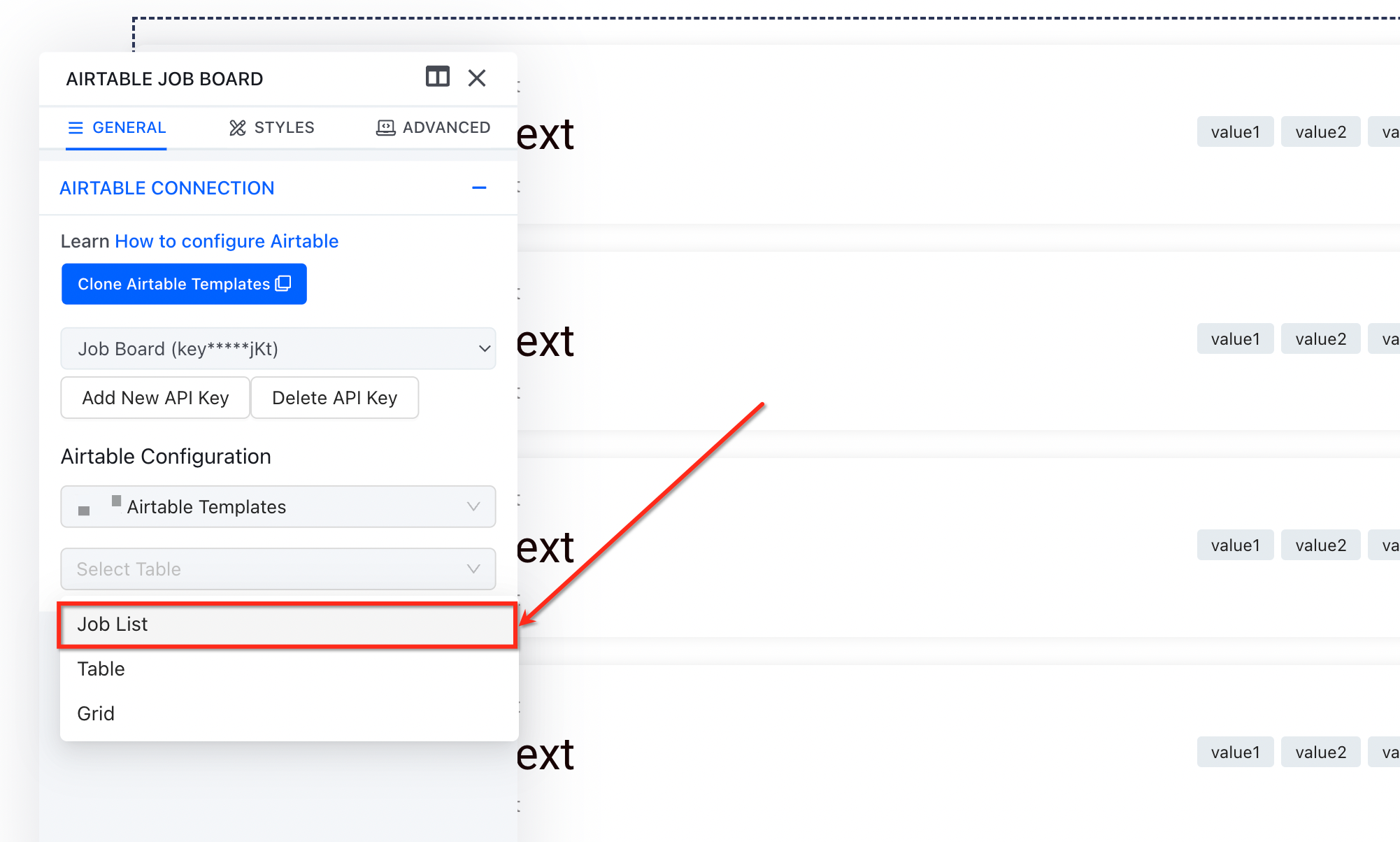
- Choose a Table
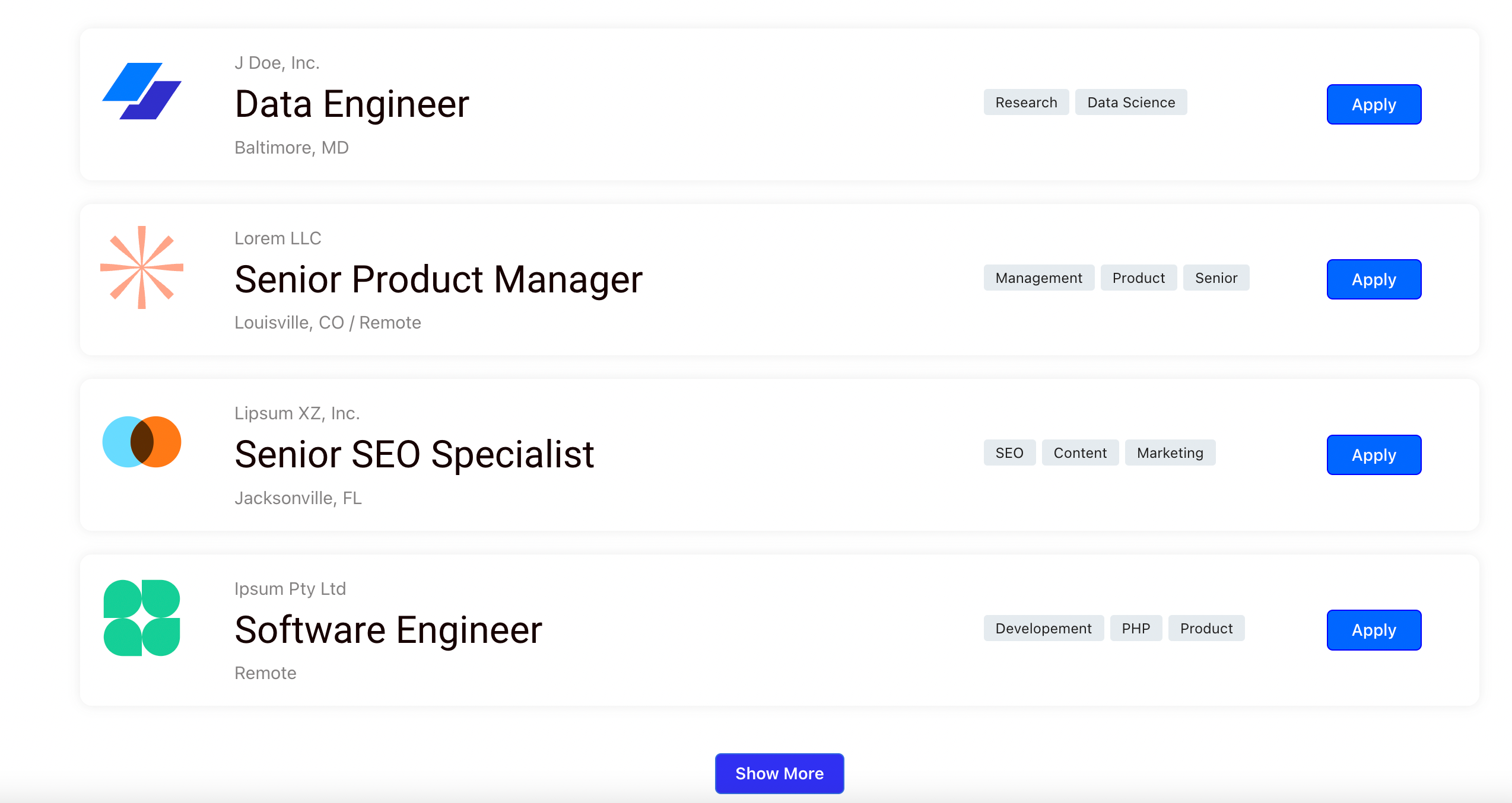
- Your Airtable Job Board has been connected and configured ⬇️
Adding Prefilter
To filter out data you do not want to display on your Airtable Element, follow the steps below:
- After configuring the Airtable element, expand the Prefilter option just below the Airtable Configuration option
- Click on + Add New Filter
- Select a field
- Choose a filtering option (Equal, Does Not Equal, Contains, Does Not Contain, etc.)
Refer to the list below to understand how these filters work:
Filters
- Equal
- Does Not Equal
- Contains
- Does Not Contain
- Is Empty
- Is Not Empty
Supported Airtable Field Types
- singleSelect
- multipleSelects
- singleLineText
- longText
- phoneNumber(will be treated as TEXT)
- url(will be treated as TEXT)
- email(will be treated as TEXT)
- date(not dateTime)
- formula(will be treated as NUMBER /TEXT)
- rollup(will be treated as NUMBER/TEXT)
- multipleLookUp(will be treated as NUMBER/TEXT/multipleSelects)
- currency(will be treated as NUMBER)
- percent(will be treated as NUMBER)
- rating(will be treated as NUMBER)
- number
- autoNumber(will be treated as NUMBER
Refer to the GIF below to see an example of how prefilter works:
Editing the Airtable Job Board Element
Follow the steps and instructions below to add and edit an Airtable Job Board on your site.
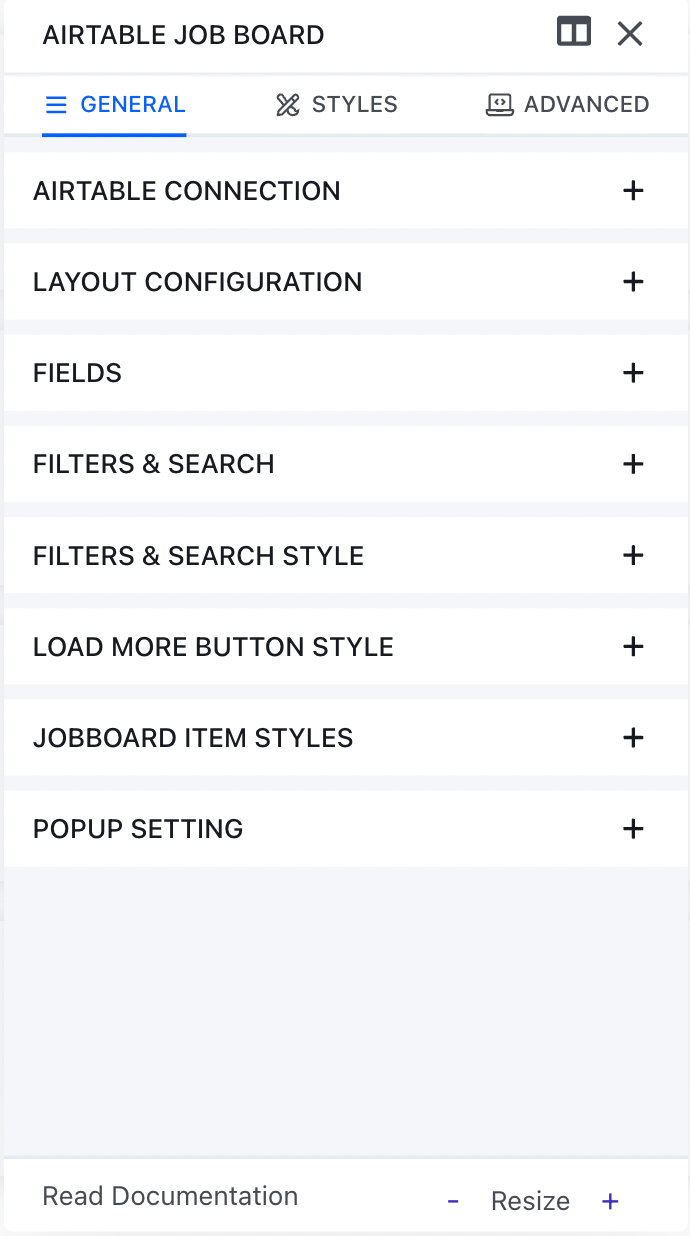
The Airtable Job Board element editor has the following options:
- Airtable Connection
- Layout Configuration
- Fields
- Filters and Search
- Filters and Search Style
- Load More Button style
- Job Board Item Style
- Popup Setting
The Airtable Job Board element editor:
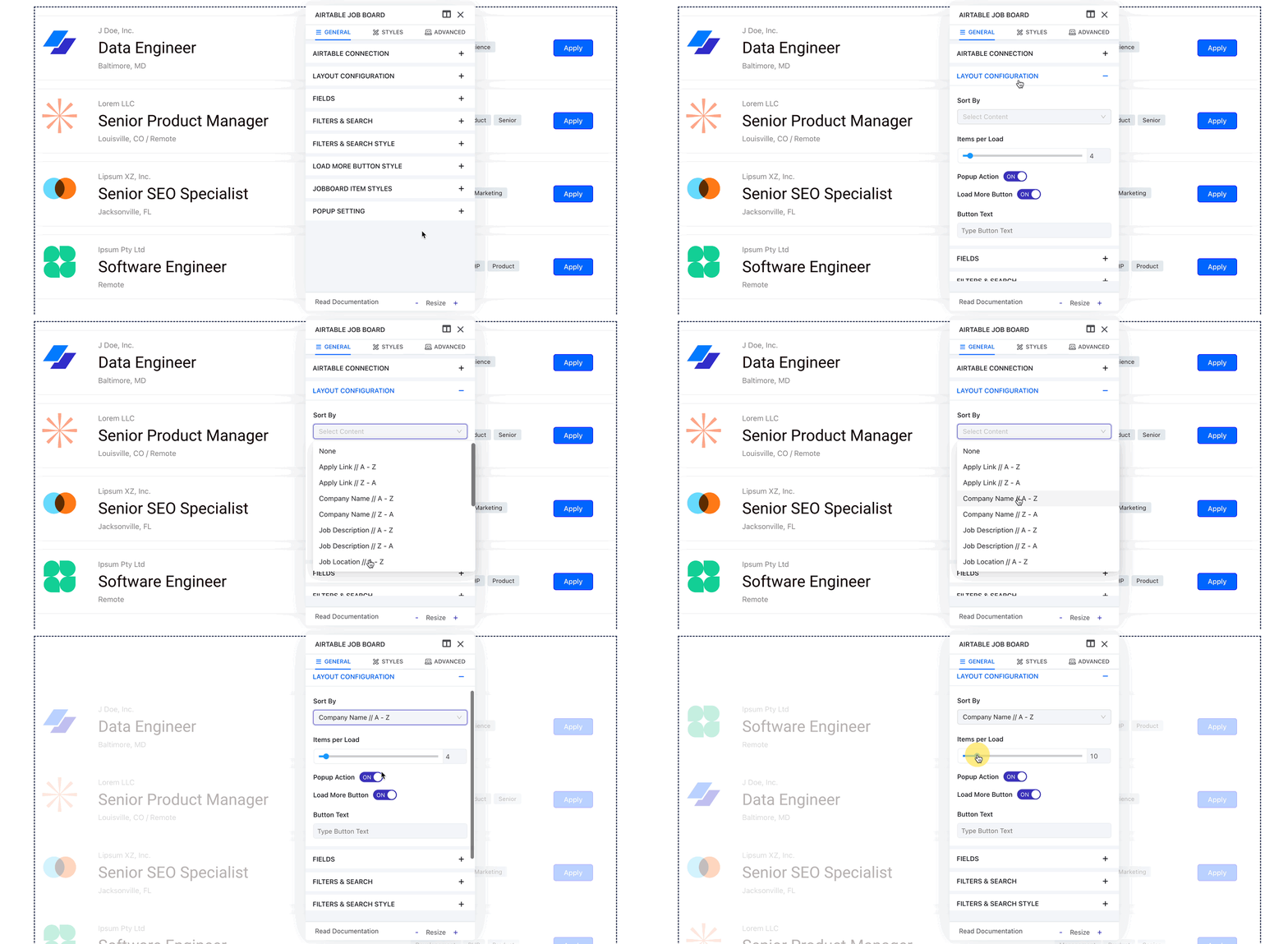
Layout Configuration
This option allows you to make changes to the layout of the Airtable Job Board element. Refer to the GIF below to see these settings in action.
Fields
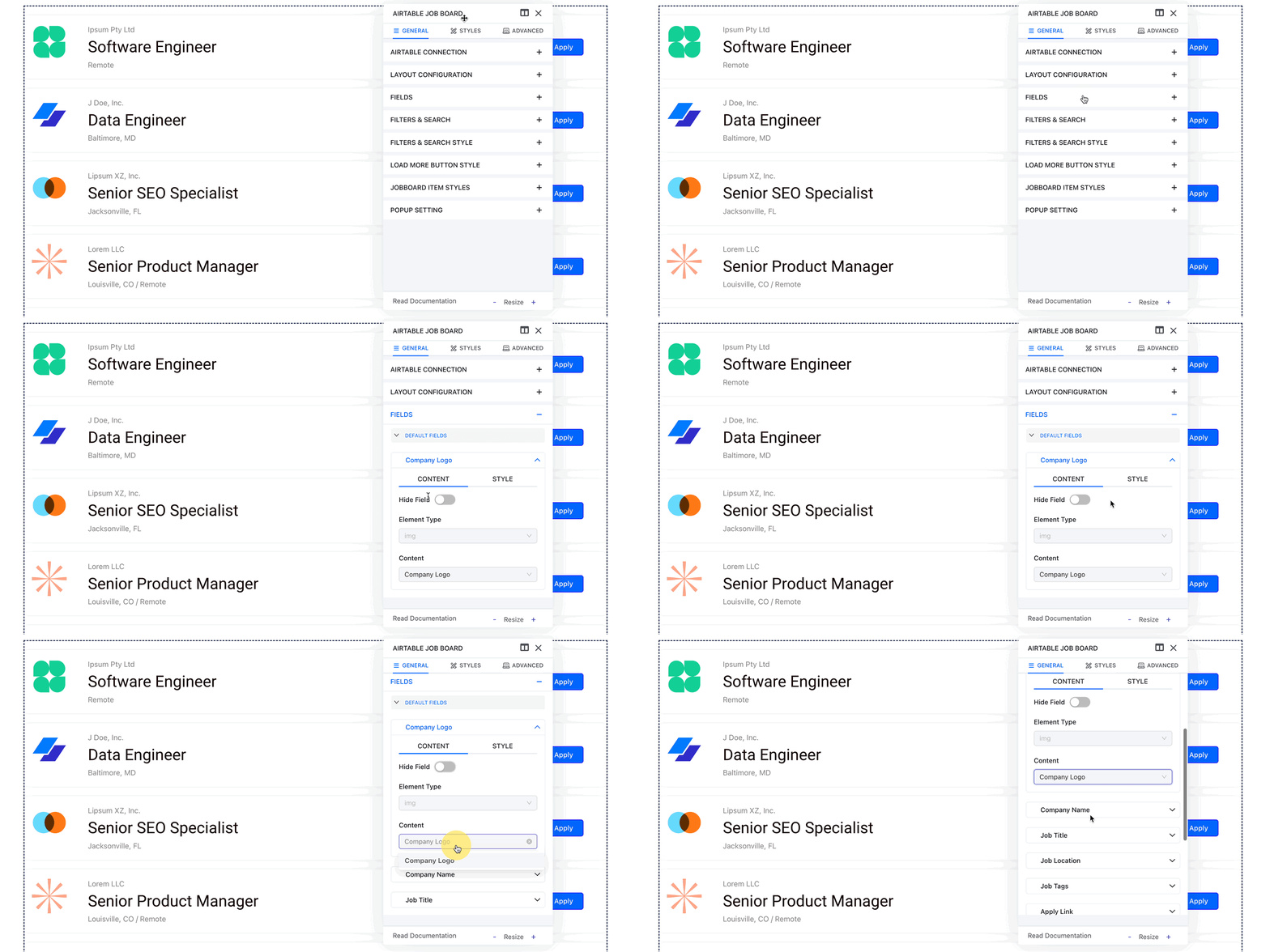
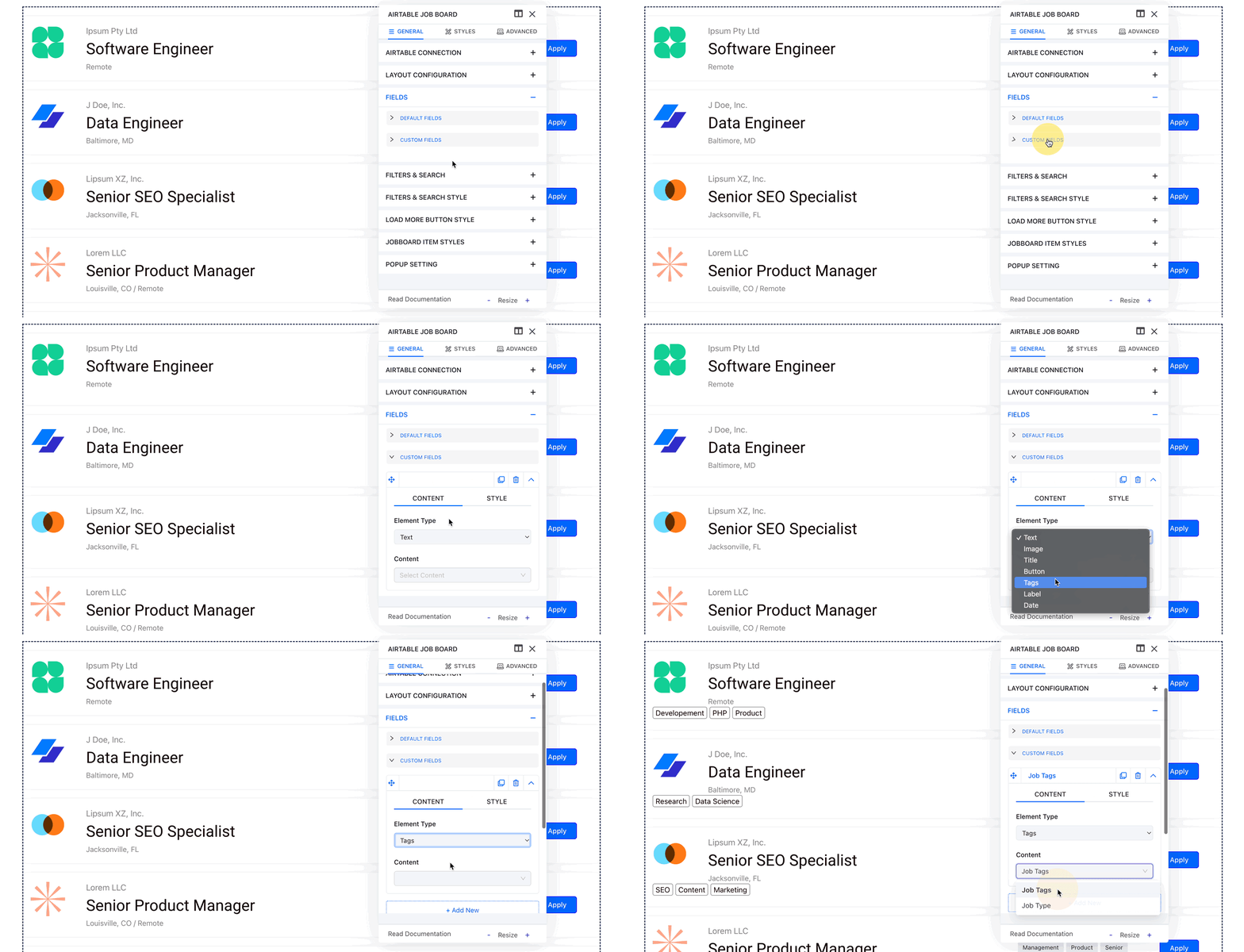
This option lets you change the fields inside the Airtable Job Board element. There are two types of fields that you can make changes to:
- Default Fields
- Custom Fields
Let's take a look at each field setting inside this option:
- Default Fields
- Custom Fields
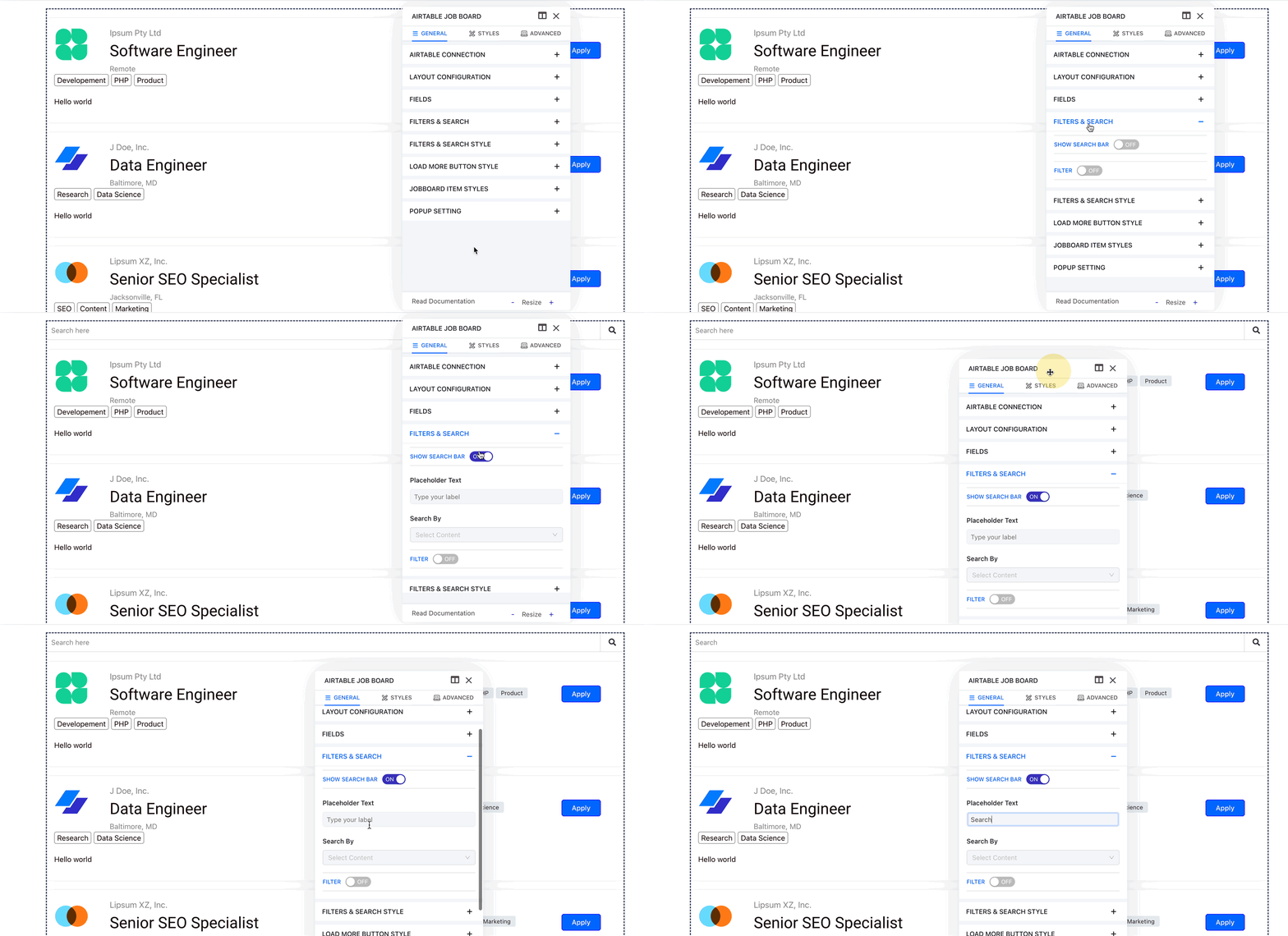
Filters and Search
This option allows you to add a search bar and a filter to your Airtable Job Board element.
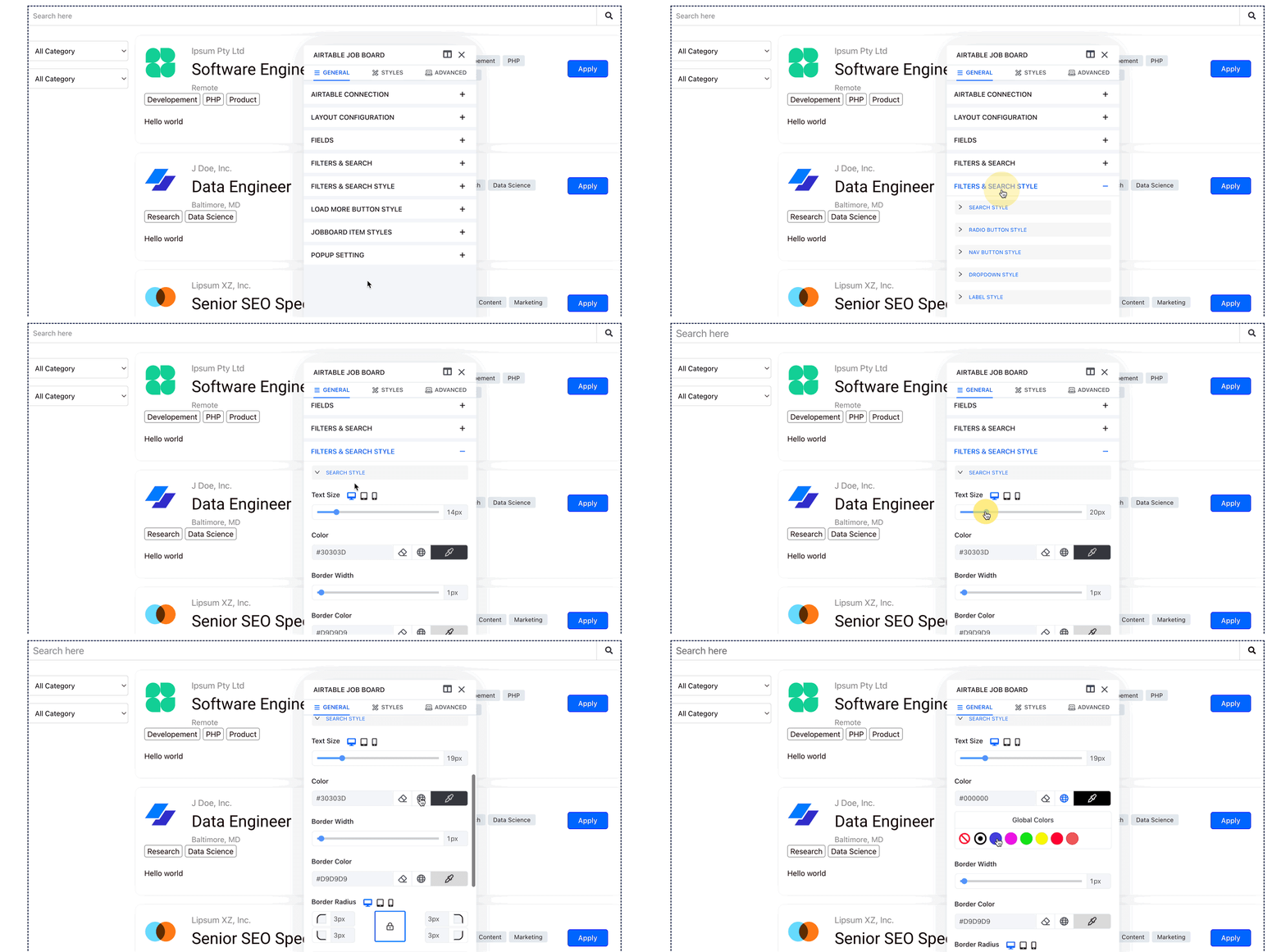
Filter and Search Style
This option allows you to stylize the Search bar and filter in your Airtable Grid element. Refer to the GIF below to see the demonstration.
Load More Button Style
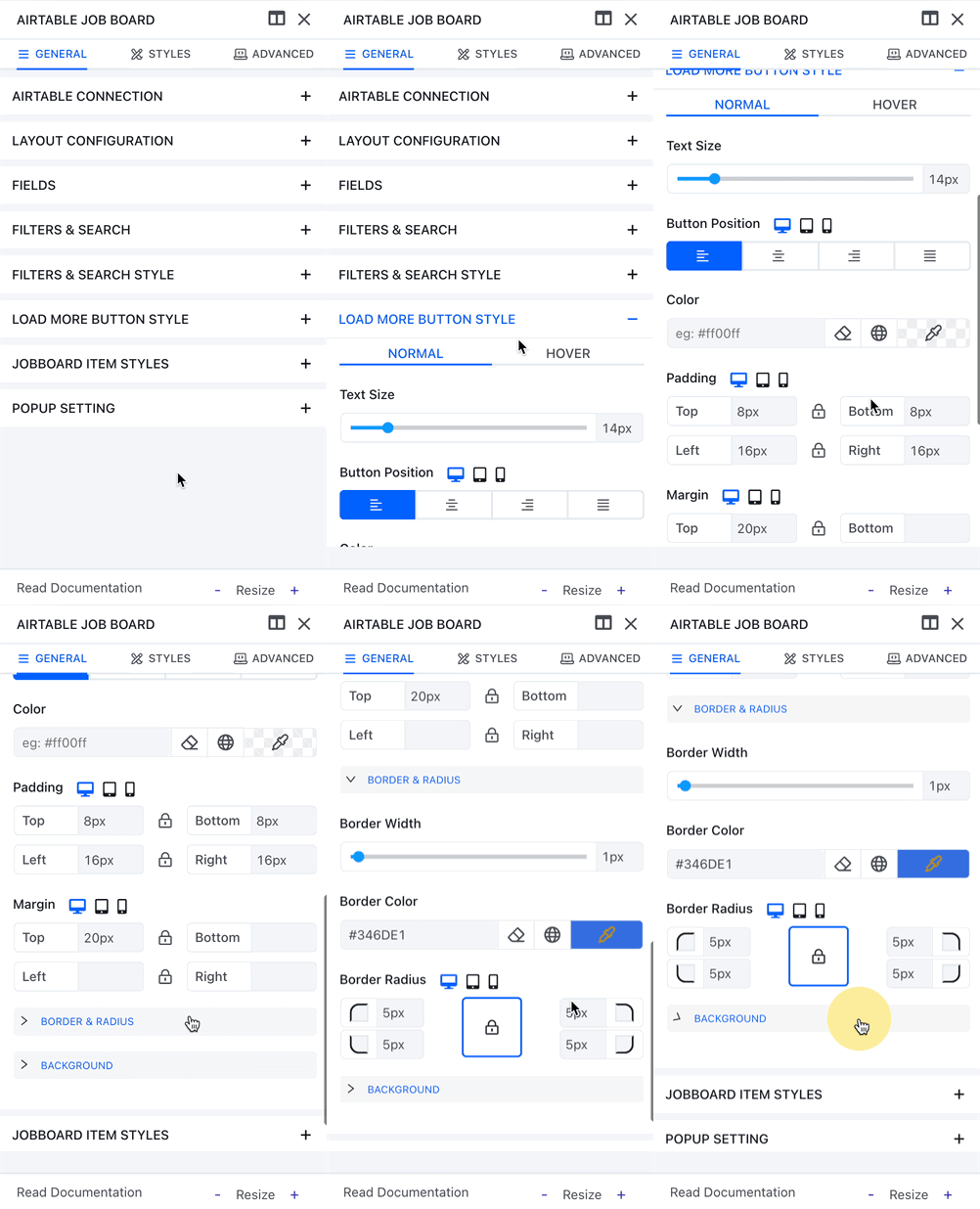
This option allows you to stylize the Load More button. The Load More button works when a user wants to view more items in the Airtable Job Board.
Refer to the GIF below to see the settings inside this option
Job Board Item Styles
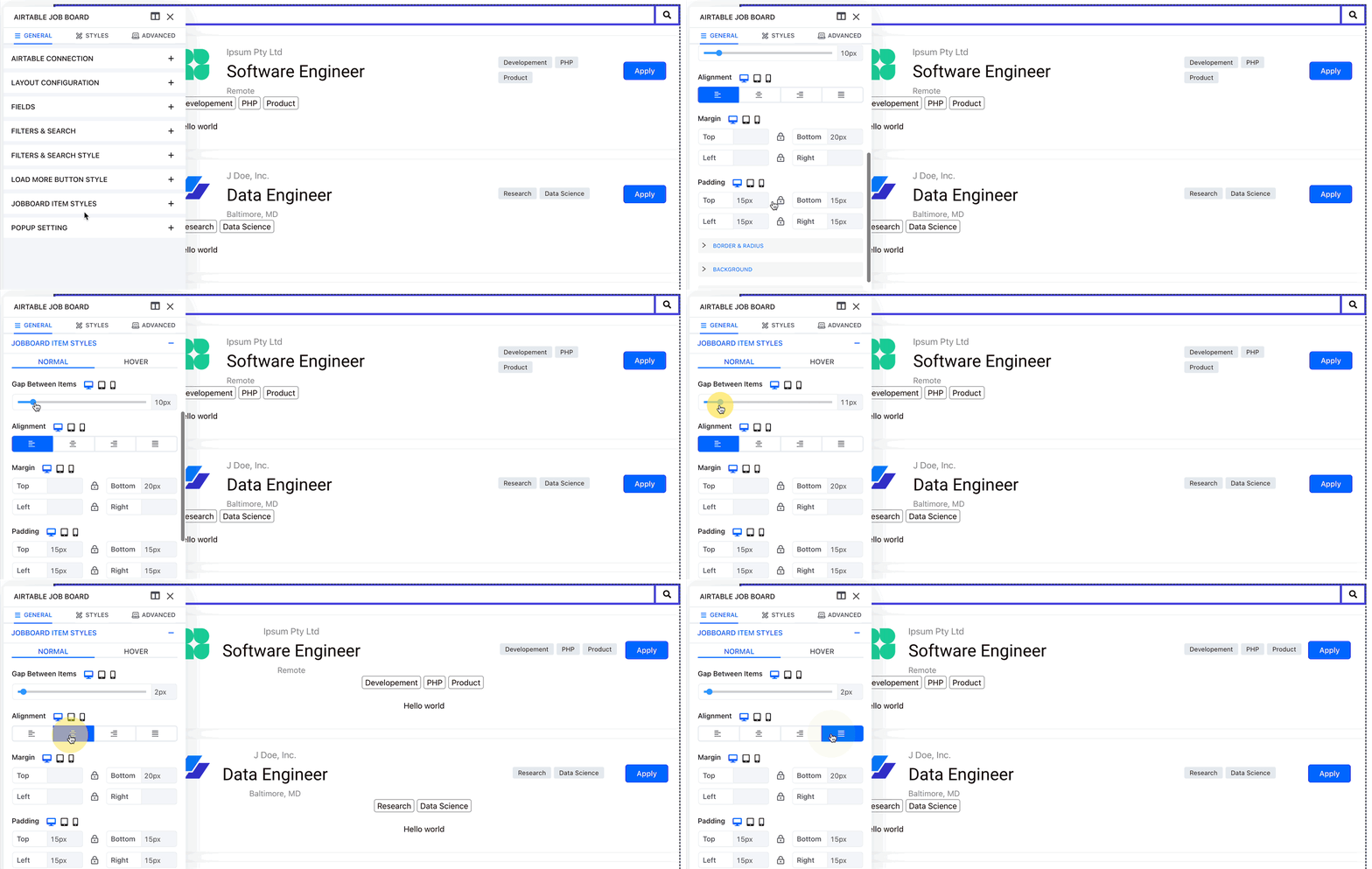
Using this option, you can stylize the items in your Airtable Job Board element. Refer to the GIF below to see how the settings work inside this option.
Popup Setting
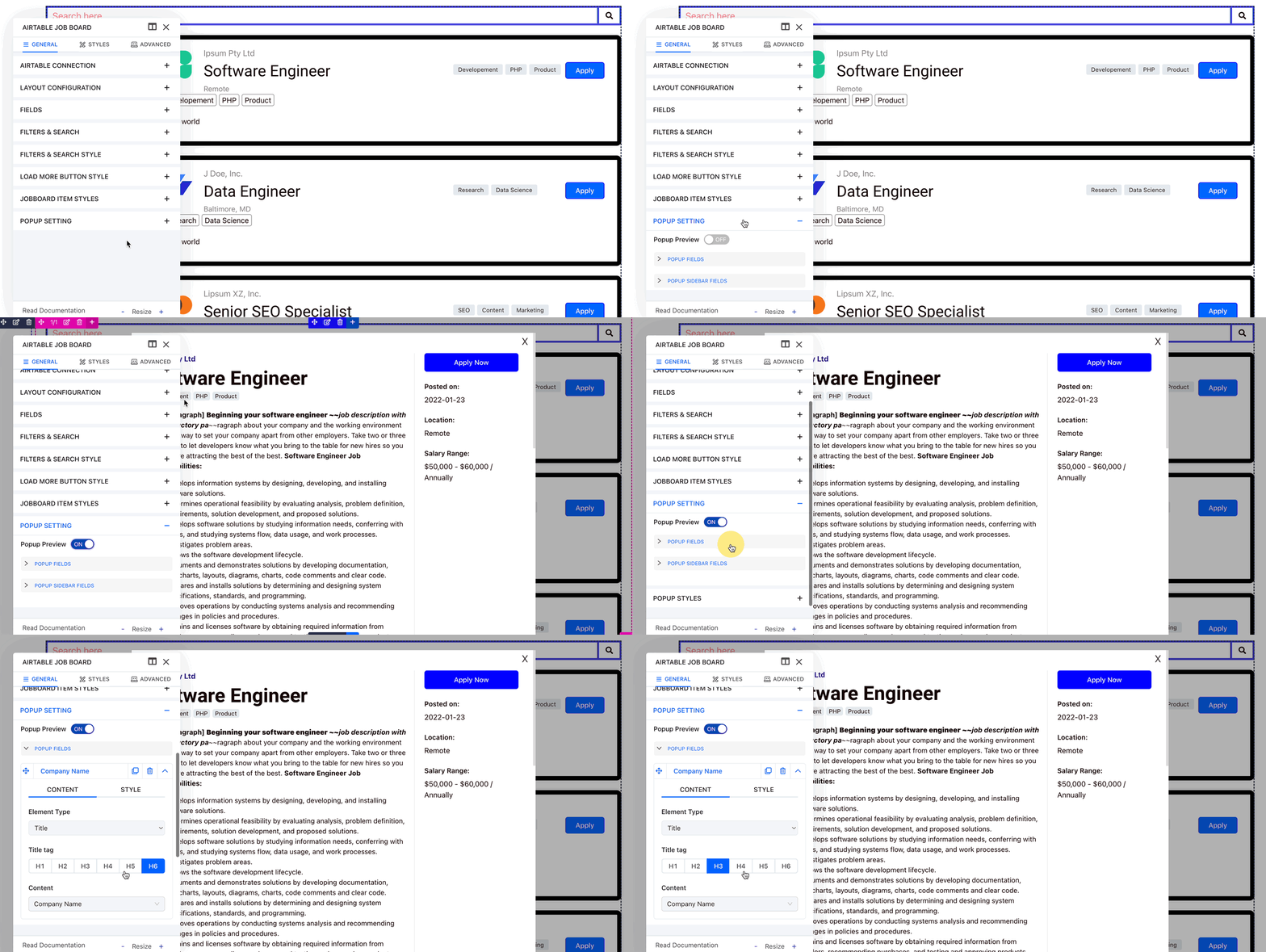
This option allows you to change how the popup will appear after a user clicks on an item on the Airtable.
Refer to the GIF below to see how these settings work.
Related articles
Airtable Grid Airtable TableAi nevoie de ajutor? Scrie-ne.