
Ajutor › Integrări Formular Personalizat
Airtable Integration on Custom Form
Getting Started
This article will cover the steps required to integrate a custom form for your website.
Table of Contents
Adding a Custom Form
To add a Custom form element to your website, refer to the article below:
Custom FormAirtable Integration
To integrate Airtable into your custom form, follow the steps given below:
- Login to your Airtable account
- Create a base
- Go to your profile airtable.com/account
- Copy the API Key
- Come back to your site
- Click on Edit Element on the Custom Form
- Expand the Form Configuration option
- Go to Send To & select Airtable
- Click on Add New Key
- Give your key a name
- Paste your API key
- Click Save
- Choose your base from the Airtable Configuration option
- Publish your site
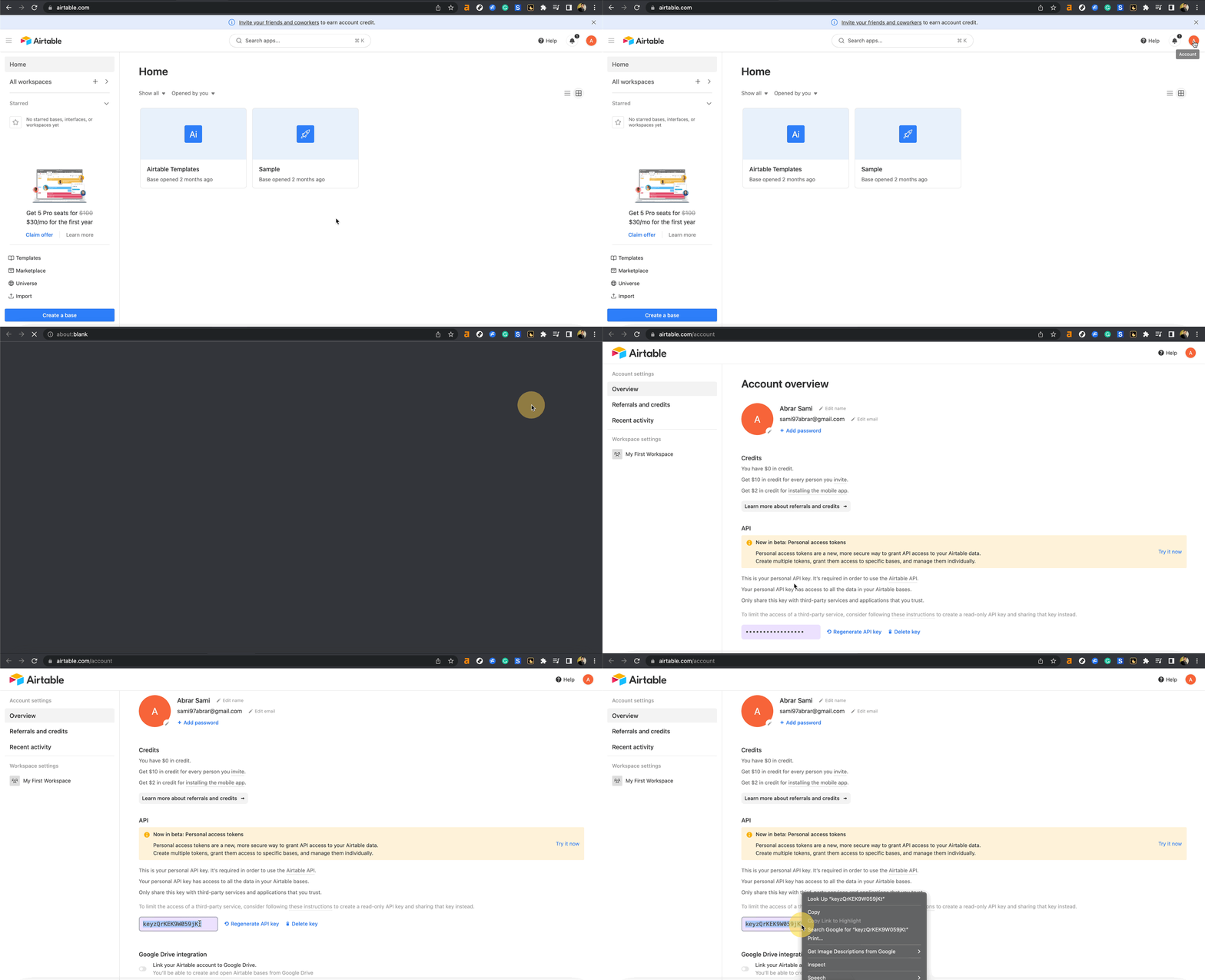
Refer to the GIF below to see the above steps visualized:
- Login to your Airtable account, and create a base(optional if there are already bases created or depends on your requirements)
- Go to your profile airtable.com/account & copy the API Key
- Go back to your builder & click on
Edit Element - Expand the Form Configuration option
- Go to Send To & select Airtable
- Click on Add New Key
- Give your key a name
- Paste your API key
- Click Save
- Choose your base from the Airtable Configuration option & Publish your site.
Related articles
Custom Form Zapier Integration on Custom FormAi nevoie de ajutor? Scrie-ne.