
Ajutor › Integrări Formular Personalizat
Pabbly Connect Integration on Custom Form
Getting Started
This article will cover how you can integrate Pabbly on a Custom form on your site.
Table of Contents
Adding a Custom Form
To add a Custom form element to your website, refer to the article below:
Custom FormPabbly Integration
To integrate Pabbly on your Custom Form, follow the steps given below:
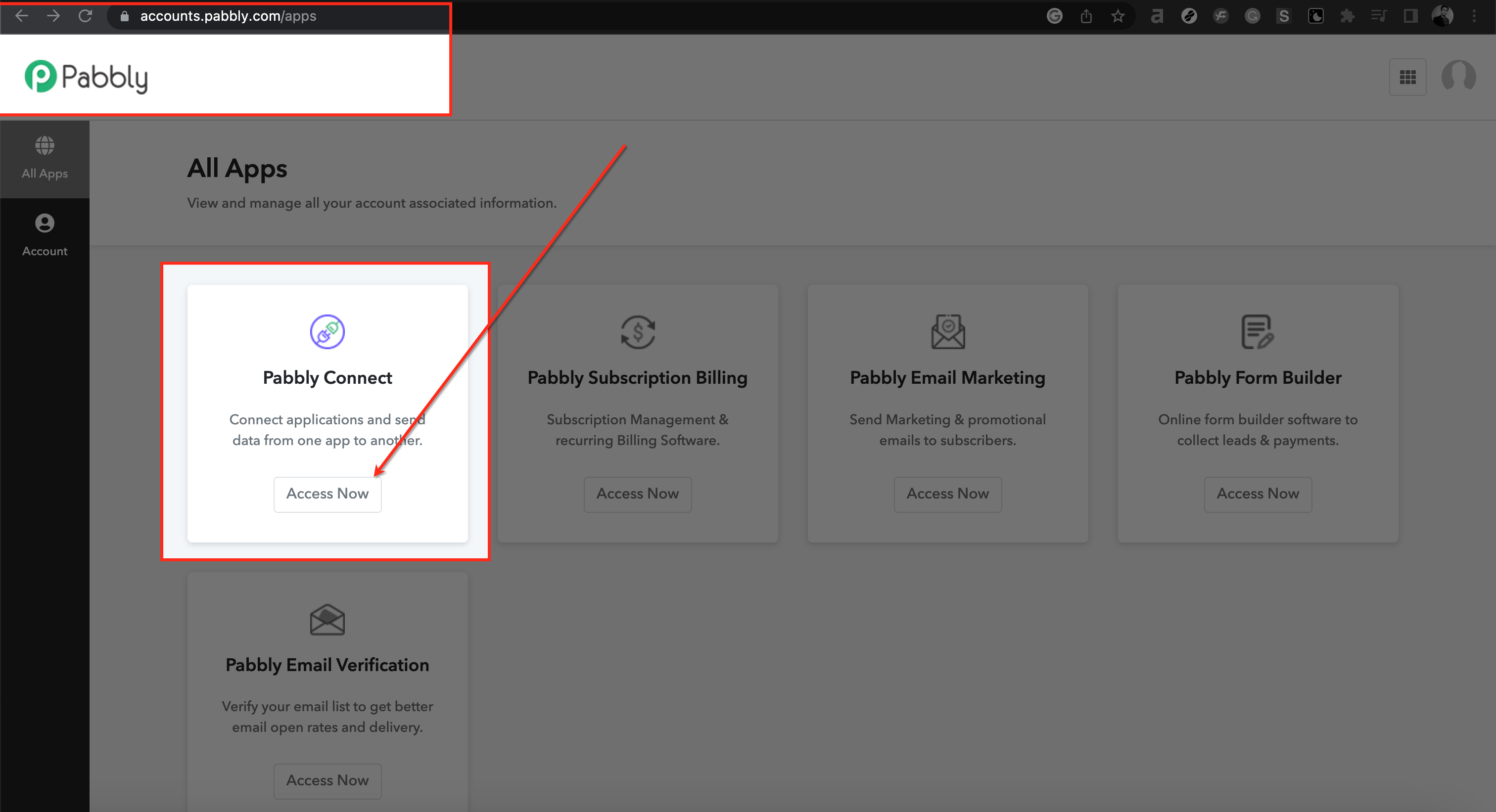
- Login to your Pabbly account and go to accounts.pabbly.com/apps
- Select the
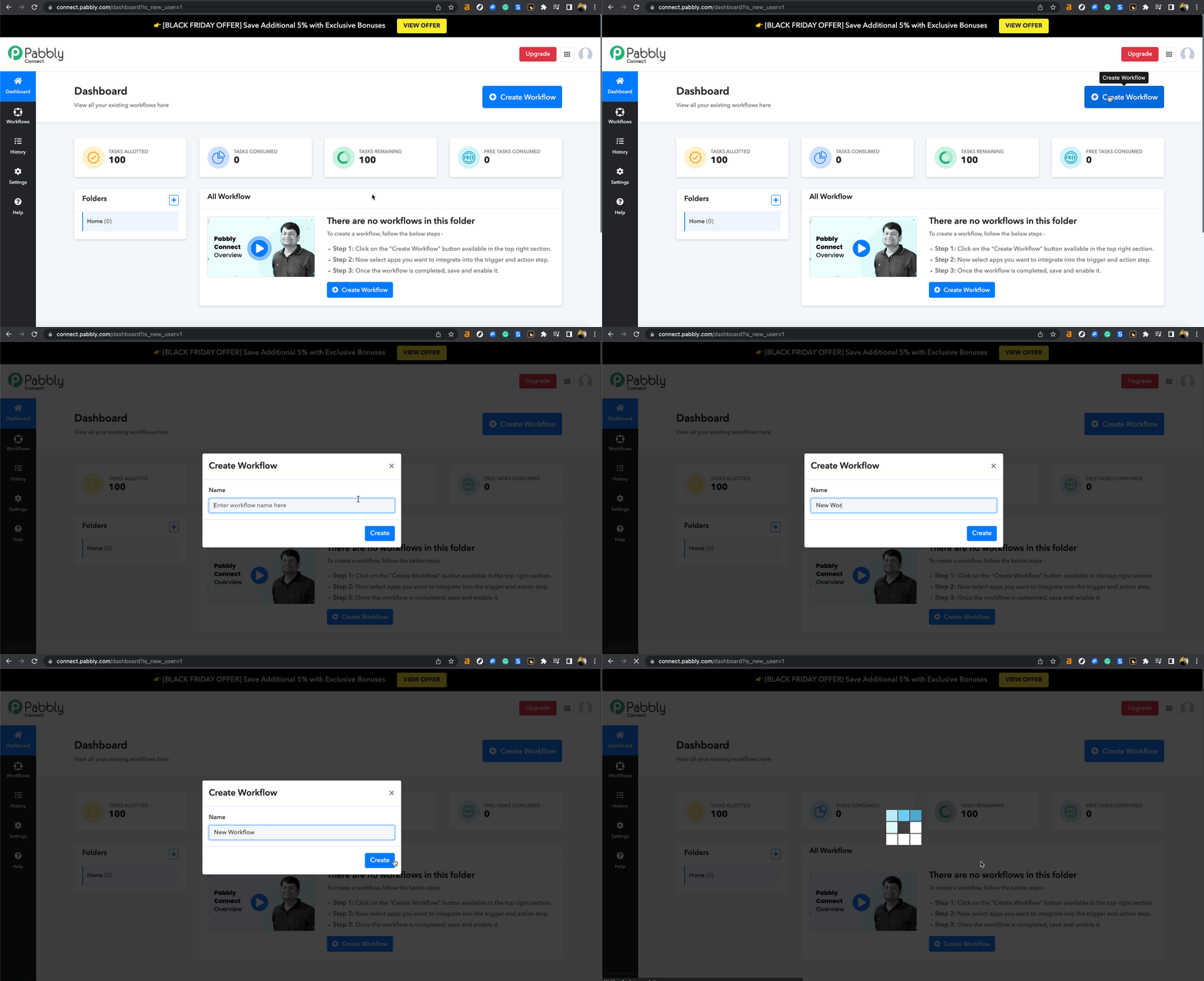
Pabbly Connectoption - Create a new workflow
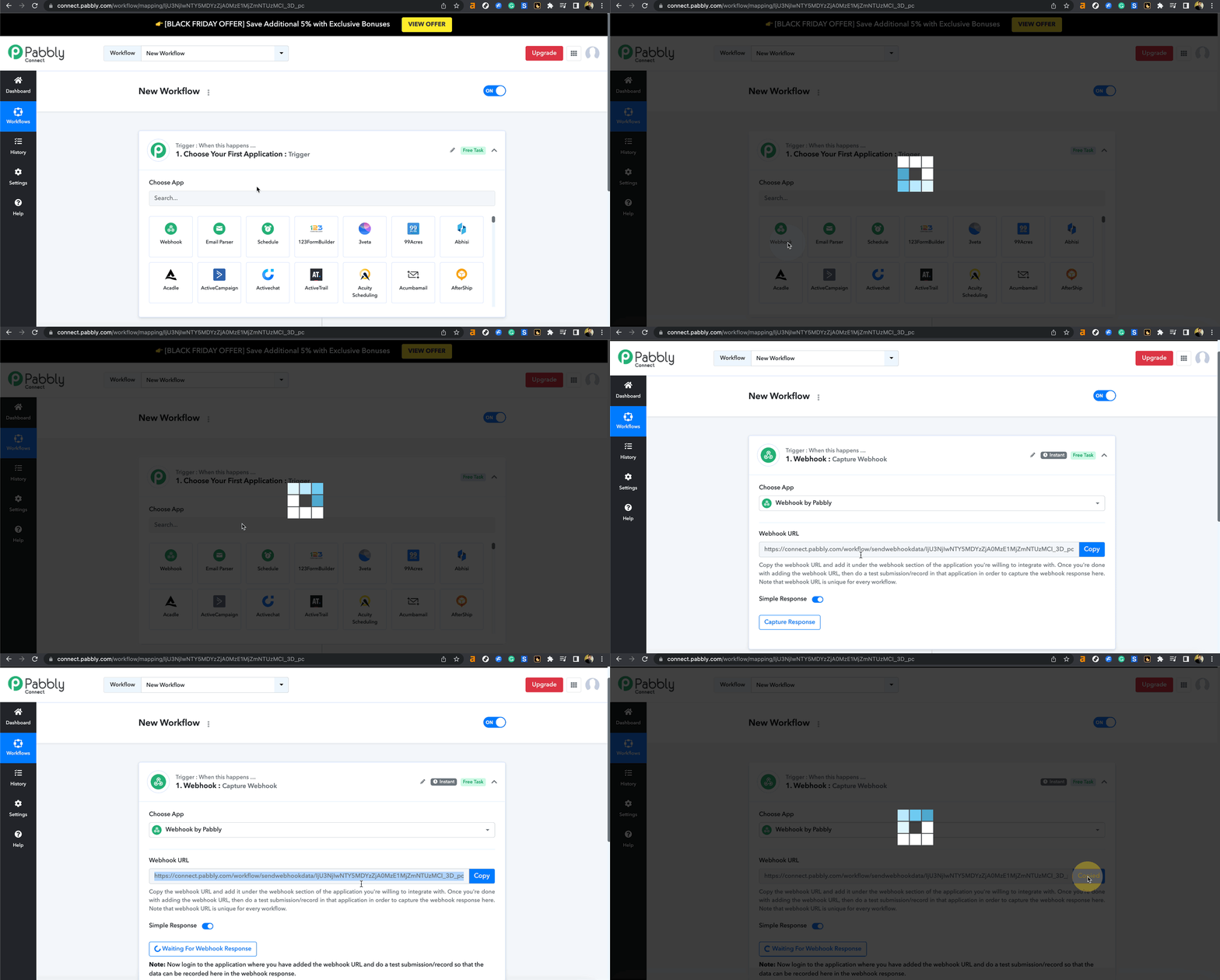
- Choose Webhook
- Copy the Webhook URL
- Go back to your site
- Paste the webhook URL on the Webhook URL input field in your Form Configuration option
- Click on the
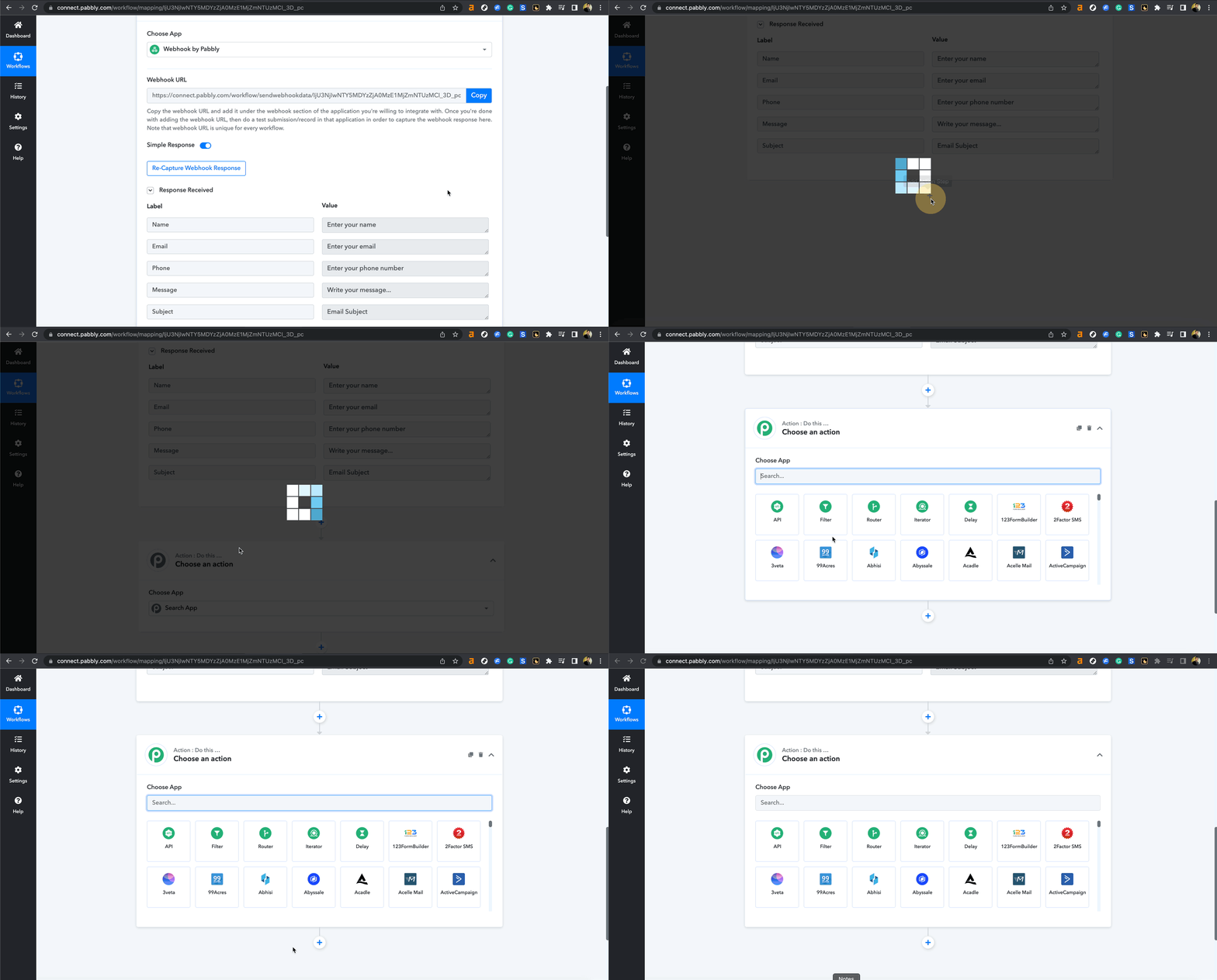
Click herelink on the bullet instructions given in your modal editor. The text is “Click here to send test data” - Pabbly will automatically generate the input fields of your form
- In the next step, you can integrate another third-party application that will receive data from your site through Pabbly.
Refer to the screenshots and GIFs below to see the steps visualized:
- Login to your Pabbly account and go to accounts.pabbly.com/apps. Select the Pabbly Connect option.
- Create a new workflow
- Choose Webhook and then copy the Webhook URL
- Go back to your site. Make sure “Pabbly Connect” is selected on the “Send to” option. Paste the webhook URL on the Webhook URL input field in your Form Configuration option.
- Click on the
Click herelink on the bullet instructions given in your modal editor. The text is “Click here to send test data”
- In the next step, you can integrate another third-party application that will receive data from your site through Pabbly.
Related articles
Integrarea Zapier Integration pentru Form de Contact📨 Contact FormAi nevoie de ajutor? Scrie-ne.