
Integrarea Google Analytics
Conținut
Getting Started
Google Analytics is a web analytics service offered by Google that tracks and reports website traffic, currently as a platform inside the Google Marketing Platform brand. This article will teach you how to integrate Google Analytics into your website.
Google Analytics Setup
This part of the section will cover how to setup Google Analytics. If you have already done that you may refer to the second section of this documentation.
To set up Google Analytics, follow the steps given below:
- Upon logging in, you will be redirected to the Google Analytics main page
- Click on the Start Measuring button in the center
- Complete every step including
- Account Setup
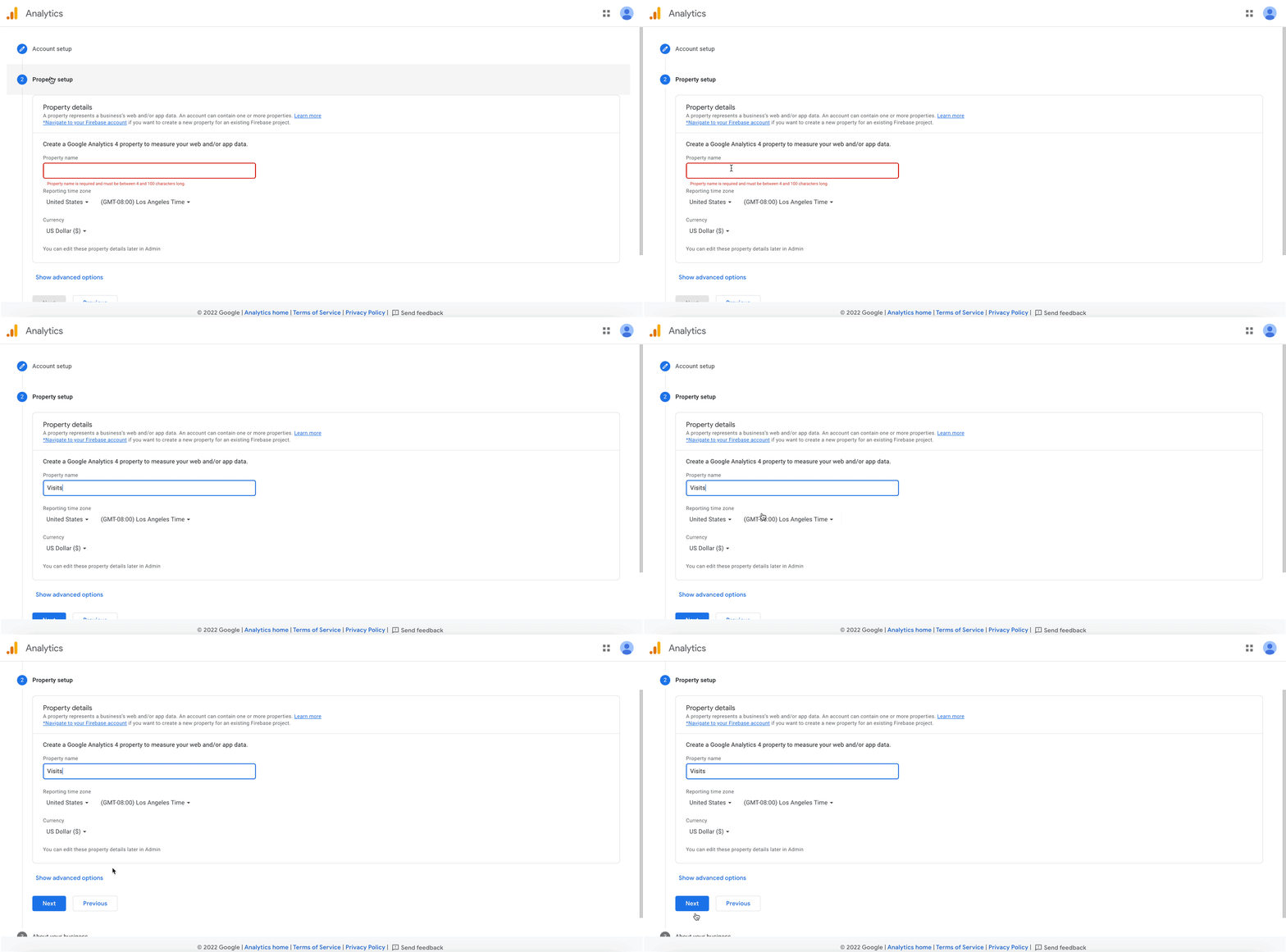
- Property Setup
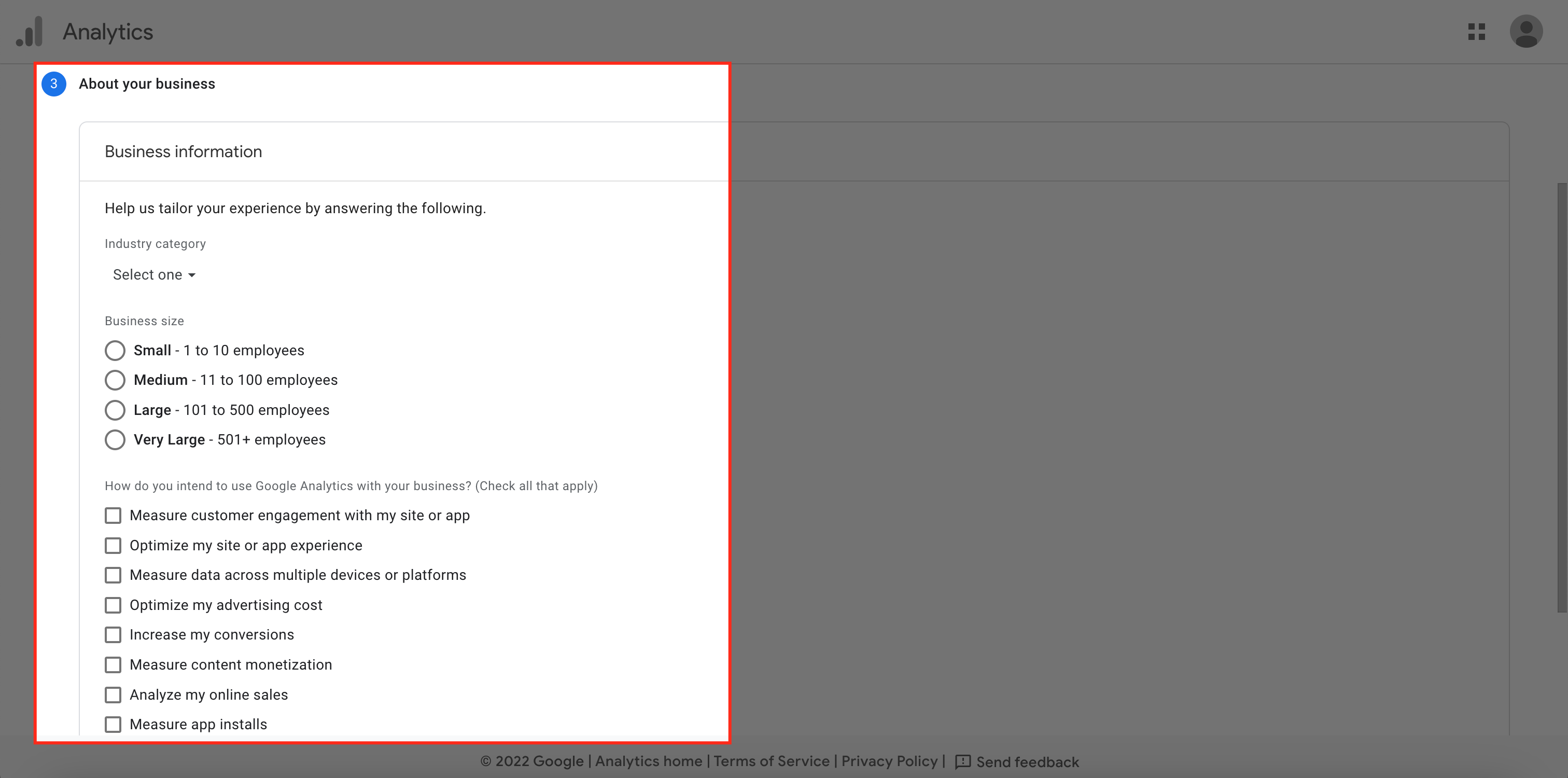
- About your business
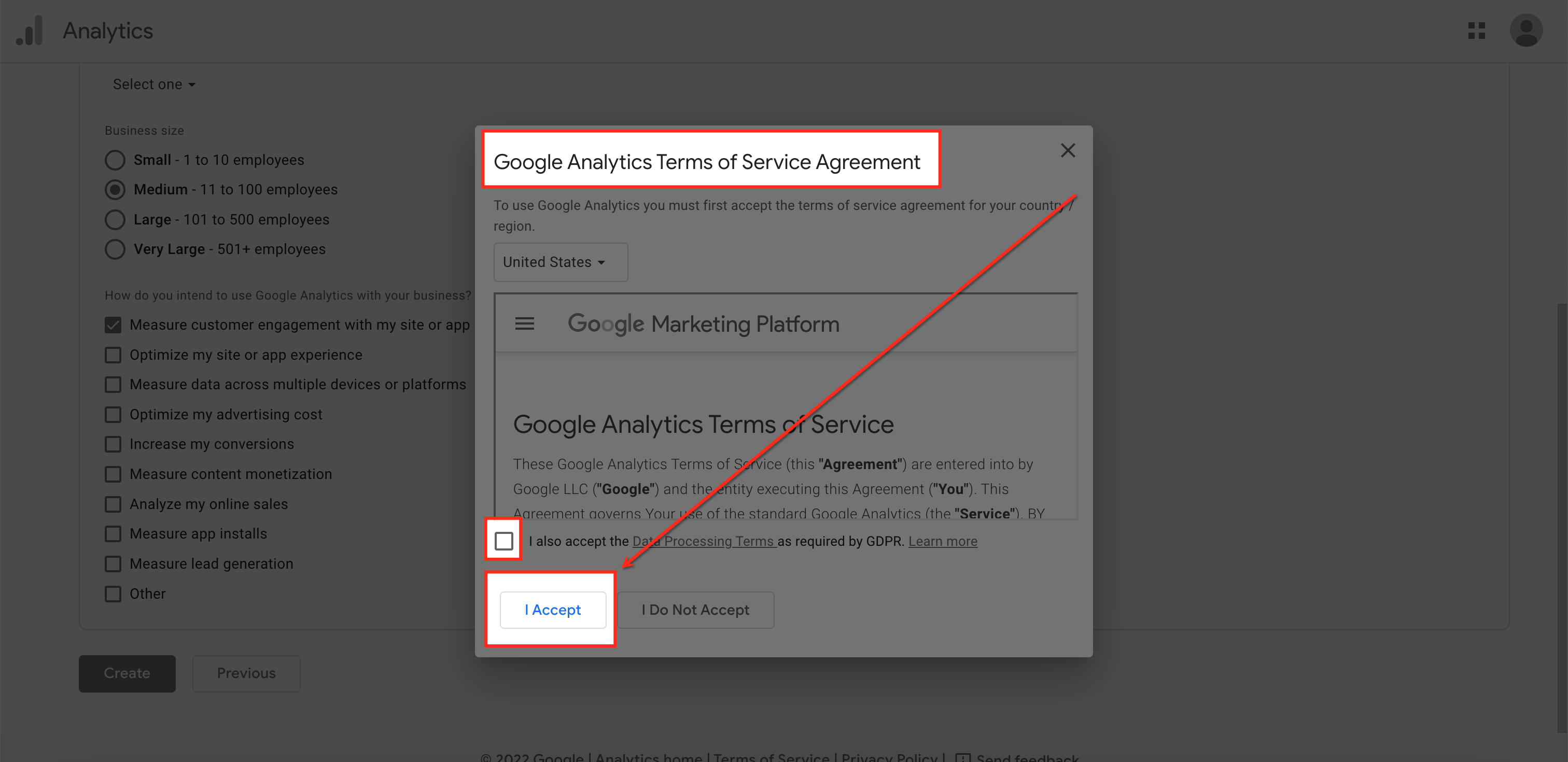
- Agree to the terms and condition
- Your account is set!
Refer to the GIFs & Images below —
- Account Setup

- Property Setup
- About your business
- Accept the terms and conditions
Domain Setup on GA
To set up your domain in Google Analytics, refer to the steps listed below:
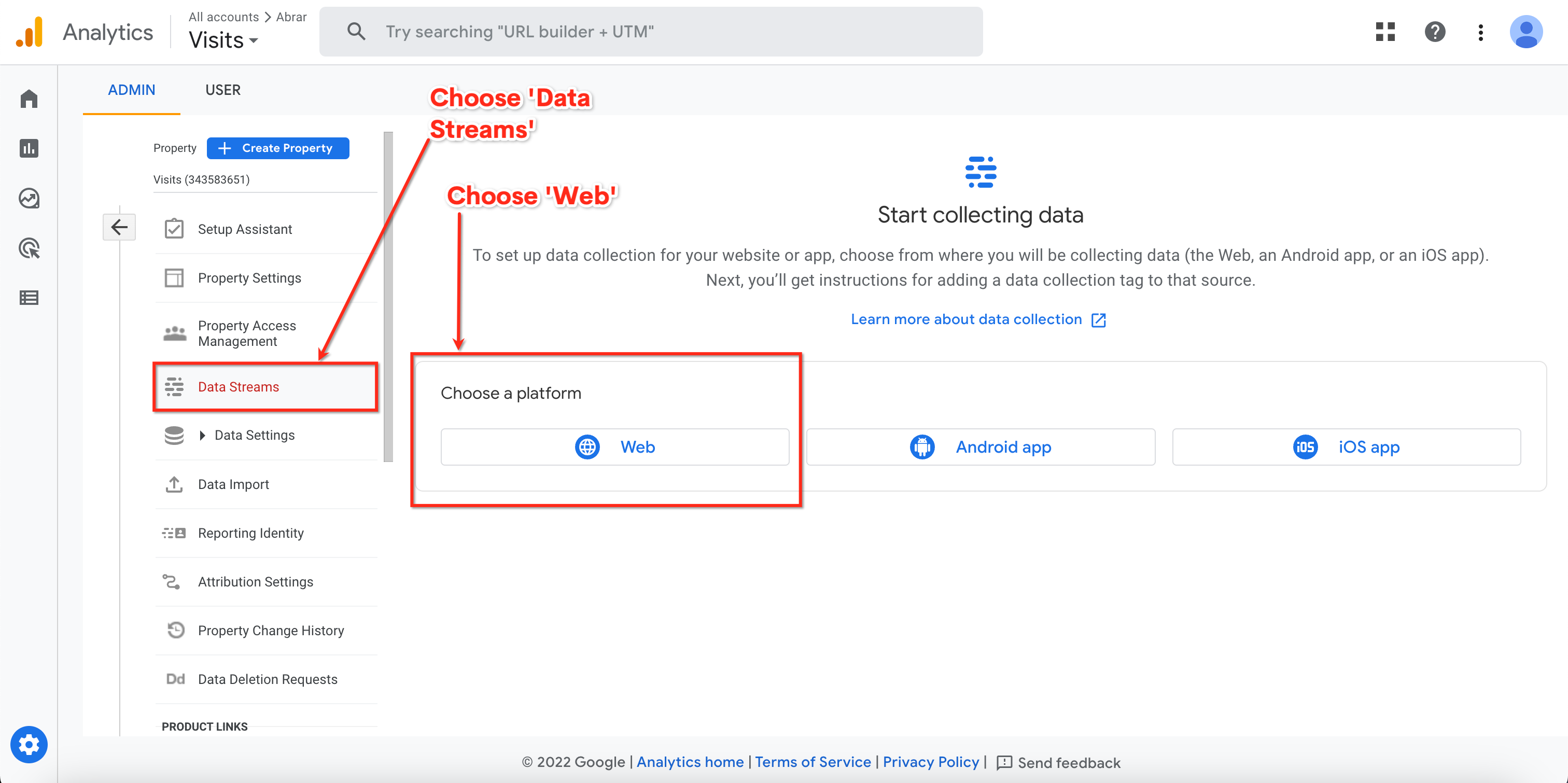
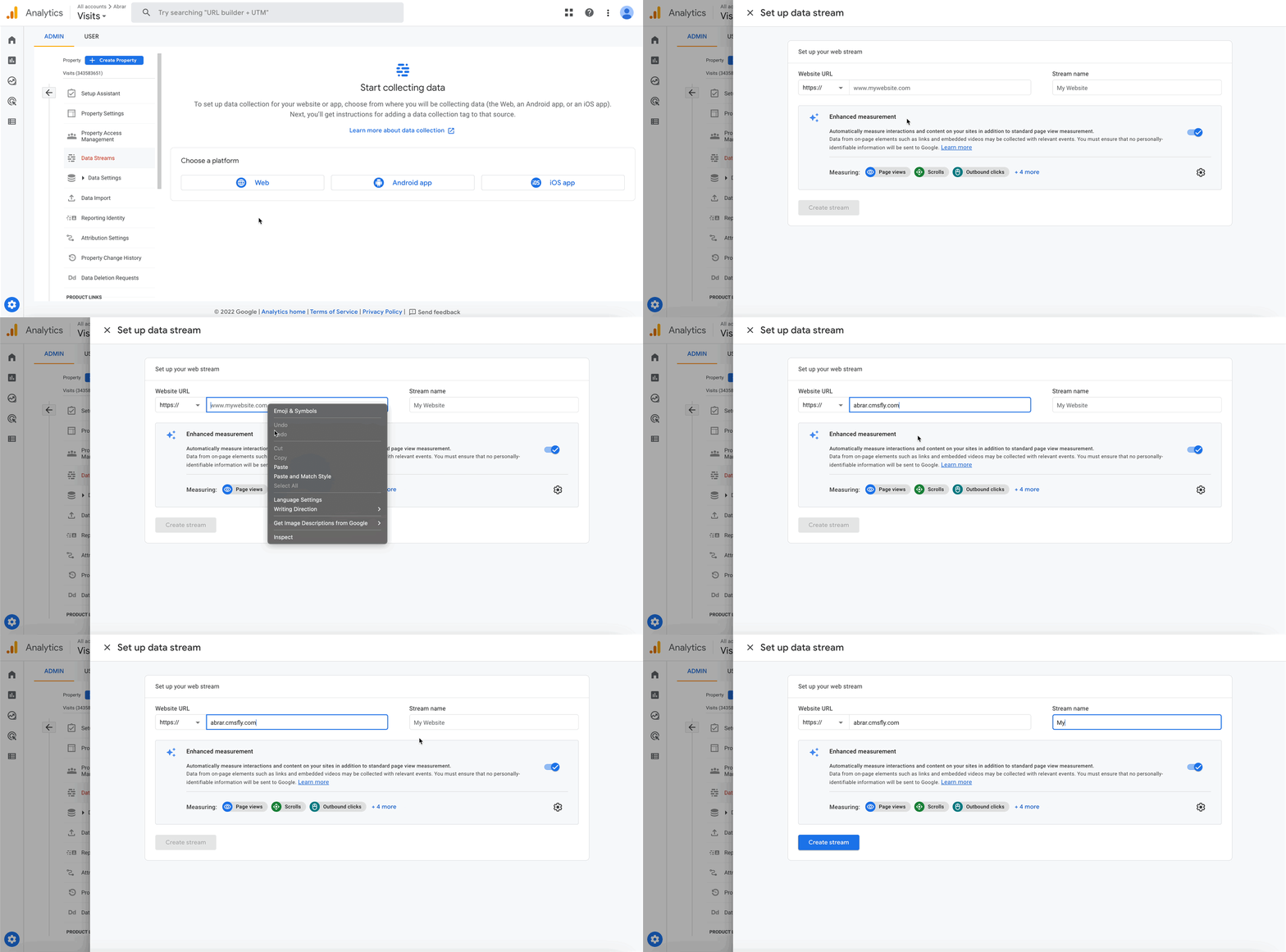
- After setting up, go to Data Streams
- Choose the platform as ‘Web’
- Enter your website’s URL in the Website URL input field
- Make sure to remove any slashes’ / ‘ on the URL suffix (after the URL)
- Input a stream name
- Press the ‘Create Stream’ button
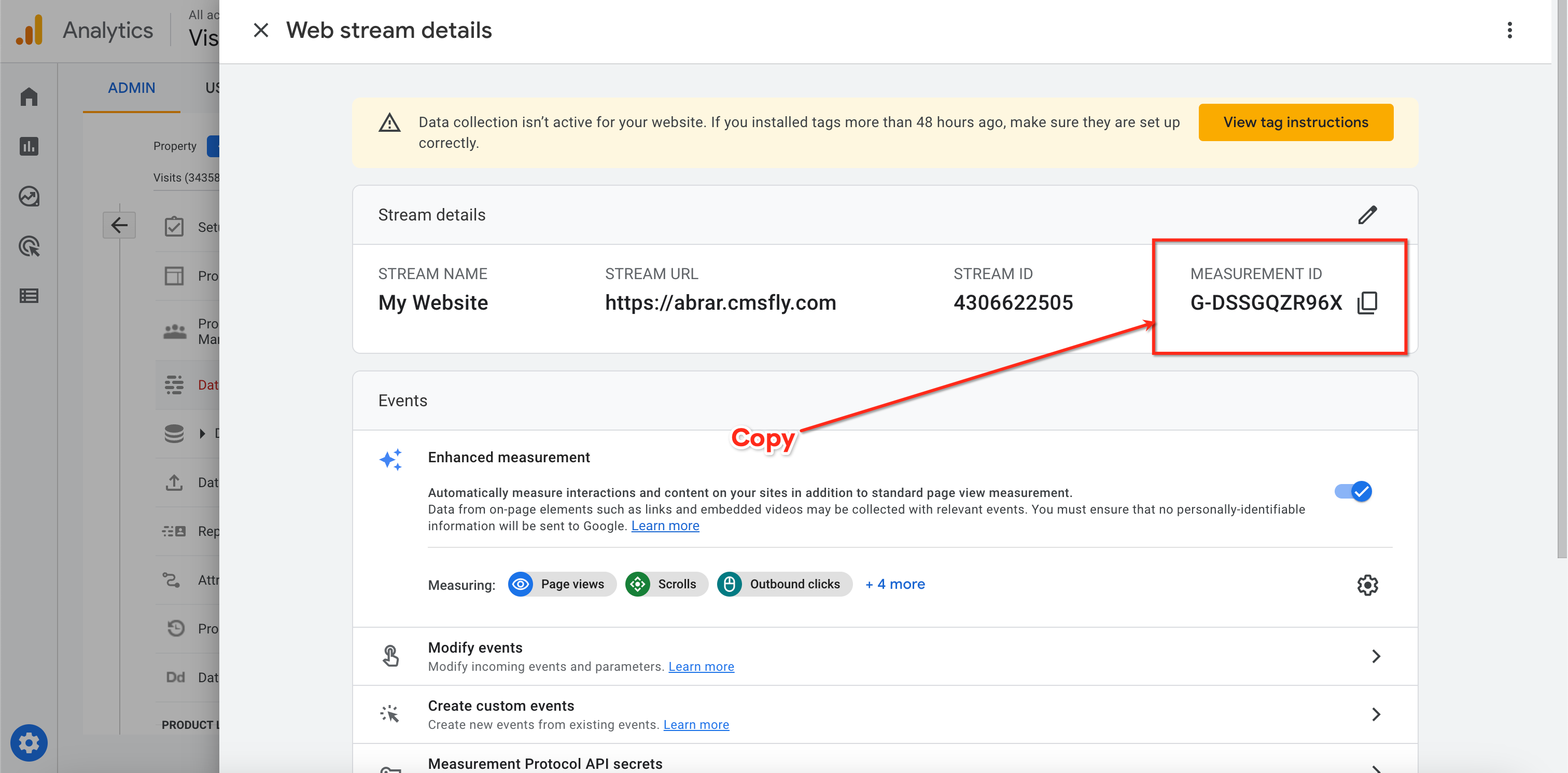
- Copy the measurement ID
Refer to the Gif & Images below —
- Choose ‘Data Streams’ and choose ‘Web’ as the platform
- Enter your website’s URL in the Website URL input field, make sure to remove any slashes’ / ‘ on the URL suffix (after the URL), input a stream name and press the ‘Create Stream’ button
- Copy the Measurement ID
Integrate GA to your site
After setting up your Google Analytics account and domain and after you have copied the measurement ID, follow the rest of the steps to integrate GA into your website:
- Go to your website builder (Design and Pages on your Dashboard)
- Click on Site Settings
- Click on the Integrations tab
- Paste the Measurement ID you had copied earlier into the Google Analytics ID input field
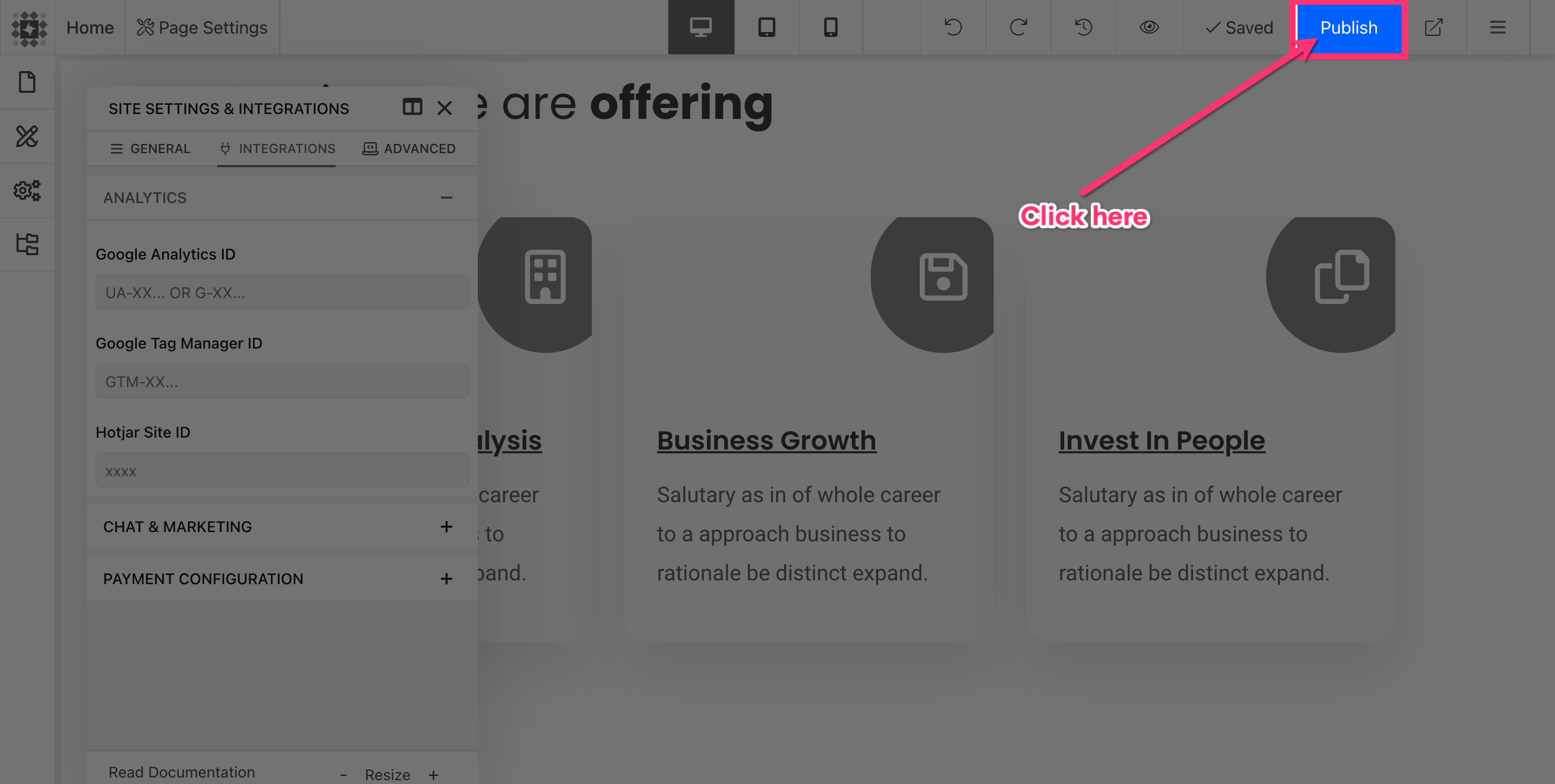
- Press Publish
Refer to the Gif & Images below —
- Go to your website builder (Design and Pages on your Dashboard) and click on Site Settings

- Click on the Integrations tab
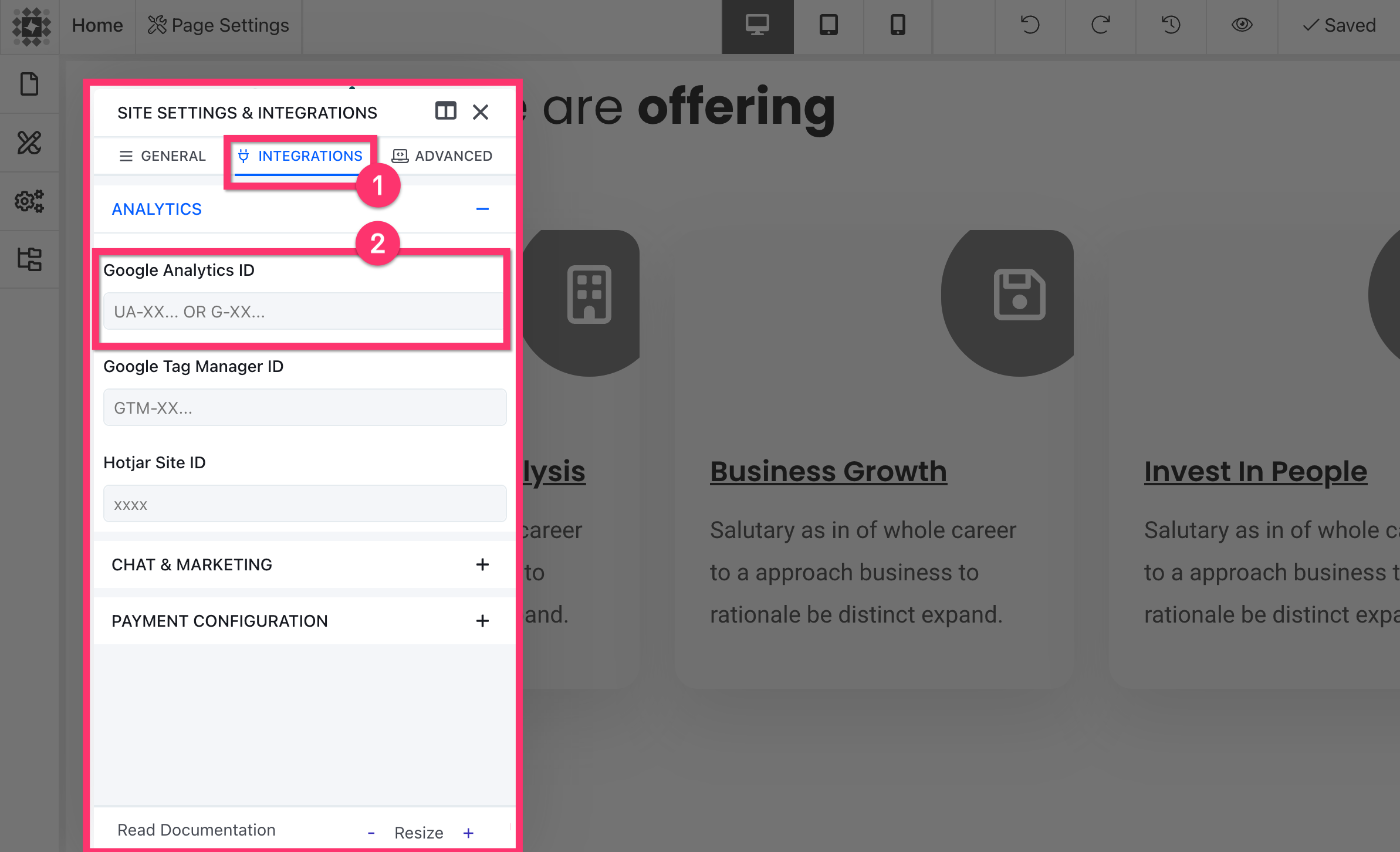
- Paste the Measurement ID you had copied earlier into the Google Analytics ID input field
- Press the Publish button
Test Run
To test that your site is integrated with Google Analytics, you may do a test run. To do this follow the steps listed below:
- On your browser. open an incognito tab
- Paste your site’s URL and visit your site.
- Go back to Google Analytics
- Open the Reports option
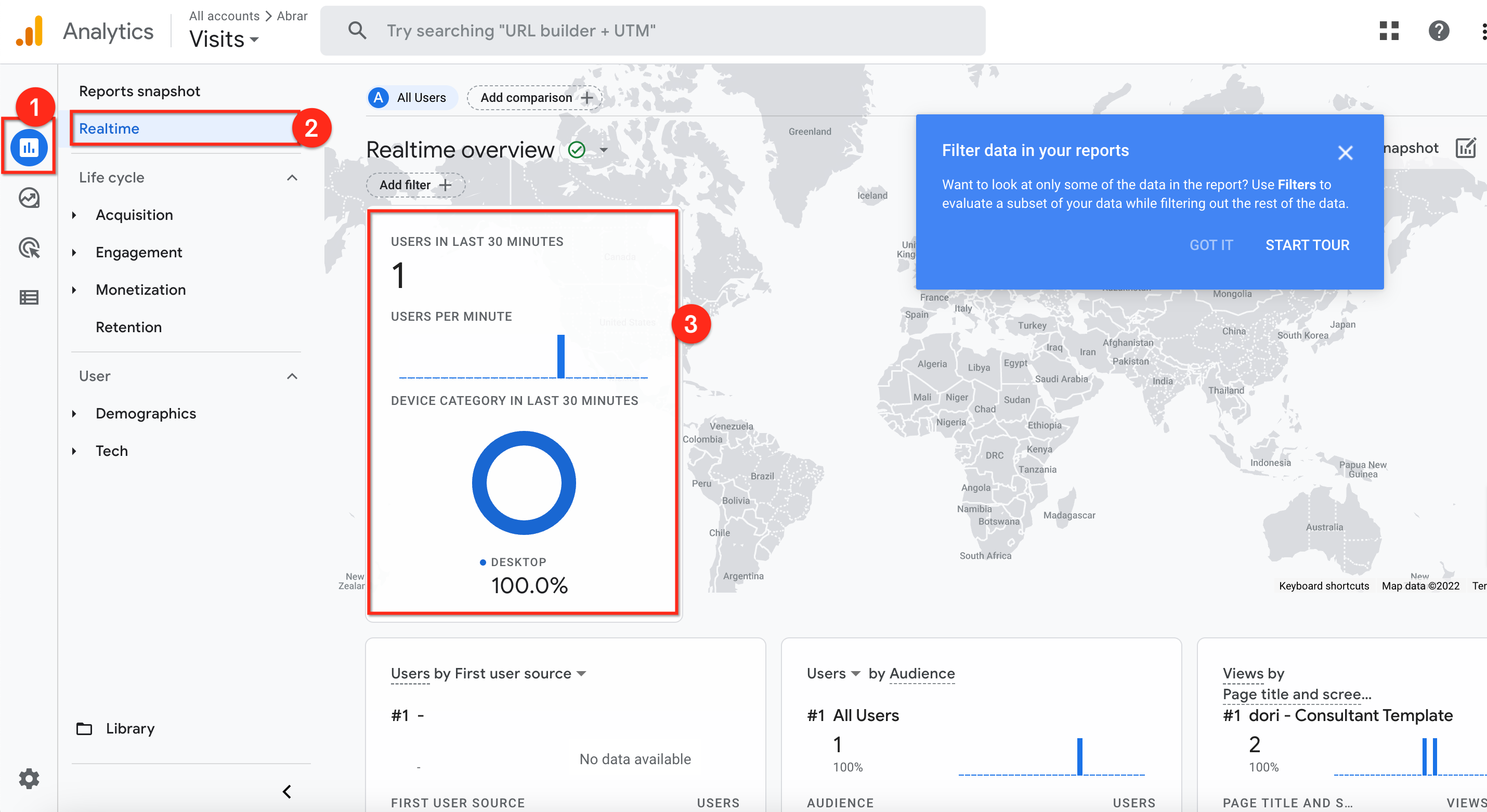
- Click on Realtime under Report Analytics
- You will see a site visit confirming that your site is integrated with Google Analytics
Refer to the GIFs & Images below —
- On your browser. open an incognito tab

- Visit your site

- Open the Reports option
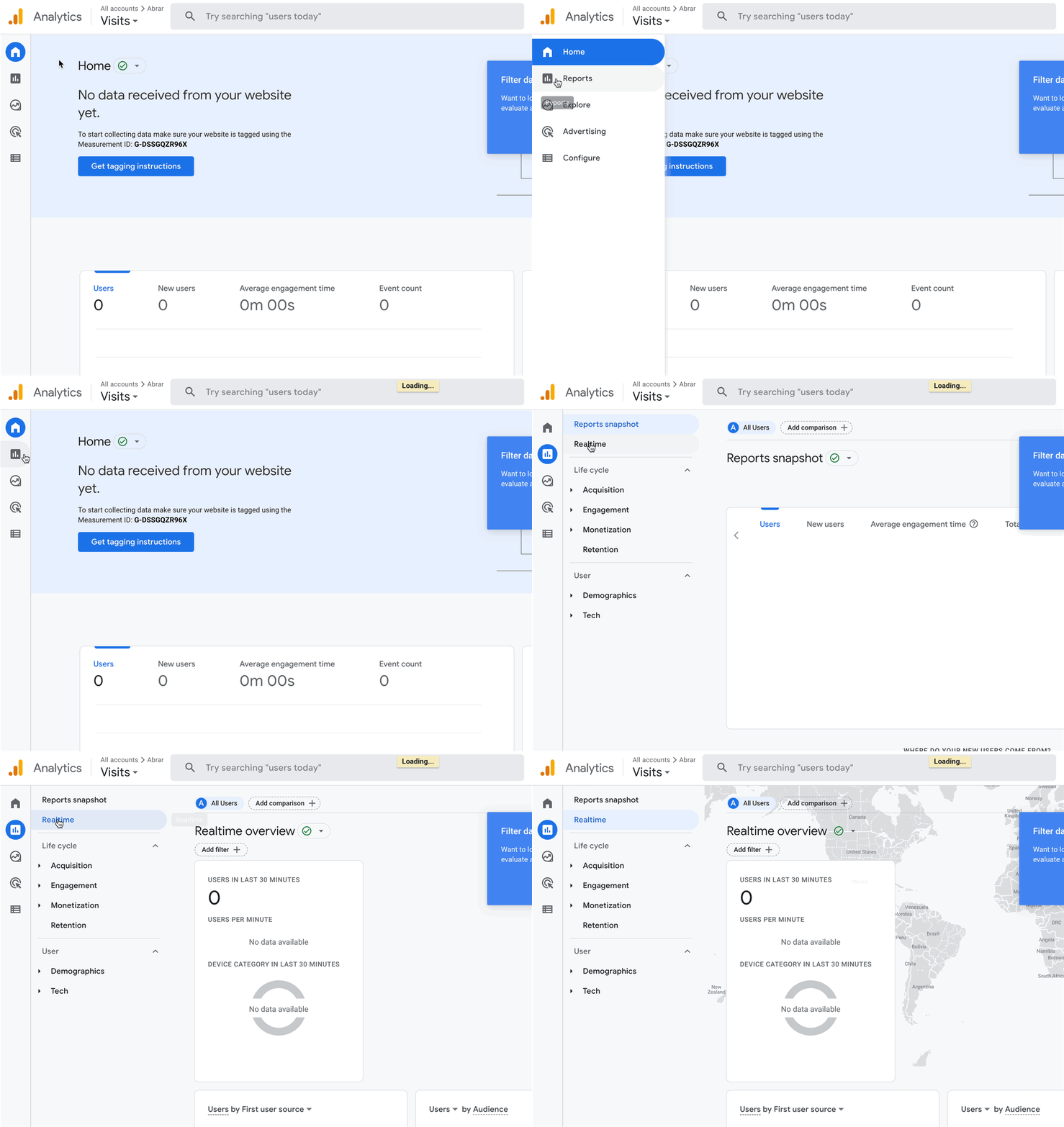
- Click on Realtime under Report Analytics. You will see a site visit, confirming that your site is integrated with Google Analytics.
Ai nevoie de ajutor? Scrie-ne.