
Showcase Collection items on my website
Table of contents
Getting Started
Showcasing Custom Collection items can be easily done with a few simple steps. You can add important elements and populate them with custom collection items. Follow the guide in this article to get started.
Adding CMS Row with Column
You must have a CMS Row and Column section to showcase Custom Collection items. Follow the steps given below to add a CMS Row with a Column.
- On your builder, click on
Add New Section - Go to Custom Section
- Scroll and find CMS Row with Column
- Click on any of the types to proceed
- Once the CMS Row with Column has been added, click on
Connect to Database
⬇️ The demonstration is shown in the GIF below
Populating Rich Text Content Element with Custom Collection Items
Follow all the steps below to learn how to showcase Collection items with Rich Text Content —
- Once the CMS Row with Column has been added, click on
Connect to Database - From the toolbar, go to Configurations
- Select the Collection you want to feature
- Click on
+ Add Element - Scroll down & select Rich Text Content under the CMS Elements
- Choose what texts you want to showcase from the dropdown under the Text field
The Screenshot & GIFs below show the whole process being demonstrated visually ⬇️
- Once the CMS Row with Column has been added, click on
Connect to Database
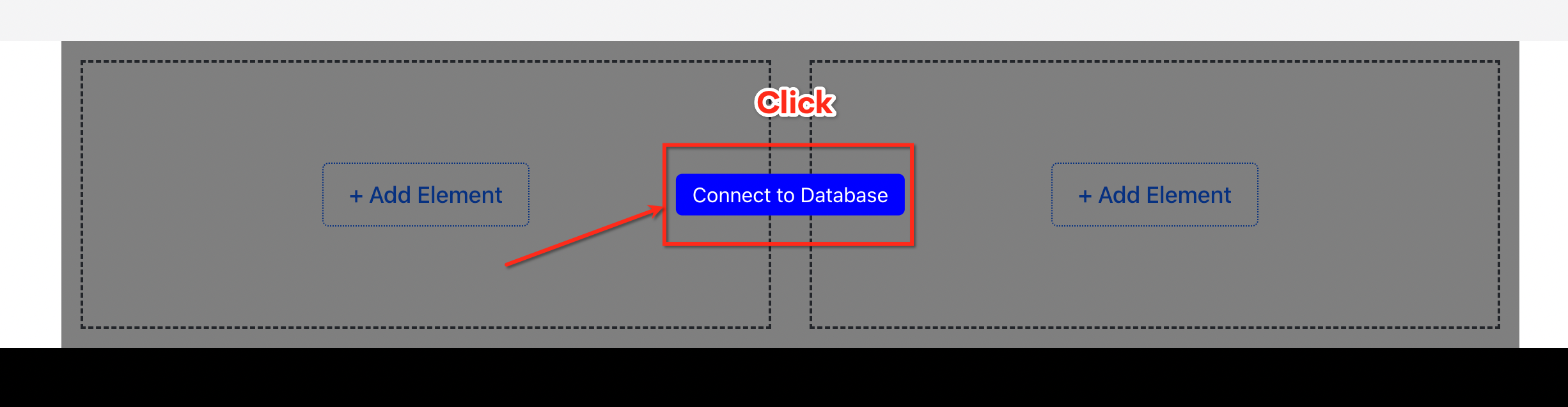
- From the toolbar, go to Configurations & select the Collection you want to feature
- Click on
+ Add Element& select Rich Text Content under the CMS Elements - Choose what texts you want to showcase from the dropdown under the Text field
Populating Heading/Title Element with Custom Collection Items
Follow all the steps below to learn how to showcase Collection items with Heading/Title —
- Click on
+ Add Element - Select the Heading/Title element
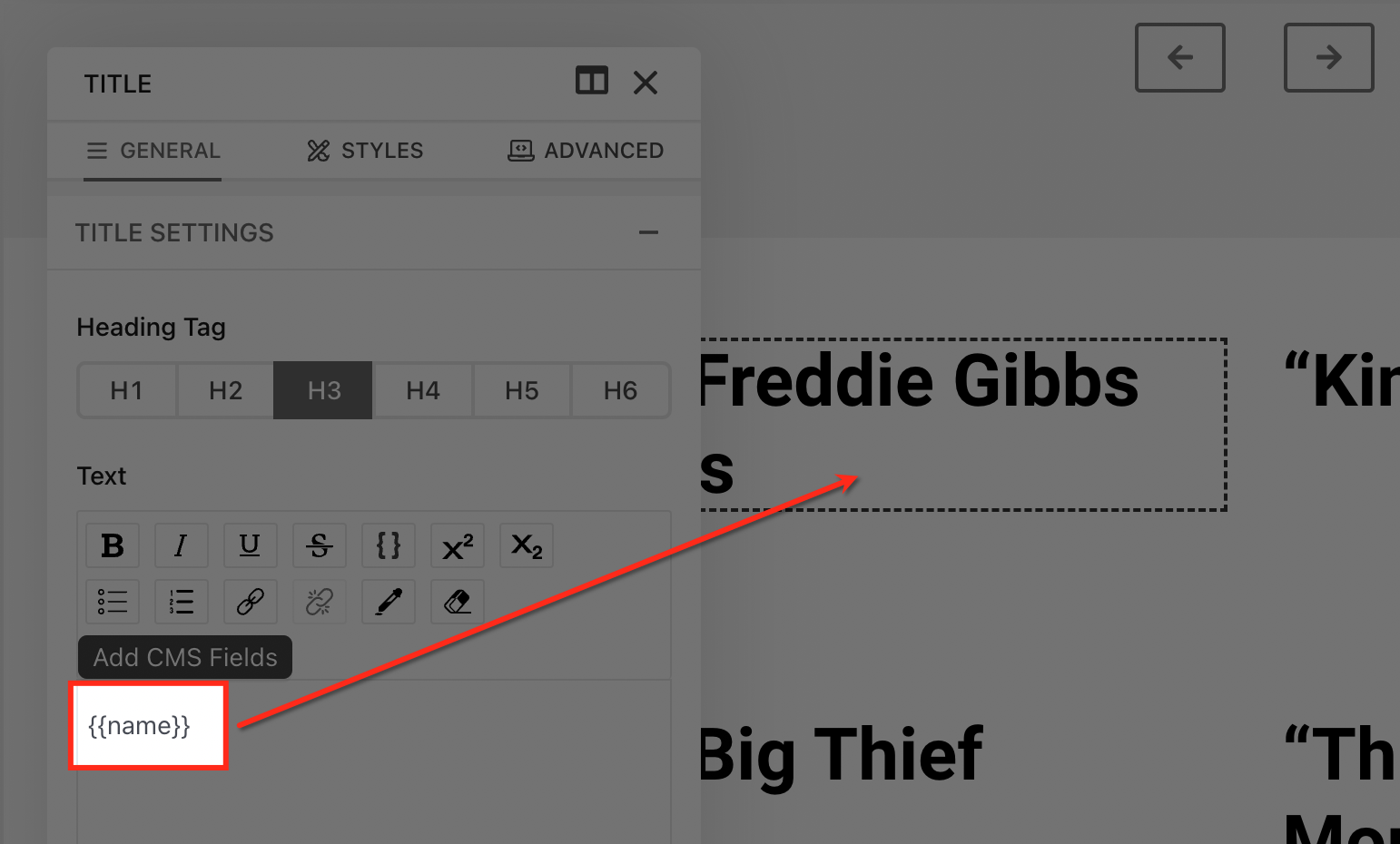
- Click on
Add CMS Fields - Pick any one option from the dropdown
The Screenshot & GIF below show the whole process being demonstrated visually ⬇️
Remember to delete the previous text while you are adding a CMS Field
Populating Image Element with Custom Collection Items
Like the Heading element, Image elements can also be populated with Custom Collection Items.
Refer to the GIF below ⬇️
Populating Button Element with Custom Collection Items
Like the Heading element & Image element, the Button element can also be populated with Custom Collection Items.
Refer to the GIF below ⬇️
Publish to view your Custom Collection Items on your Site.Related articles
Add a new Collection Add and customize fields in a CollectionAi nevoie de ajutor? Scrie-ne.