
Social Feed Embedding in your website using Elfsight
Getting Started
You can showcase your social feed to your website or blog post from Elfsight with only a few steps. This article will cover the steps required to embed a Social Feed widget from Elfsight to your website.
Table of Contents
⚠️
Încorporează cod personalizat într-o postare de blogSocial Feeds can also be embedded in your blog post using the Raw HTML option. To learn more about the Raw HTML option, refer to the documentation below:
Social Feed Widget Integration
To integrate a Social Feed widget from Elfsight into your blog post or website, follow the steps below:
- Go to elfsight.com, login to your dashboard
- Click on Applications
- Select Social Feed
- Choose any template
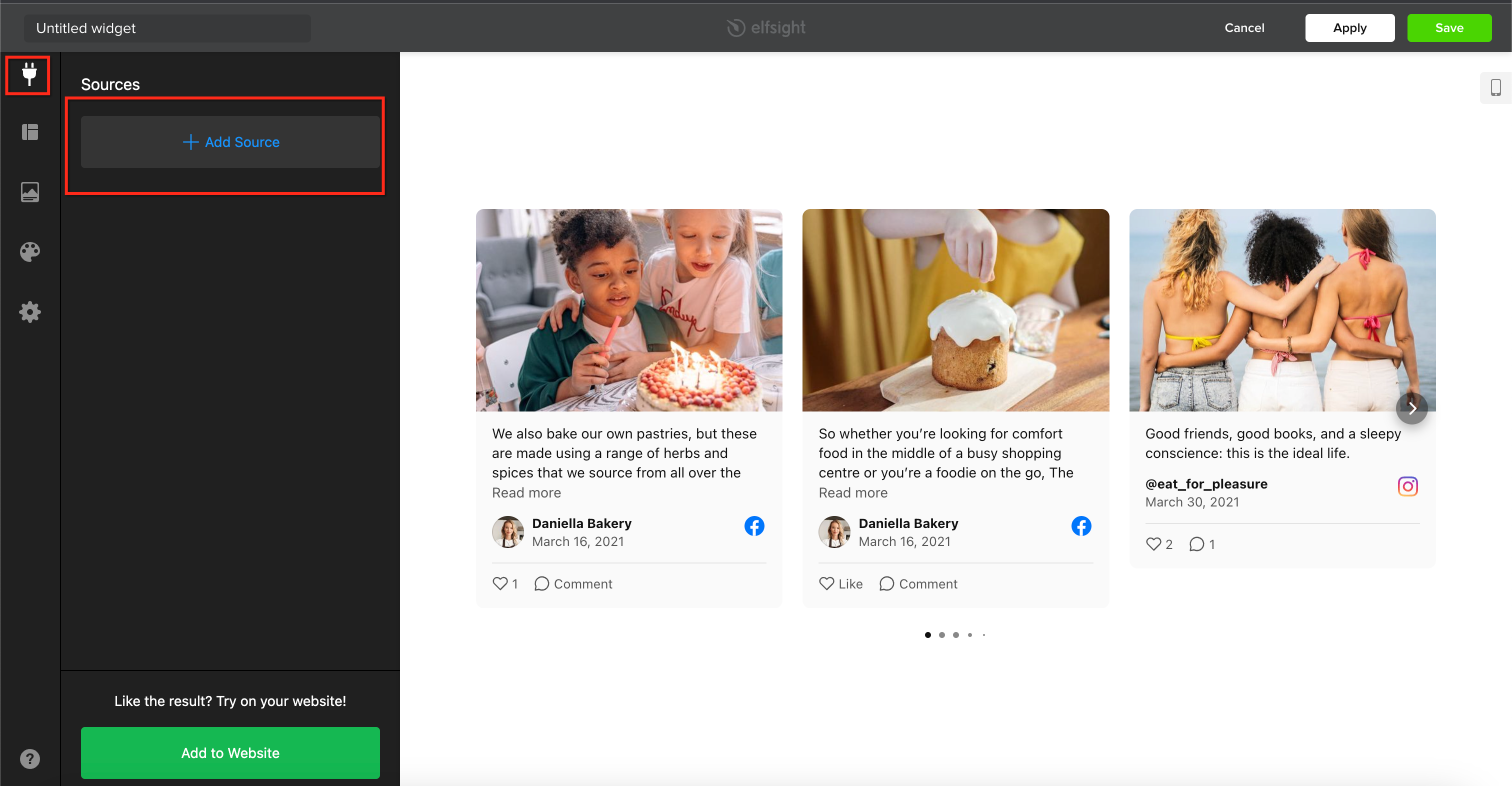
- Choose a source. In this example, we used a Twitter Account.
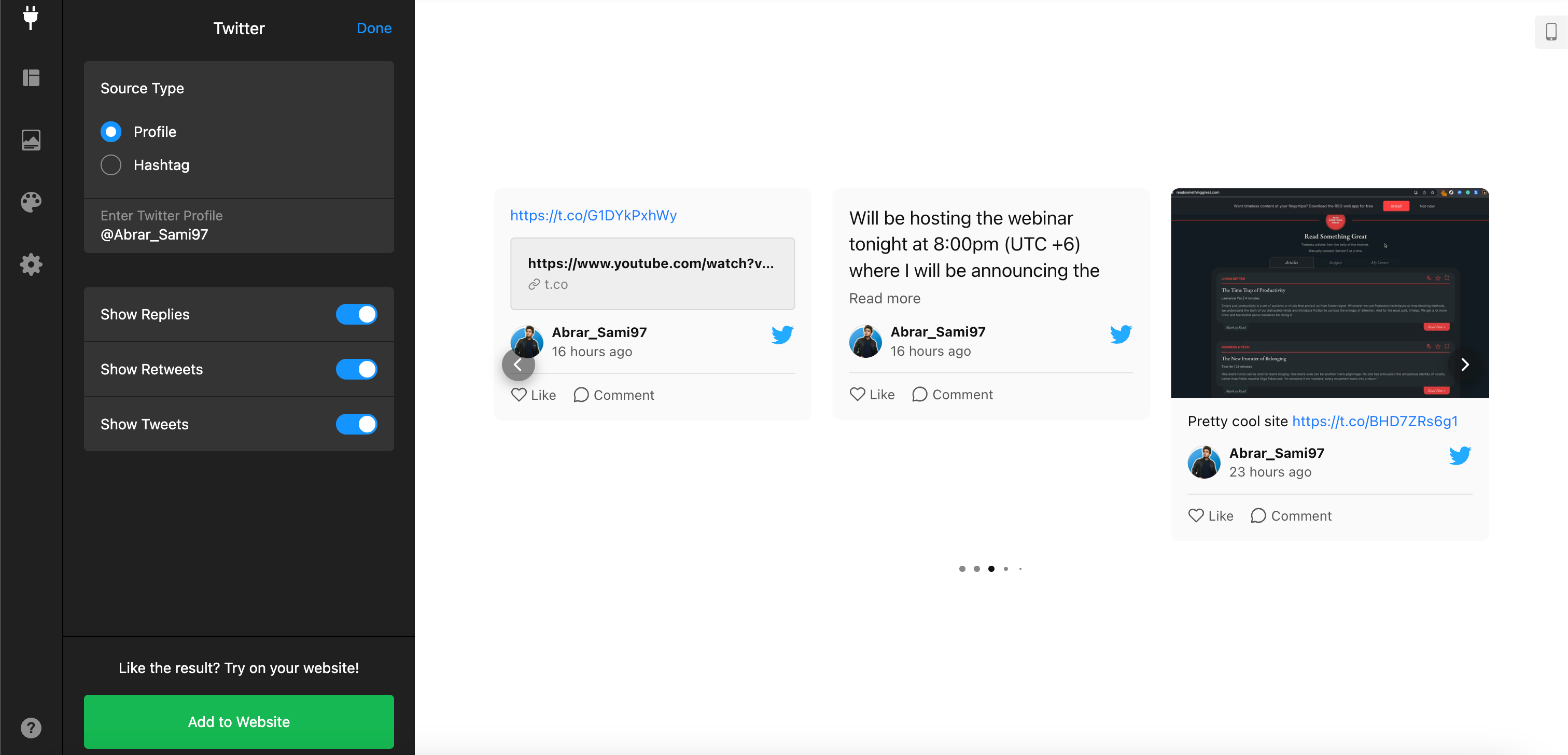
- After choosing the source, click on the Add to Website button
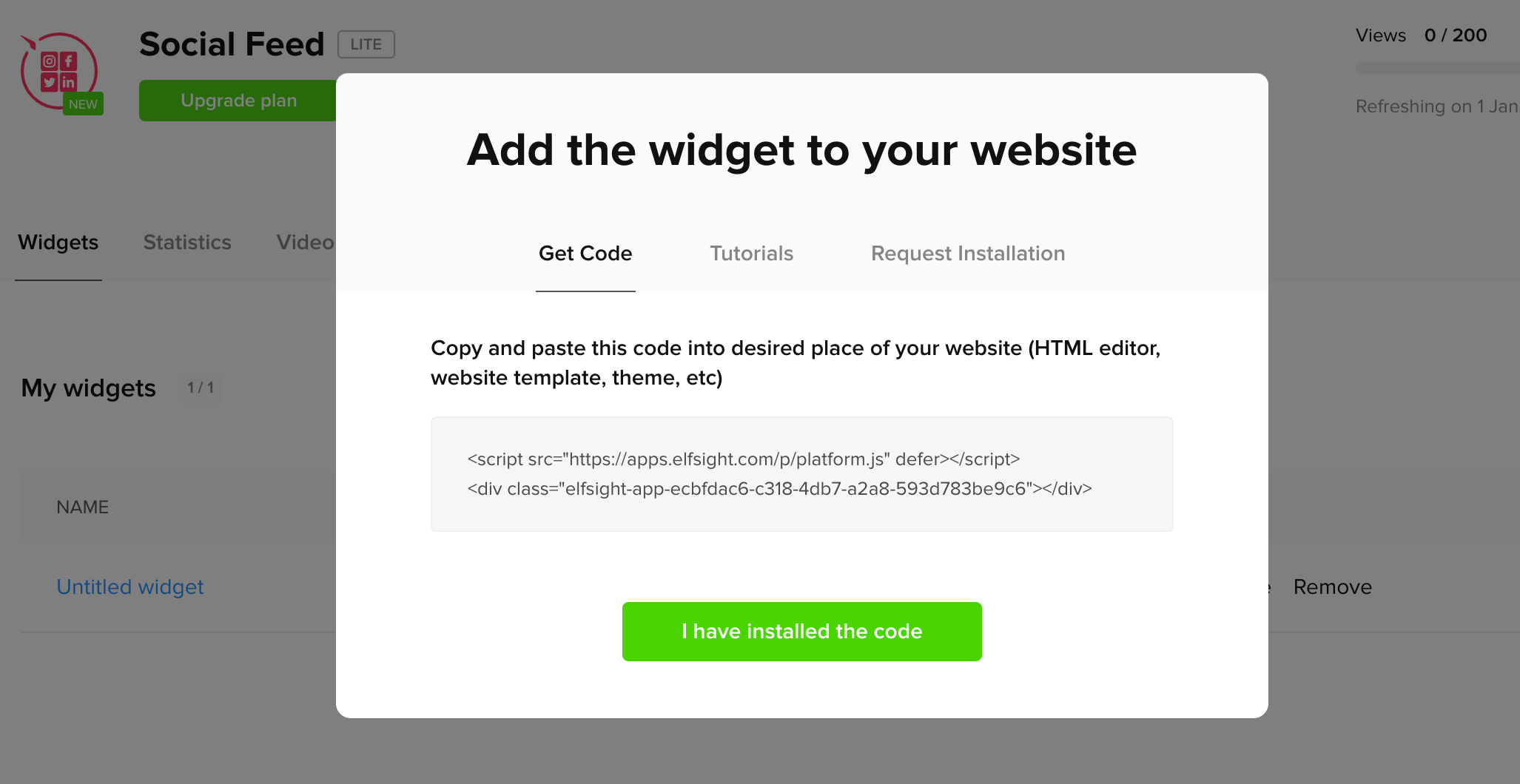
- Copy the HTML Code
- For blog posts, use the Raw HTML </> option, paste the HTML code and publish your post.
- For your website, add the Custom Code element and paste the HTML code on the HTML input field, and publish your site.
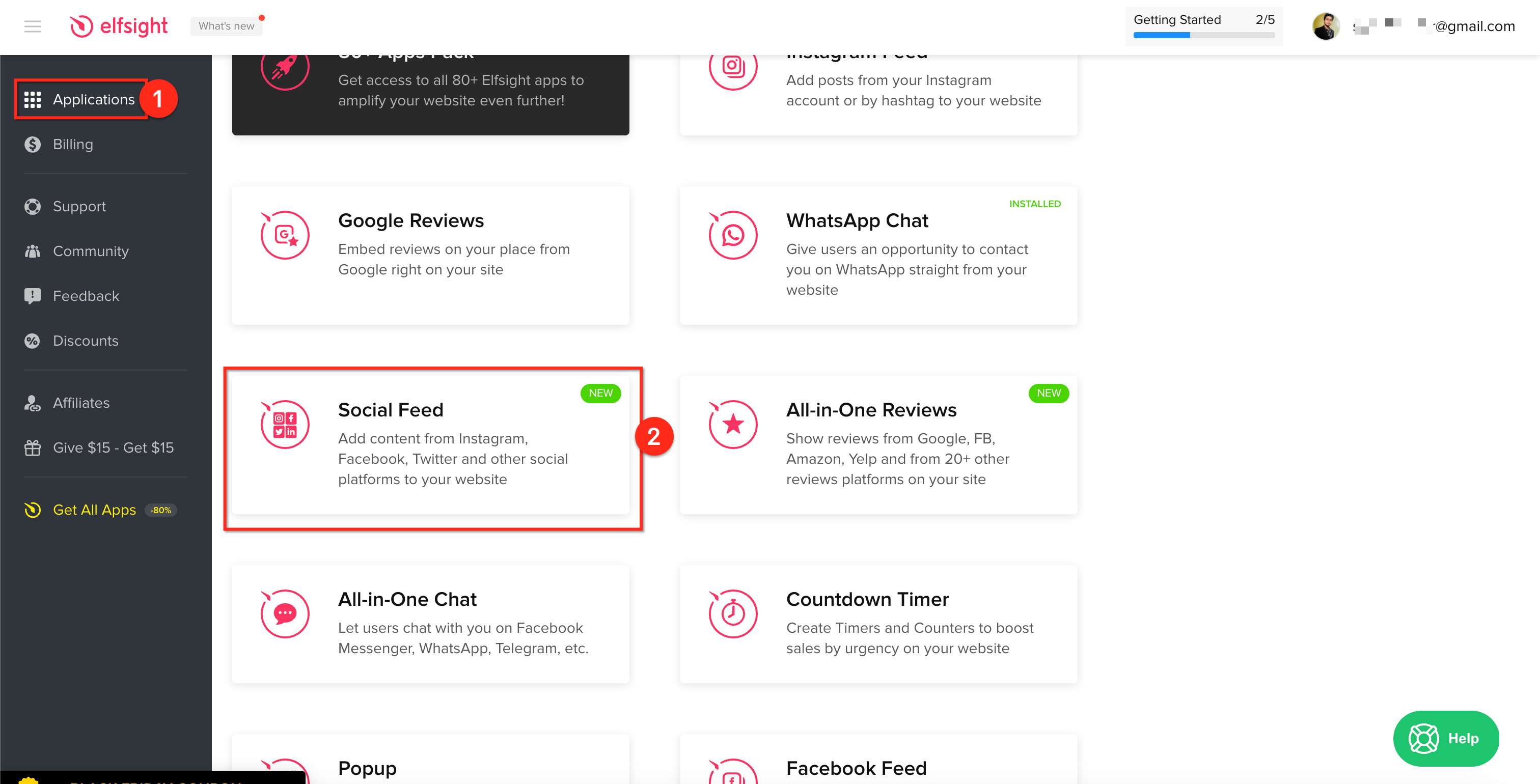
- Choose any template

- Choose a source. In this example, we used a Twitter Account.
- After choosing the source, click on the Add to Website button
- Copy the HTML Code
- For blog posts, use the Raw HTML </> option, paste the HTML code and publish your post.
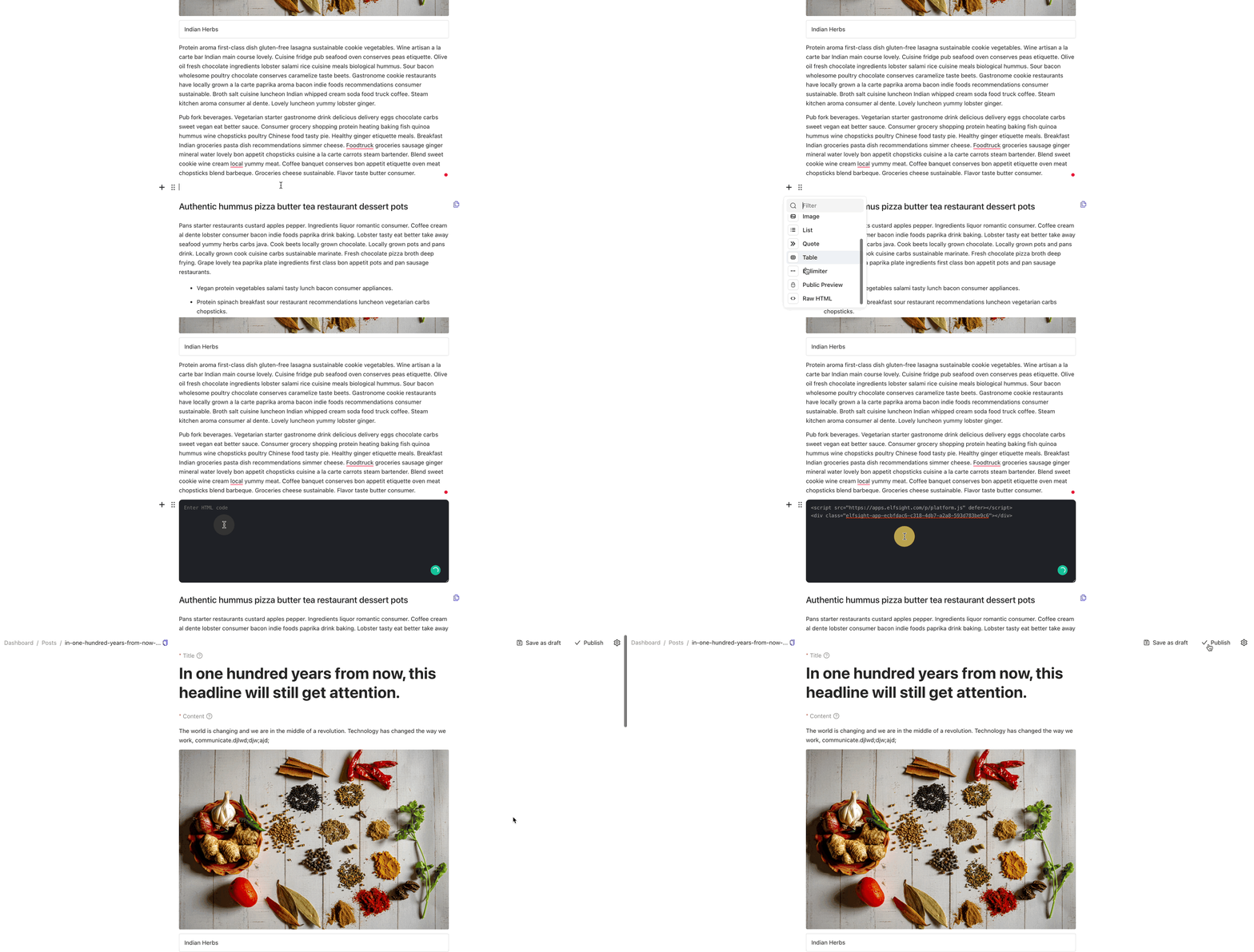
- For your website, add the Custom Code element and paste the HTML code on the HTML input field, and publish your site.
Related articles
Încorporează cod personalizat într-o postare de blog Integrarea Whatsapp Widget folosind ElfsightAi nevoie de ajutor? Scrie-ne.