
Counter Circle
Getting Started
You can add a custom circle in your website’s empty section from the elements option. The counter circle can be used for many purposes because of its many customizing options built to suit your needs. This article will cover how you can add a counter circle to your website and start customizing it.
Table of Contents
Adding a Counter Circle
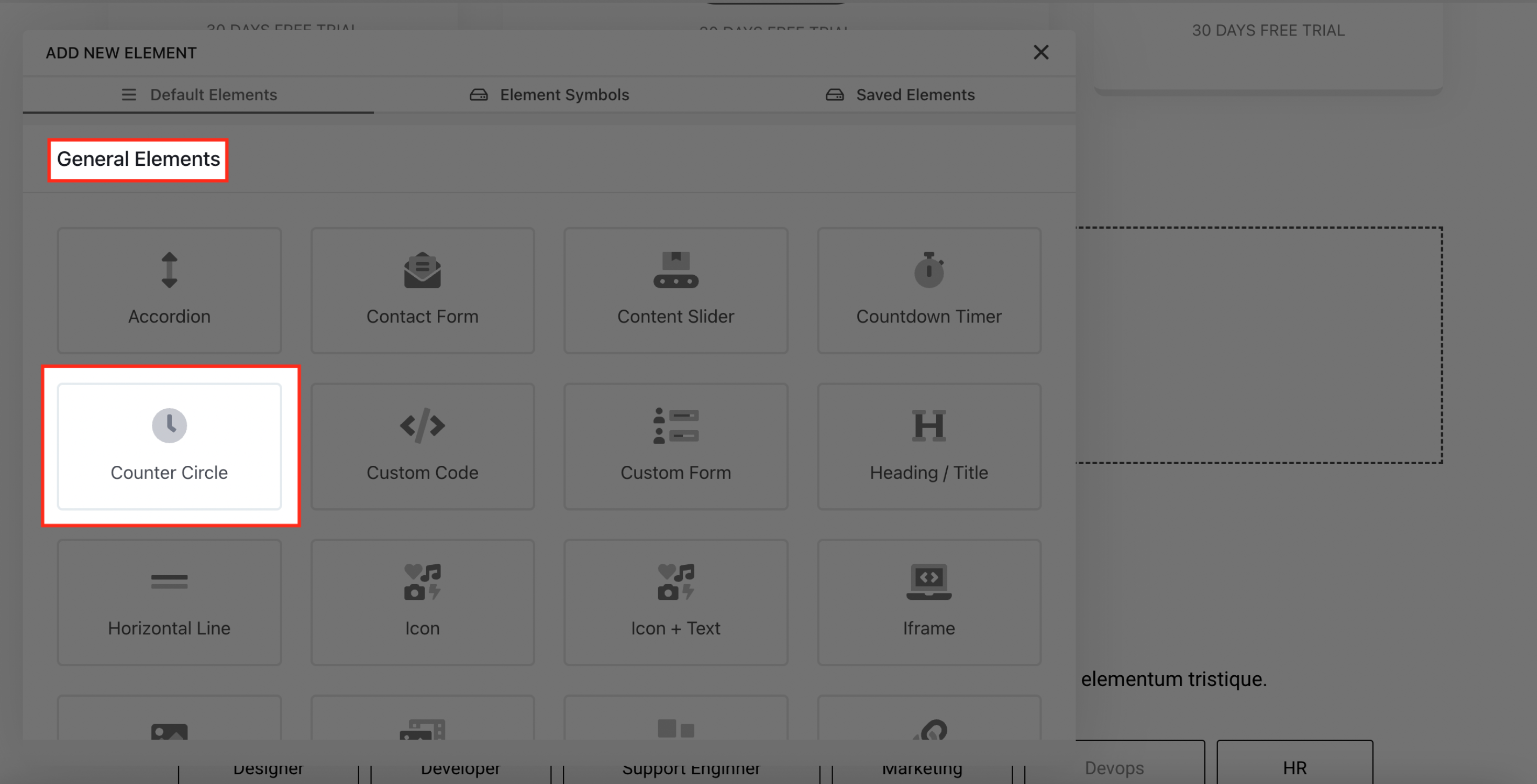
Start adding a counter circle to your website; refer to the steps, picture or the GIF provided below:
- Click on Add Element on an empty section on your website
- Choose Counter Circle from the General Elements panel under the Default Elements tab
- A counter circle will appear!
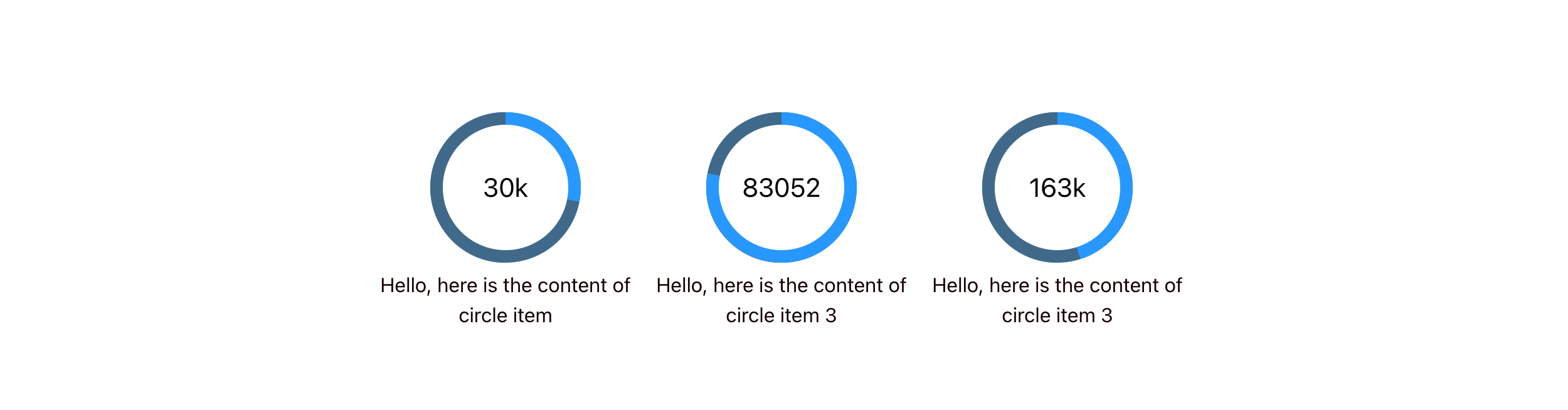
Counter Circle after it is added
Adjusting and Stylizing the Counter Circle
The Countdown timer element has multiple stylizing options. You can set the:
- Items Setting
- Circle Style
- Title Style
- Content Style
- Background
…of the Countdown timer element! Let us see these settings one by one:
Items Setting
This option lets you customize the layout of your counter circle, add more or delete counter circles, and adjust the progress values, titles, or every individual counter circle.
Refer to the GIF below to see the settings in action:
Counter Circle Items:
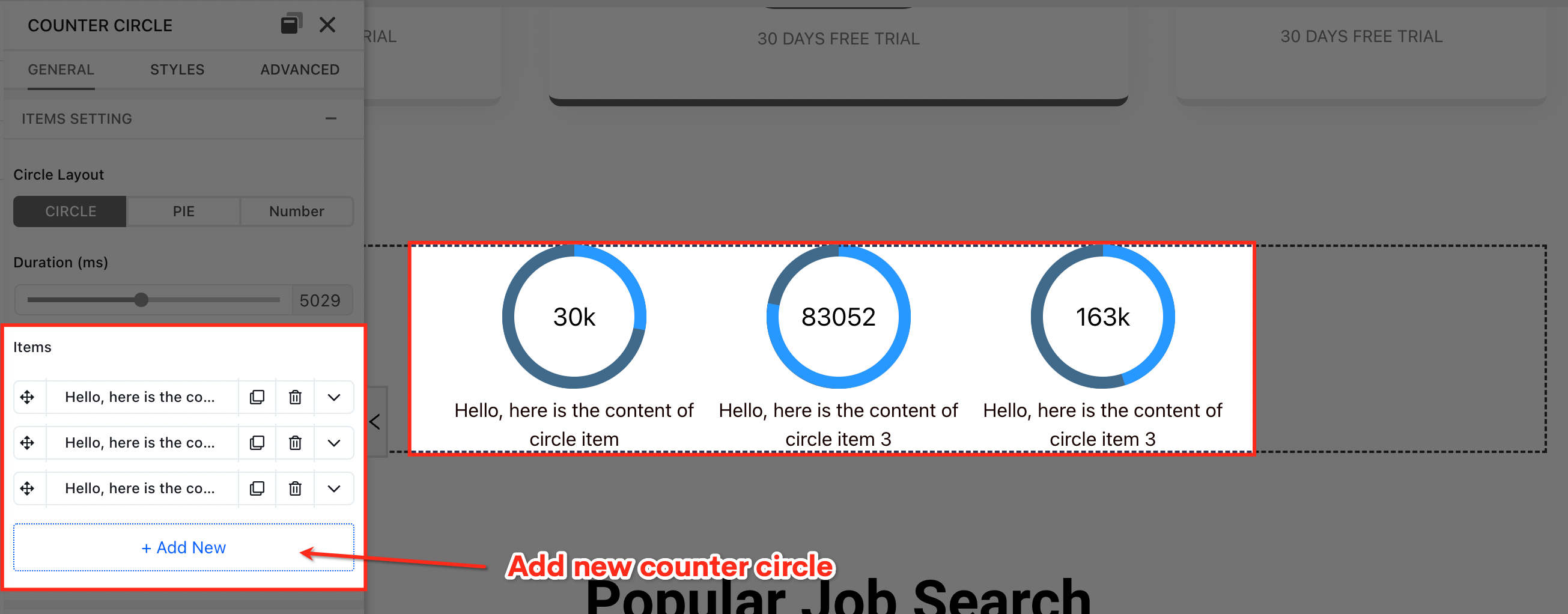
Editing Counter Circle Item:
Circle Style
Stylize the circles in the counter circle element with this option. With settings like adjusting the circle size, loading border size, the gap between them, aligning the element, etc.
Refer to the GIFs below to see the settings in action:
Title Styles
With this setting, you will be able to change how your counter circle’s title will look like. The title exists in the middle of your counter circle.
Content Style
With this setting, you can change the texts or content below your counter circle. Refer to the GIF below for the demonstration.
Related articles
Counter Circle🖼️ Image GalleryAi nevoie de ajutor? Scrie-ne.