
Video
Getting Started
You can attach or embed any video to your website using the Video element. This article will cover how to add and edit the Video element in your website. Follow all instructions accordingly.
Table of Contents
Adding the Video Element
Follow the steps below to add a Video Element to your site.
- Click on Add Element in an empty row and section
- From the General Elements section, select Video
Refer to the GIF below:
Editing and Configuring the Video element
Follow the steps and instructions below to add and edit a Video element on your site.
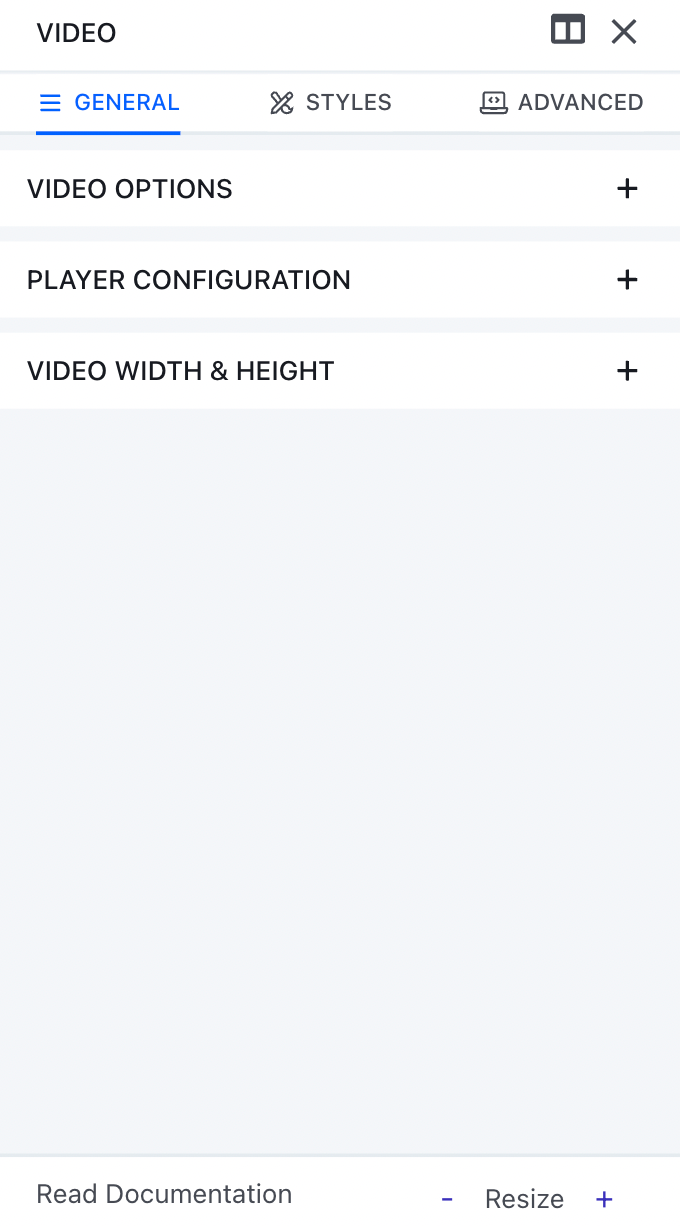
The Video Element editor has the following options:
- Video Options
- Player Configuration
- Video Width and Height
The Video element editor:
Video Options
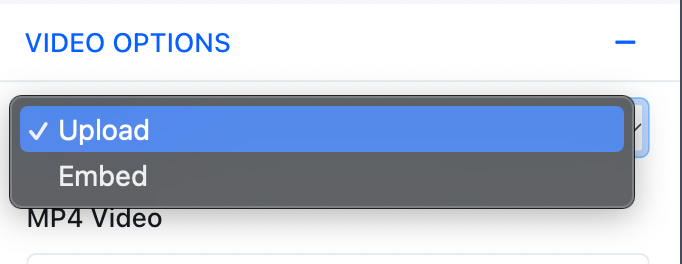
You can either:
- Upload
- Embed
a video to your site inside the Video element.
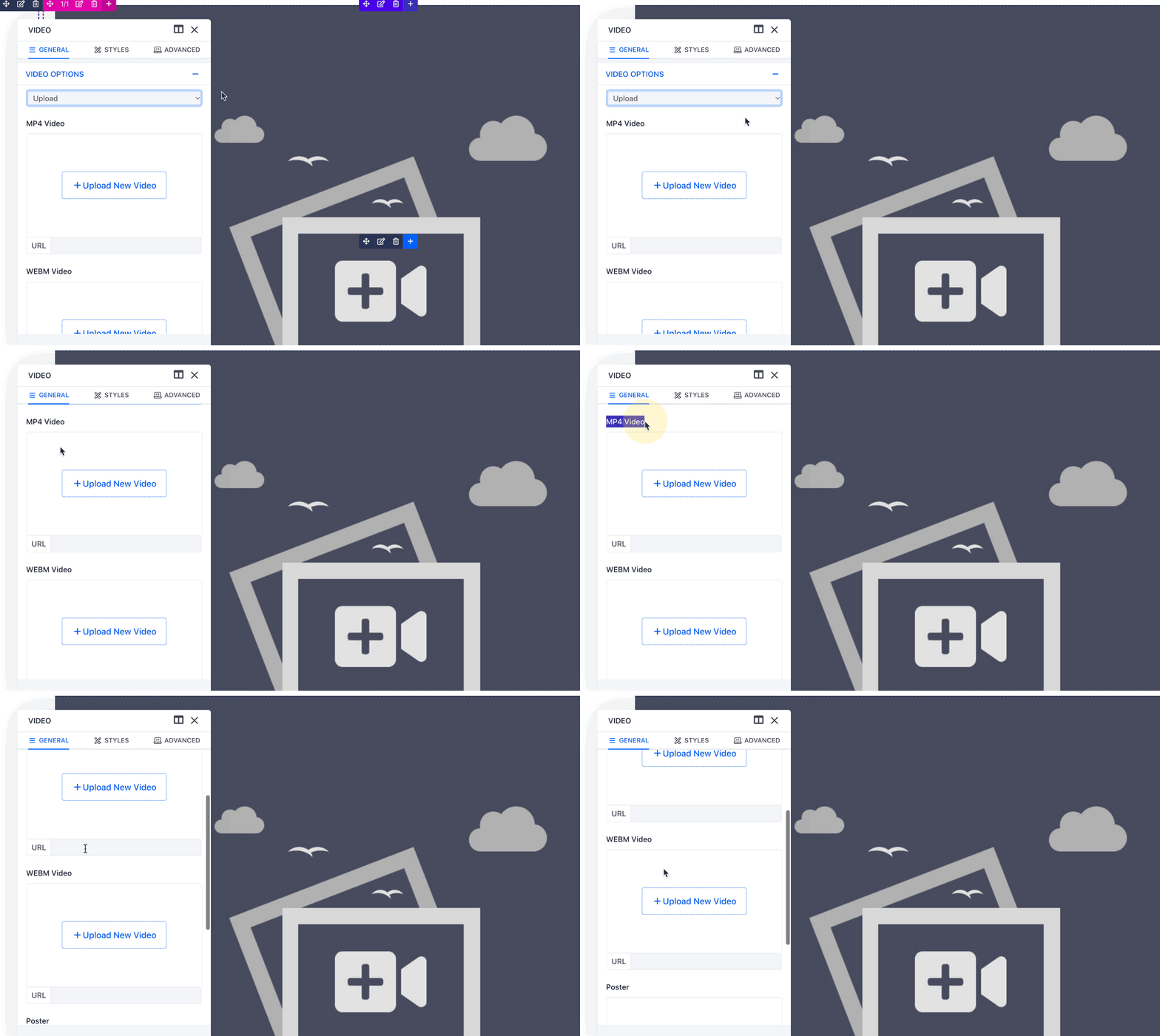
Upload:
You can upload a video in the following formats:
- MP4
- WEBM
You can also add a Poster that will work like a thumbnail image before anyone presses Play
Embed:
You can embed a video to the video element by pasting the URL in the Video URL input field. The following are the acceptable formats:
https://www.youtube.com/watch?v=xxxxxx
https://www.youtube.com/embed/xxxxxx
https://www.youtu.be/watch?v=xxxxxx
https://vimeo.com/xxxxxx
Refer to the GIF to see this feature in action:
Player Configuration
This option allows you to configure the Video player with necessary settings like:
- Video Controls
- Loop
- Mute
- Autoplay
- Allow Fullscreen
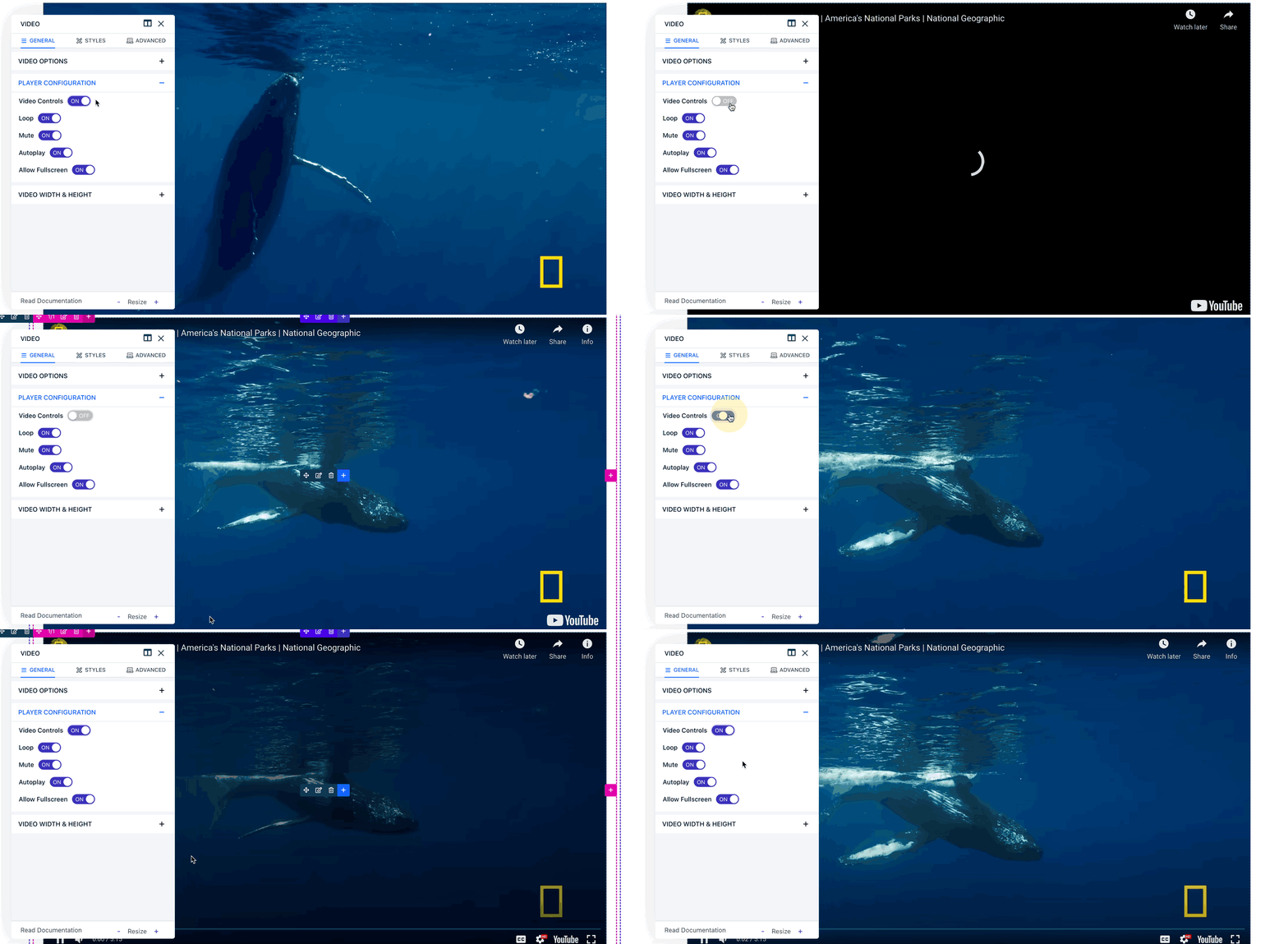
Video Controls:
Allows the player to have controls like pause, play, forward, etc. Refer to the GIF below to see how it works.
Loop:
Turning this on allows the video to play in a loop until the user pauses the video.
Mute:
Lets the video play without any sound.
Autoplay:
The video will play automatically when a visitor visits your site. Refer to the GIF below to see how it works.
Allow Fullscreen:
Allows the element to play the video in full screen.
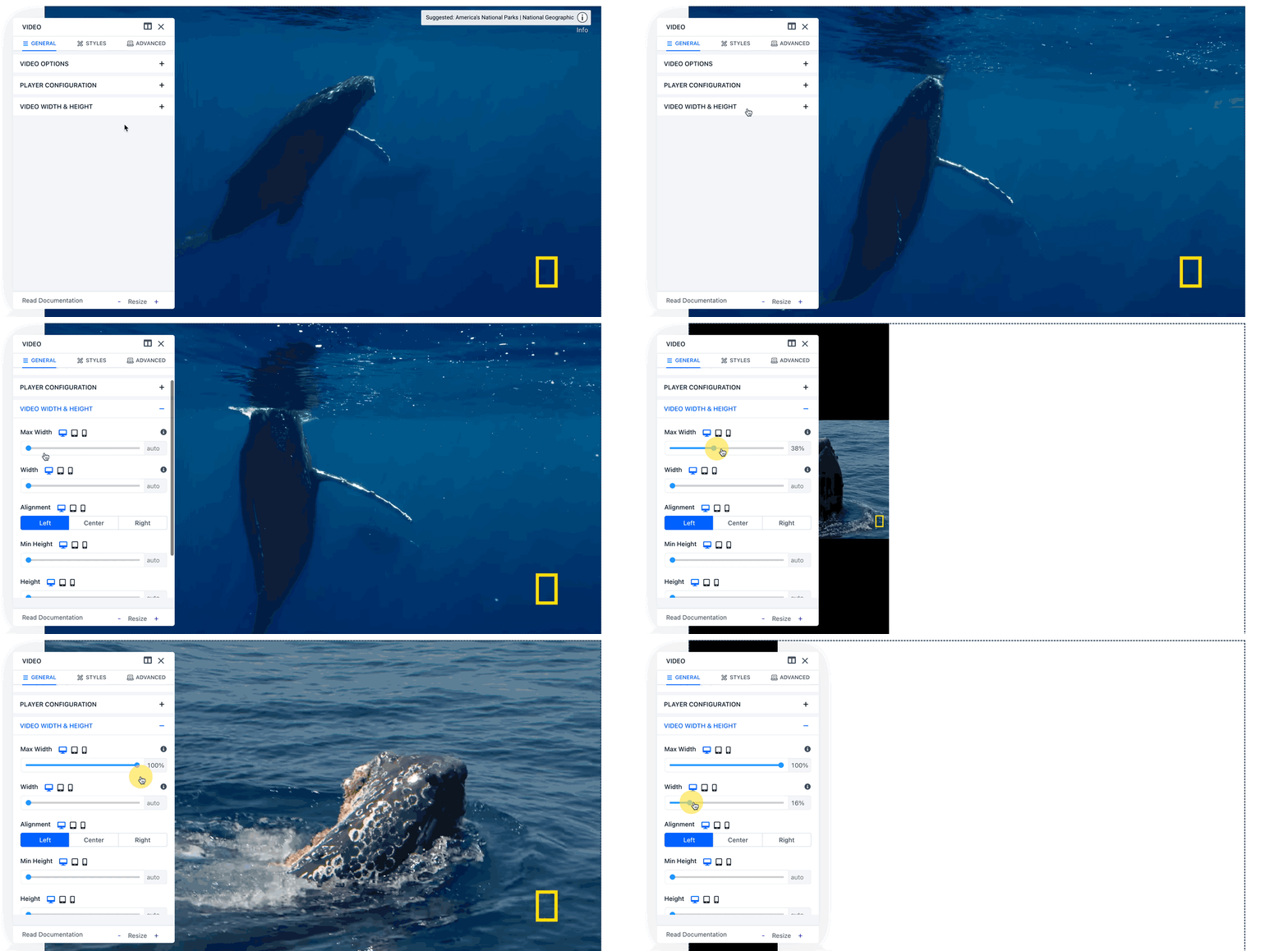
Video Width and Height
This lets you set and adjust the height and width of your video player. Refer to the GIF below to see these settings being demonstrated.
Related articles
📽️ Încorporează un video într-o postare de blog ImageAi nevoie de ajutor? Scrie-ne.