
How to add a new member
Table of Contents
Getting Started
In this article, you will learn all the steps required to Add/Invite new members to your CMS site or Import members from other platforms (e.g. WordPress, Ghost, Medium, Substack).
Inviting a new member
To invite a new member to your site manually, follow the given steps below:
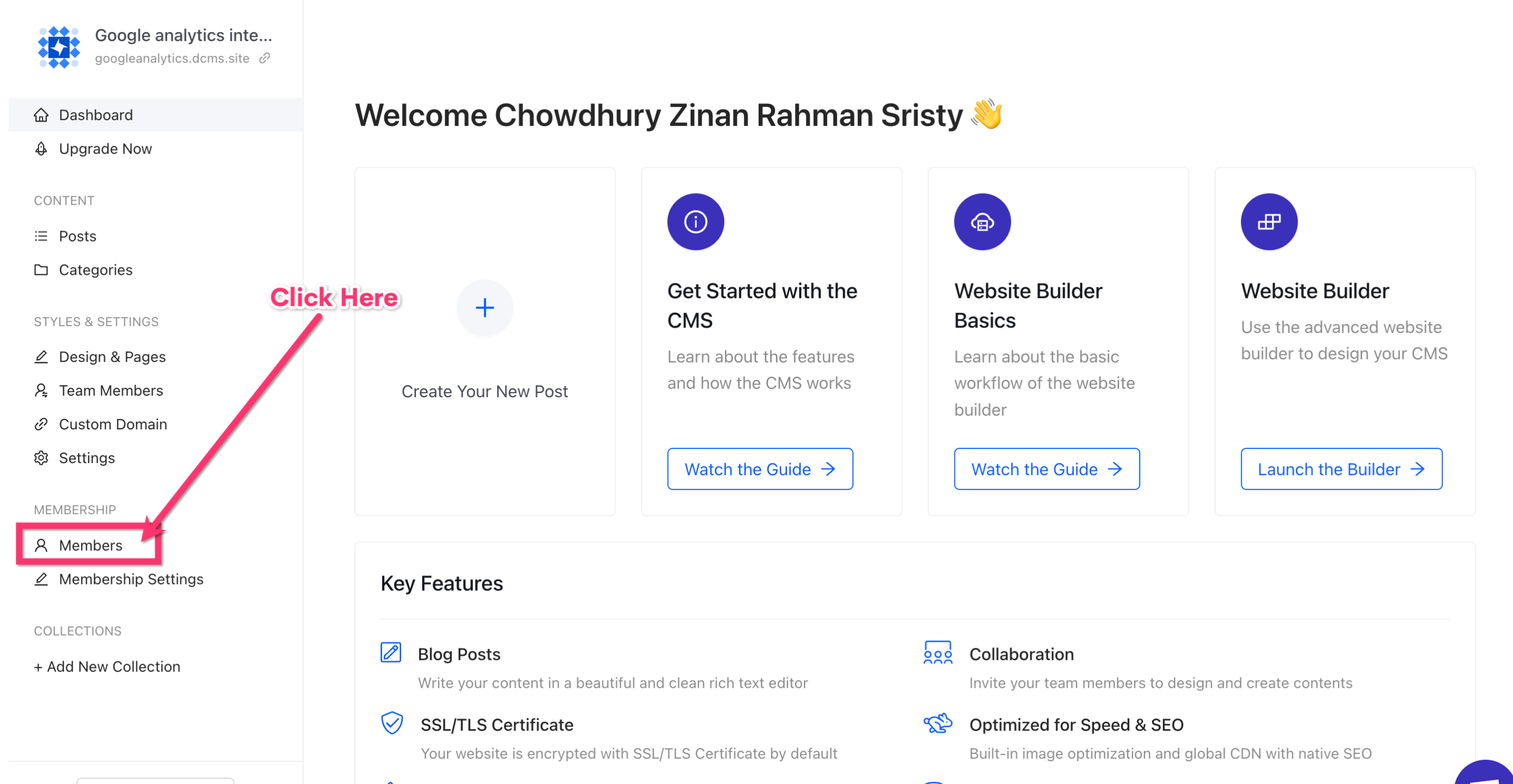
- Click on the Members on the left panel of the Dashboard, under the Membership section.
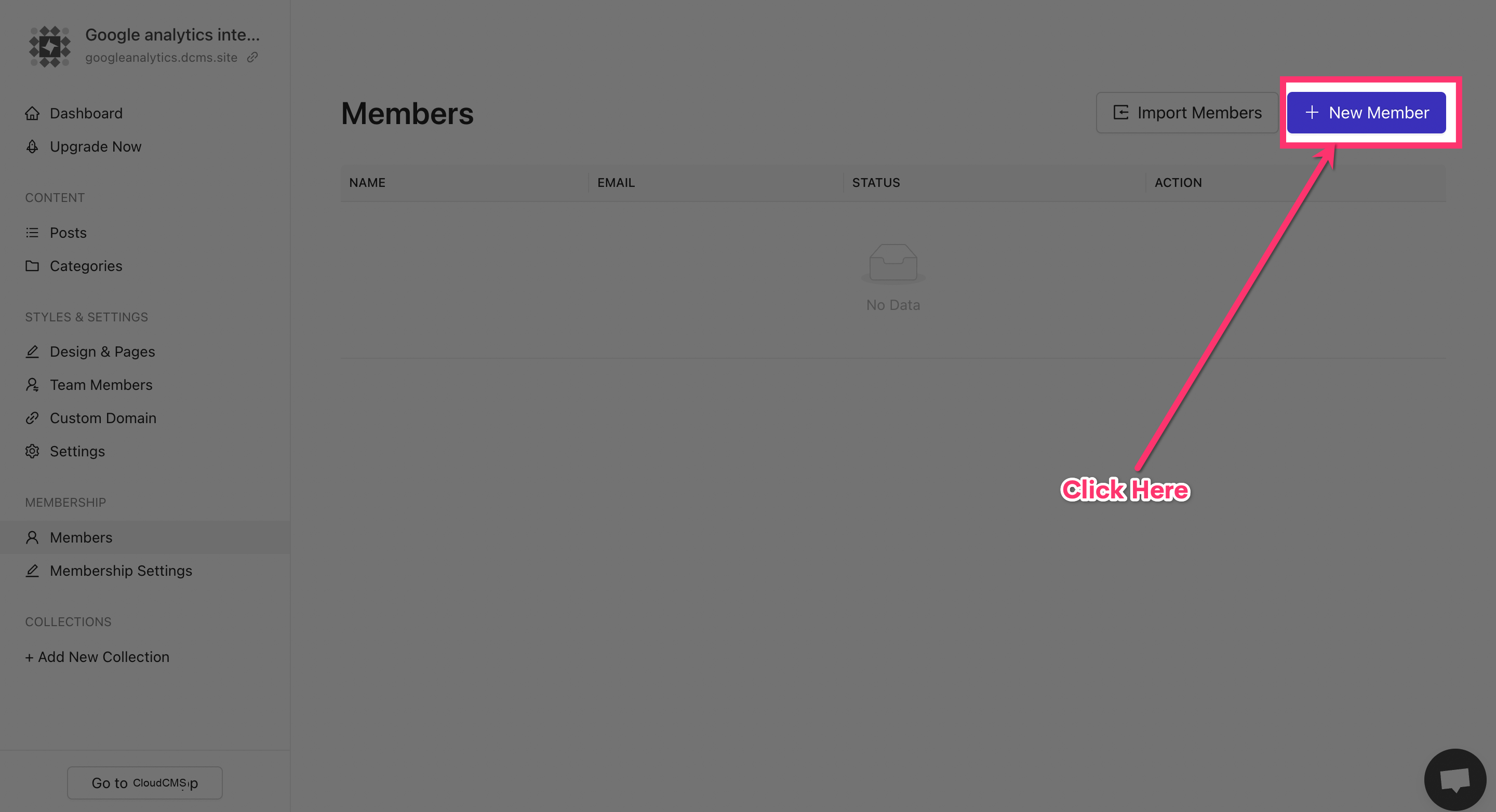
- To add a member, click on the
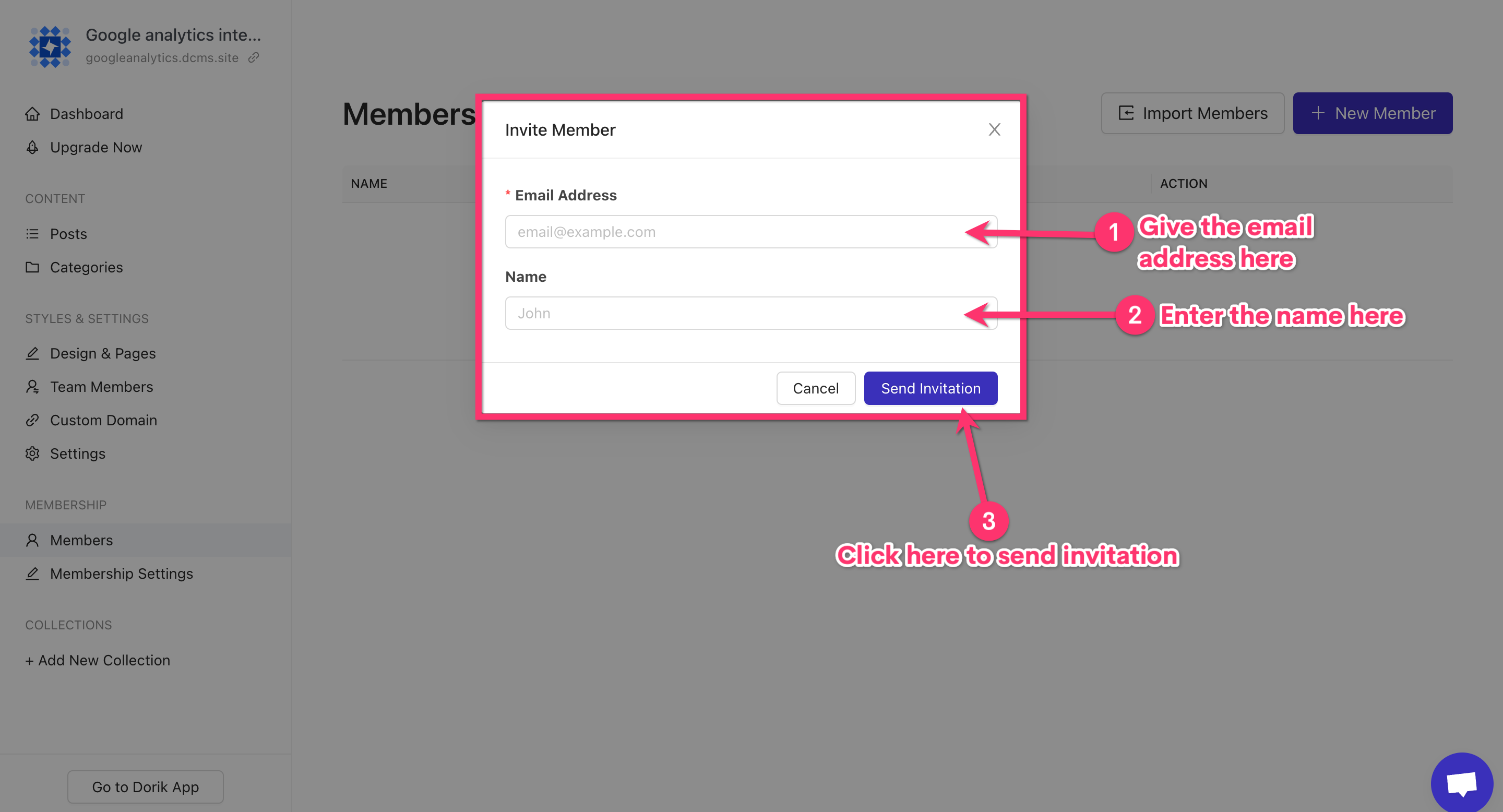
+ New Memberbutton on your top-right. - Add the Email Address of the person you want to invite.
- Type down their Name, it is not compulsory, but it helps you keep track.
- Click on
Send Invitationbutton to proceed with the invitation process.
The Screenshots below show the whole process being demonstrated visually ⬇️
- Click on Members on the left panel of the Dashboard, under the Membership panel.
- To add a member, click on the
+ New Memberbutton on your top-right.
- Email address: Add the email address of the person you want to invite.
Name: Type down their name, it is not compulsory, but it helps you keep track.
Send Invitation: Click on this button to proceed with the invitation process.
Importing members from other platforms
With the help of the ‘Import members’ feature, you can Import/Add Members from other platforms. To know the process follow all the steps below accordingly —
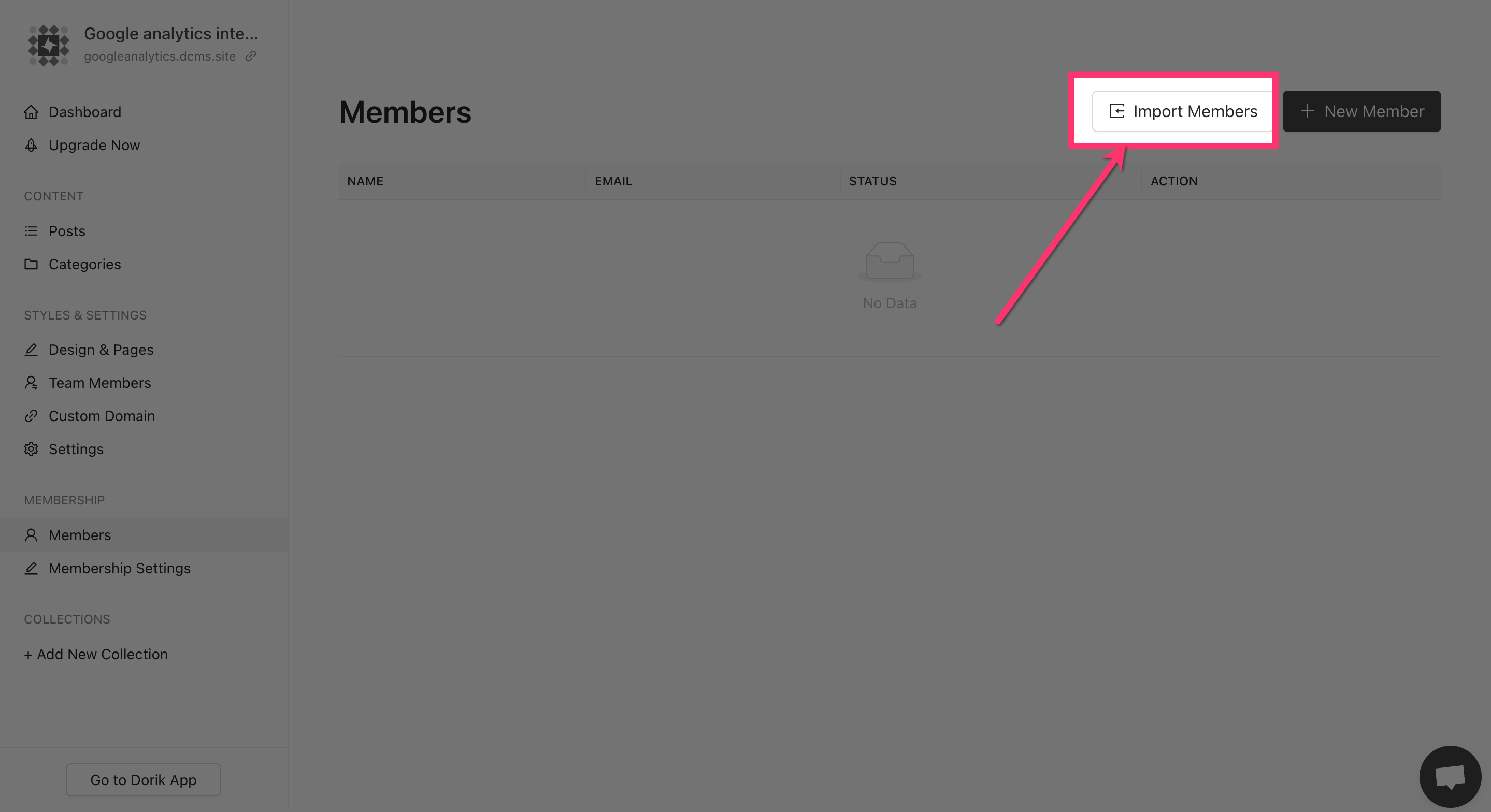
- Click on
Import Members - A pop-up will appear & you will find four platforms from where you can import members.
- Choose any one platform out of four (e.g. WordPress, Ghost, Medium, and Substack).
- Click on
+ uploadunder the Upload a CSV File field - Upload the CSV file from your device that you exported from your chosen platform.
- Click on
Import Members - And all your members or selected members from your chosen platform will be imported into your CMS site.
The Screenshots & GIFs below show the whole process being demonstrated visually ⬇️
- Click on
Import Members
- A pop-up will appear & you will find four platforms from where you can import members.
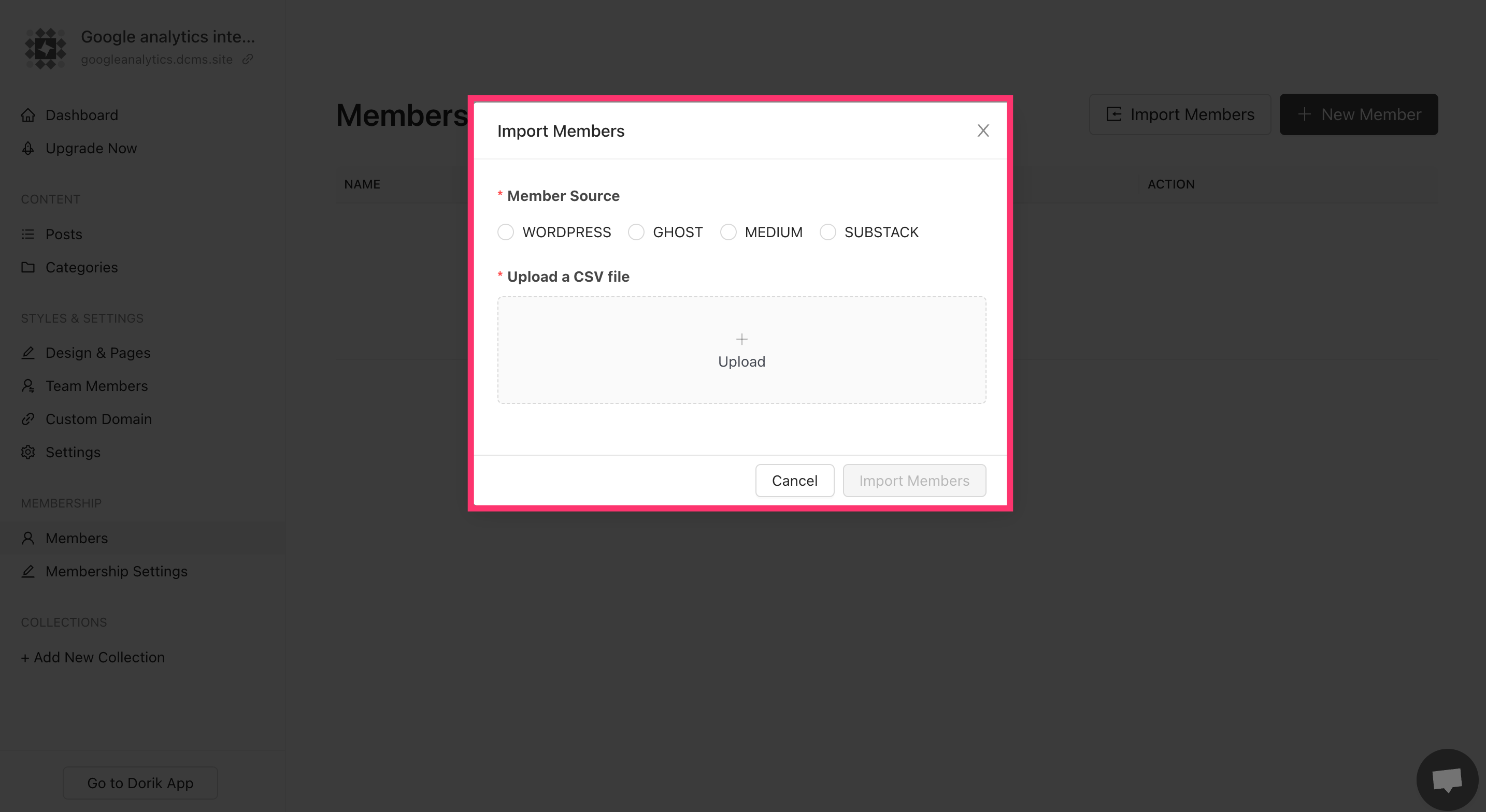
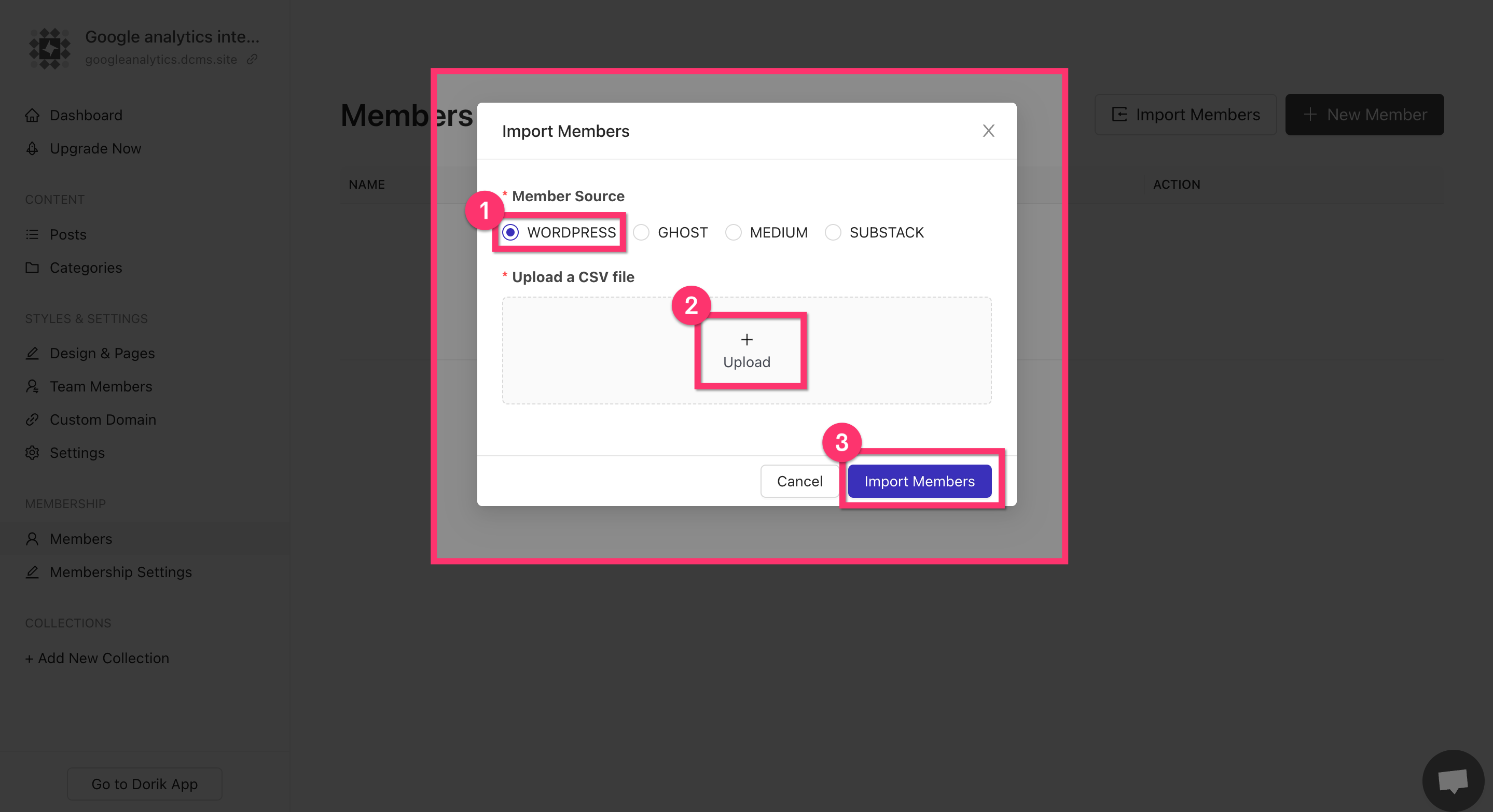
- Choose any one platform out of four (e.g., WordPress, Ghost, Medium, and Substack).
- Click on
+ uploadunder the Upload a CSV File field - Upload the CSV file from your device that you exported from your chosen platform.
- Click on
Import Members - And all your members or selected members from your chosen platform will be imported into your CMS site.
Related articles
🟢 Enable Membership on a blog post🗝️ Gated Page for MembersTo know the whole process, refer to the GIFs below ⬇️
How to Import from WordPress
Follow the GIF below to learn how to import members from WordPress to your CMS Site —
How to Import from Ghost
Follow the GIF below to learn how to import members from Ghost to your CMS Site —
How to Import from Medium
Follow all the steps below to learn how to import members from Medium to your CMS Site —
How to Import from Substack
Follow the GIF below to learn how to import members from Substack to your CMS Site —
Ai nevoie de ajutor? Scrie-ne.