
Membership Design
Getting Started
The Design option in Membership Settings lets you customize various options in the membership feature, from letting you design the membership portal form to customizing the subscription button; you can do all of this from the Membership Settings option.
Table of contents
Membership Design
To change membership design, follow the steps below:
- Go to Membership Settings on the left-hand panel of your screen
- Click on Design
- Start customizing!
Signup Preview
The signup preview option inside the Design tab lets you customize the signup form when a site visitor wants to sign up as a member of your site. Below are some visualizations and descriptions to give you a clear idea about it.
Refer to the numbered list below to know more about each feature and option.
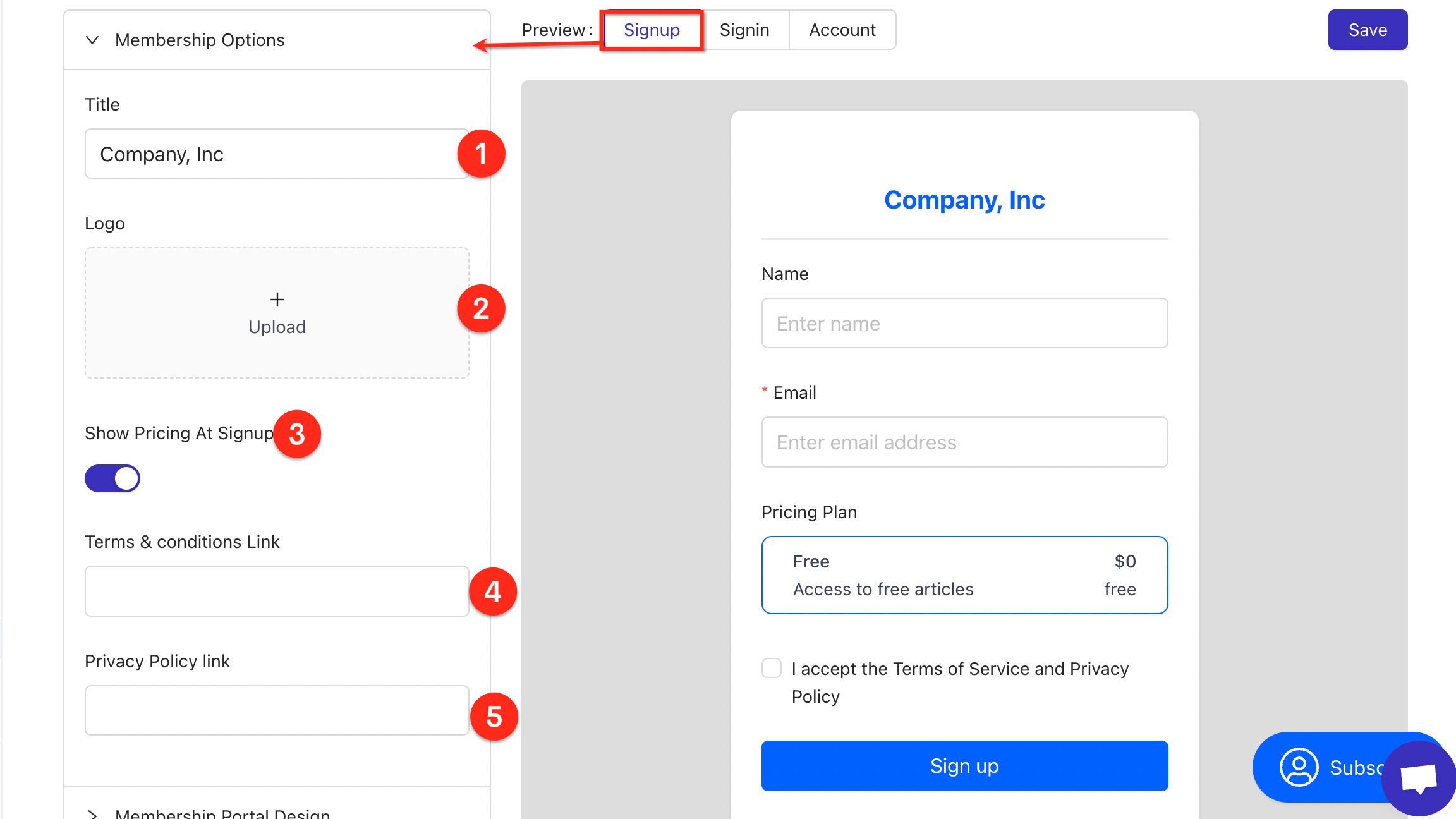
- Enter the title of your company
- Upload your company logo
- Choose whether you want to show the pricing in the signup form
- Enter the link to your Terms and Conditions if you have any
- Enter the link to your Privacy Policy if you have any
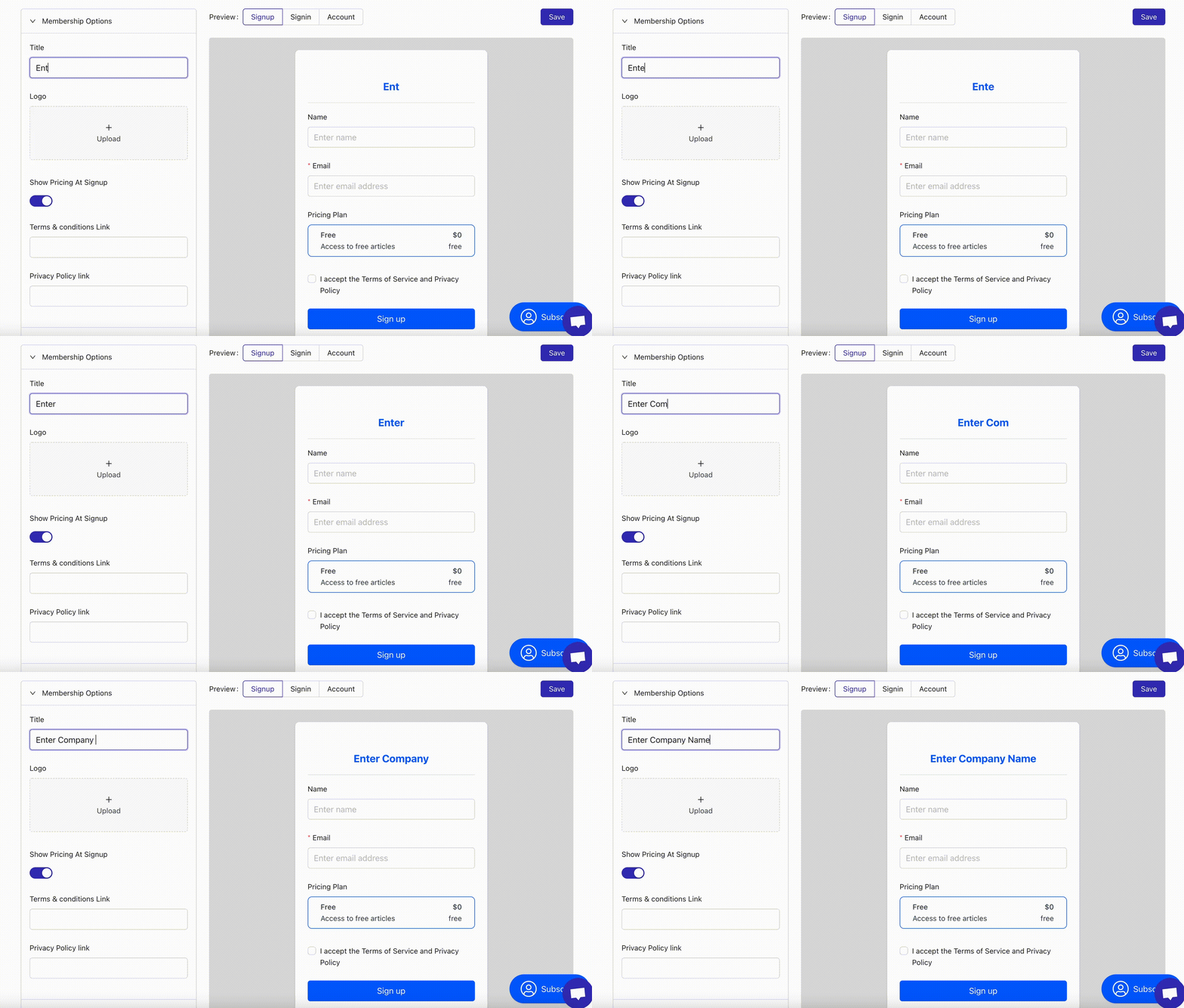
Refer to the GIF below to see the demonstration:
Portal Design and Floating Button Style
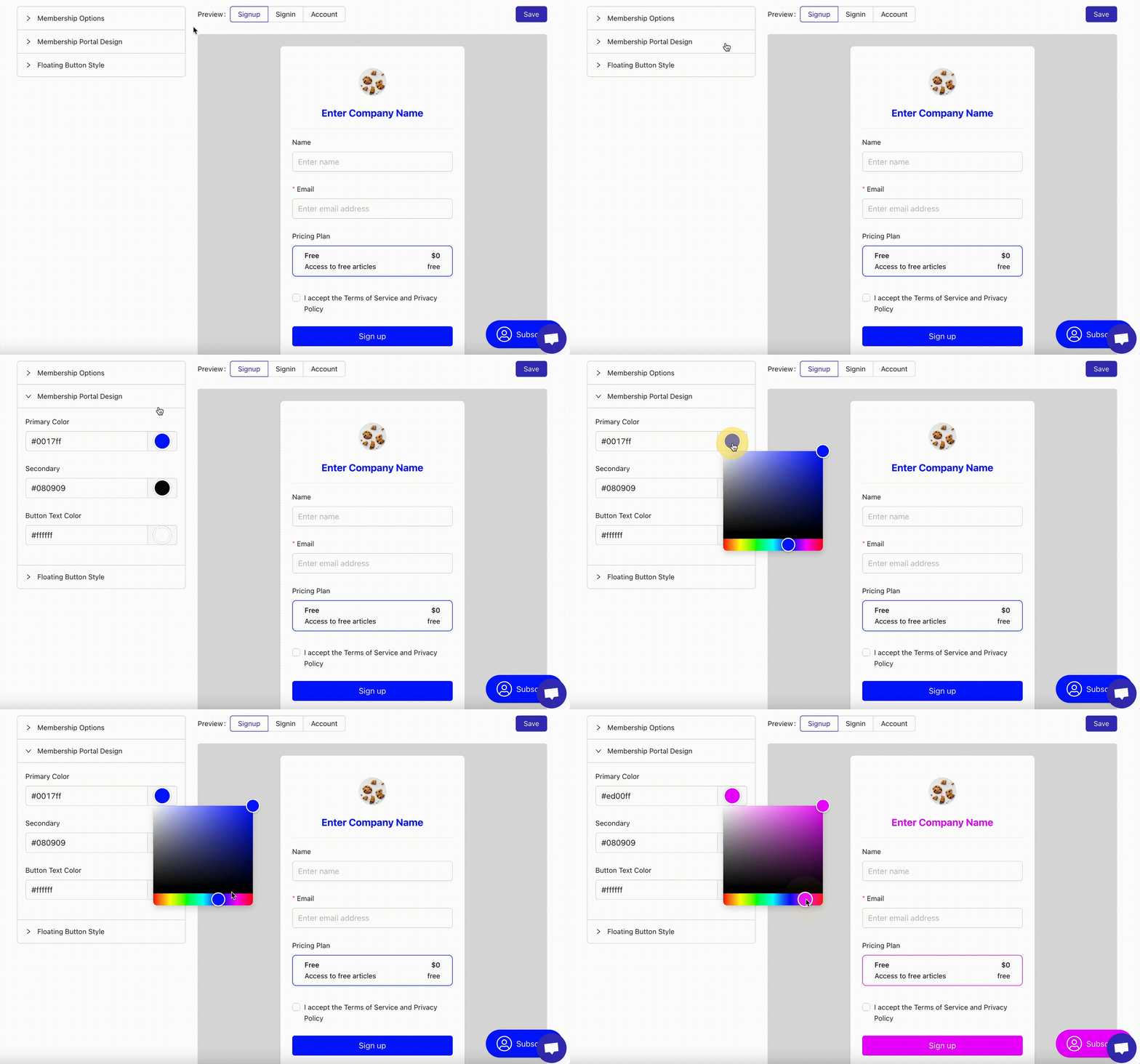
The GIF below demonstrates how you can customize your portal by setting the:
- Primary Color: The primary color of your brand
- Secondary Color: The secondary color of your brand
- Show Floating Button: You can choose whether you want the floating button to be visible on your site.
- Button Text Color: The text color in both the signup and subscribe button
Sign in Preview
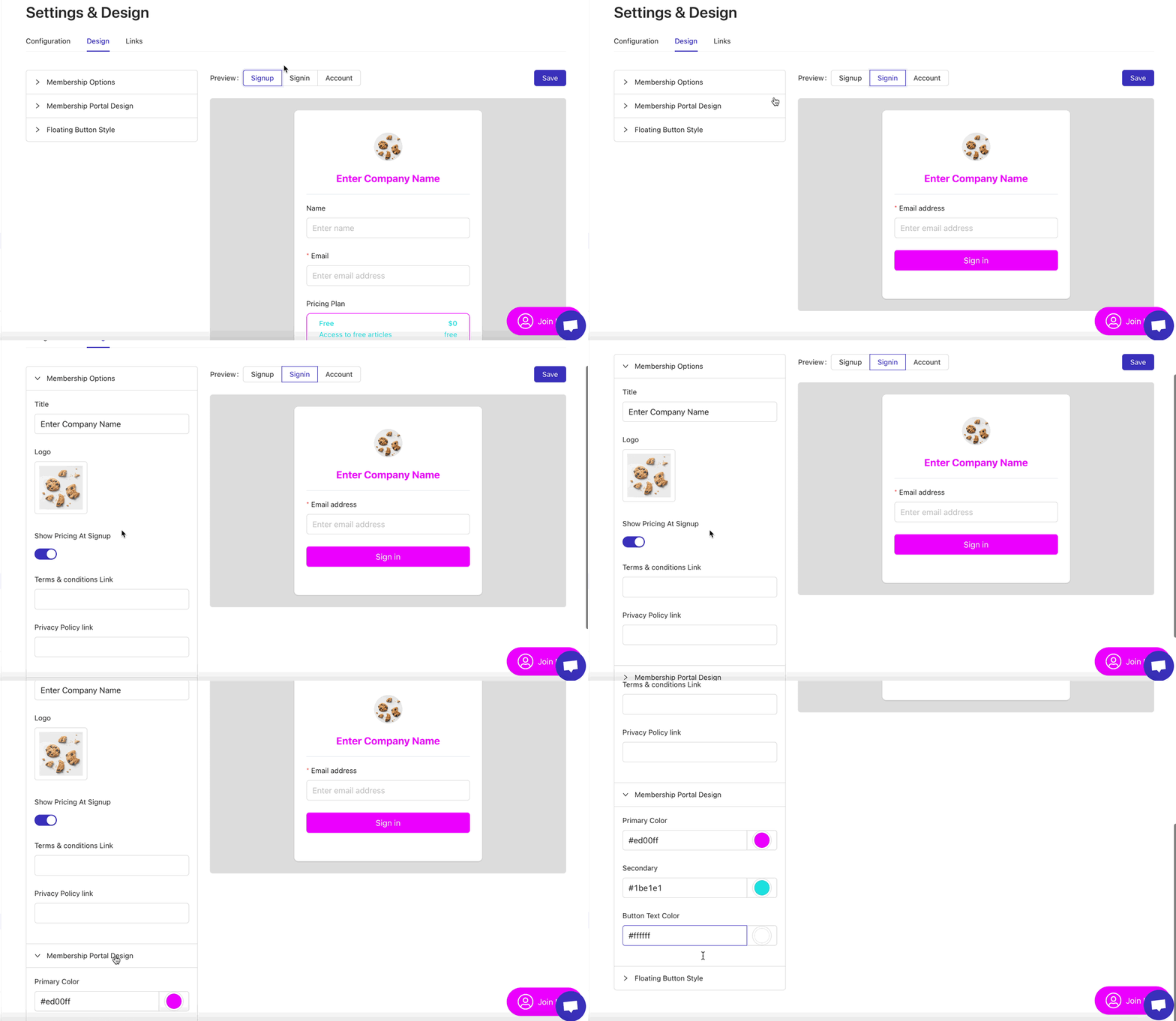
The sign-in window appears when an existing member signs in or logs in to your website; it works similar to the signup preview in terms of customization features.
Refer to the GIF below to see the demonstration:
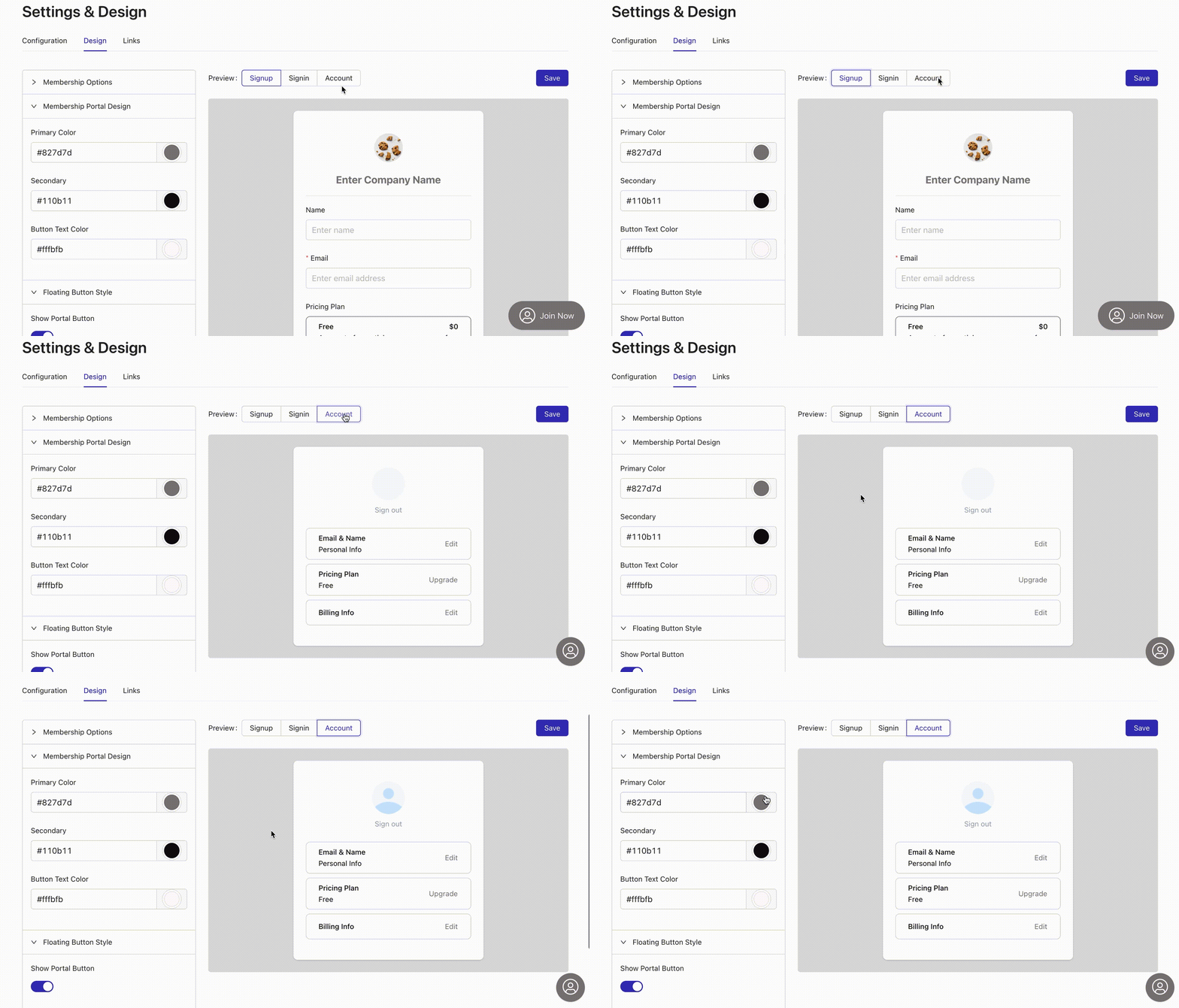
Account Preview
When a visitor, whether they are a member or a free user, can view the state of their account by viewing the Account panel. They can see and change their current pricing plan, their billing info, email address, and name from this window.
Refer to the GIF below to see how you can customize the Account window preview.
Related articles
Membership link and data-attribute use How to add a new memberAi nevoie de ajutor? Scrie-ne.