
Testimonial Slider
Getting Started
You can add testimonials of your clients to your website using the Testimonial Slider element. This article will cover how you can add and edit a testimonial slider using the following element. Follow all instructions accordingly.
Table of Contents
Add a Testimonial Slider
Follow the steps below to add a Testimonial Slider to your site.
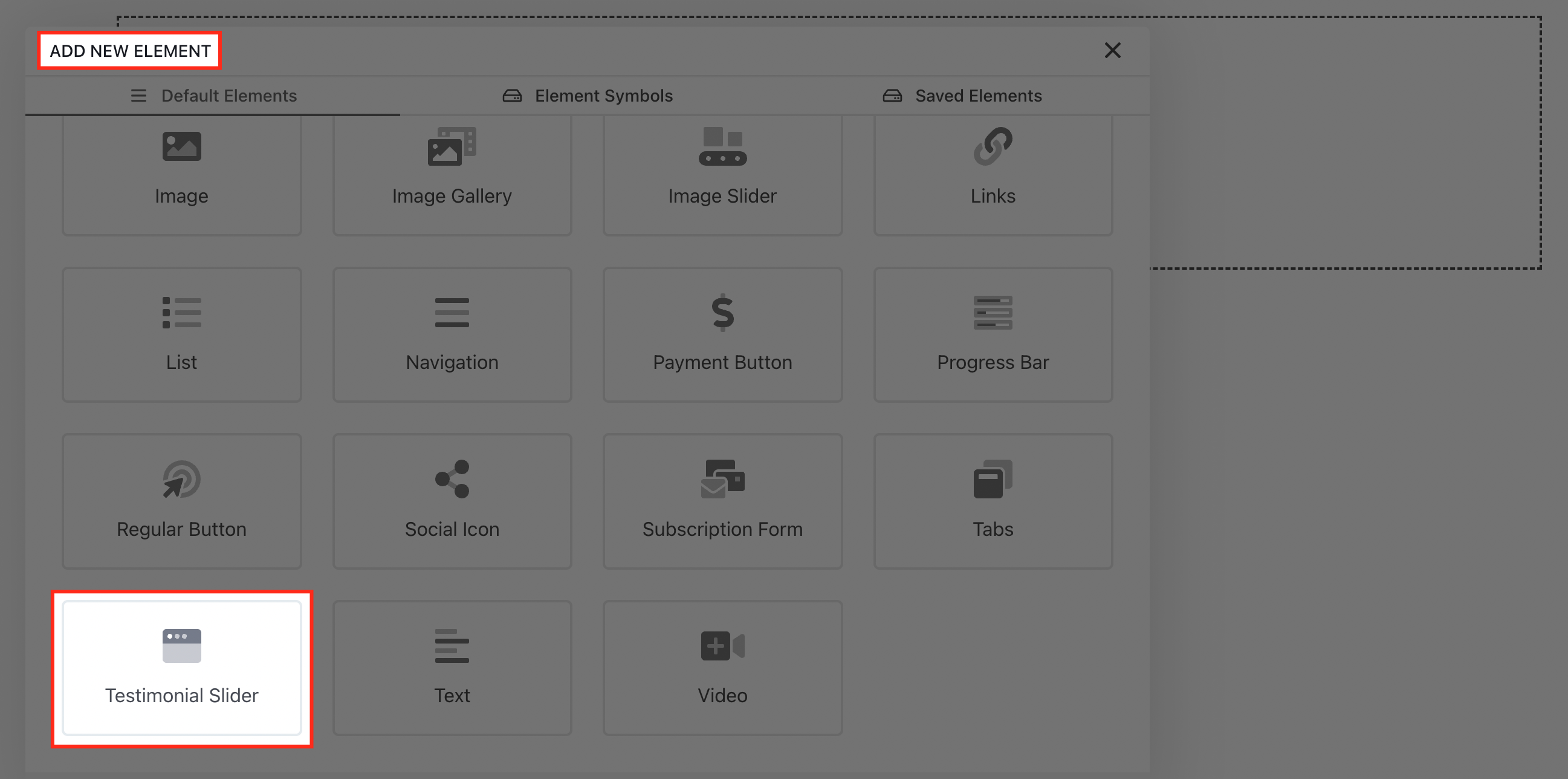
- Click on Add Element in an empty row and section
- From the General Elements section, select Testimonial Slider
Refer to the GIF below:

Editing Testimonial Slider
Follow the steps and instructions below to add and edit a Testimonial Slider on your site.
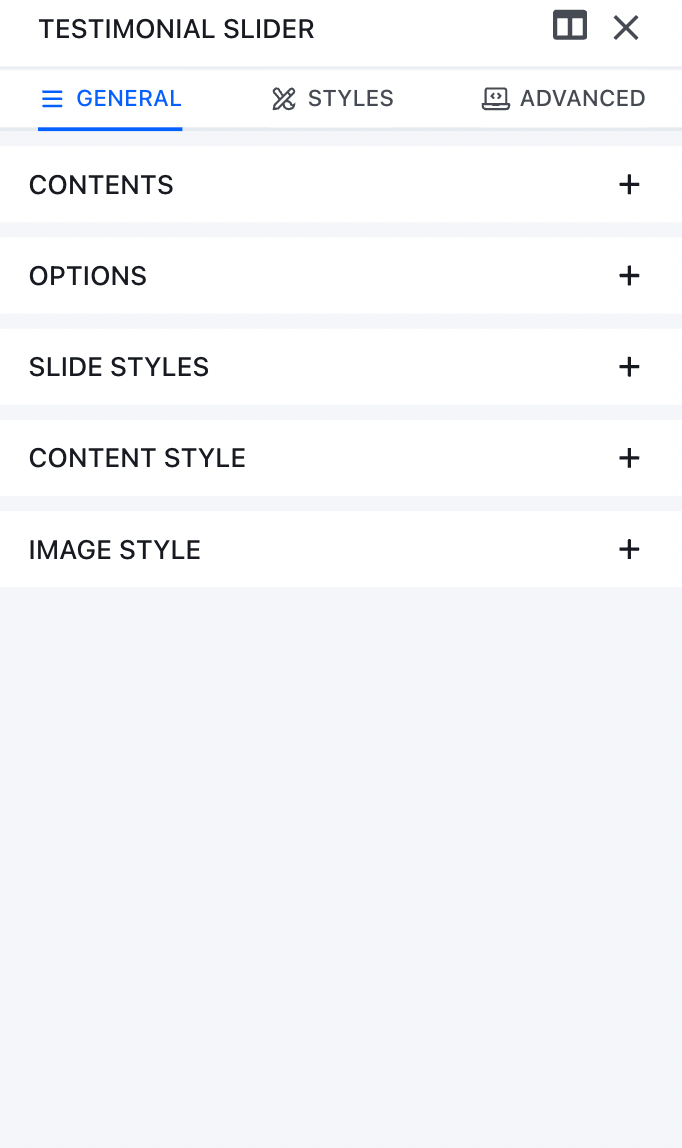
The Testimonial Slider element editor has the following options:
- Contents
- Options
- Slide Styles
- Content Style
- Image Style
The Testimonial Slider element editor:
Contents
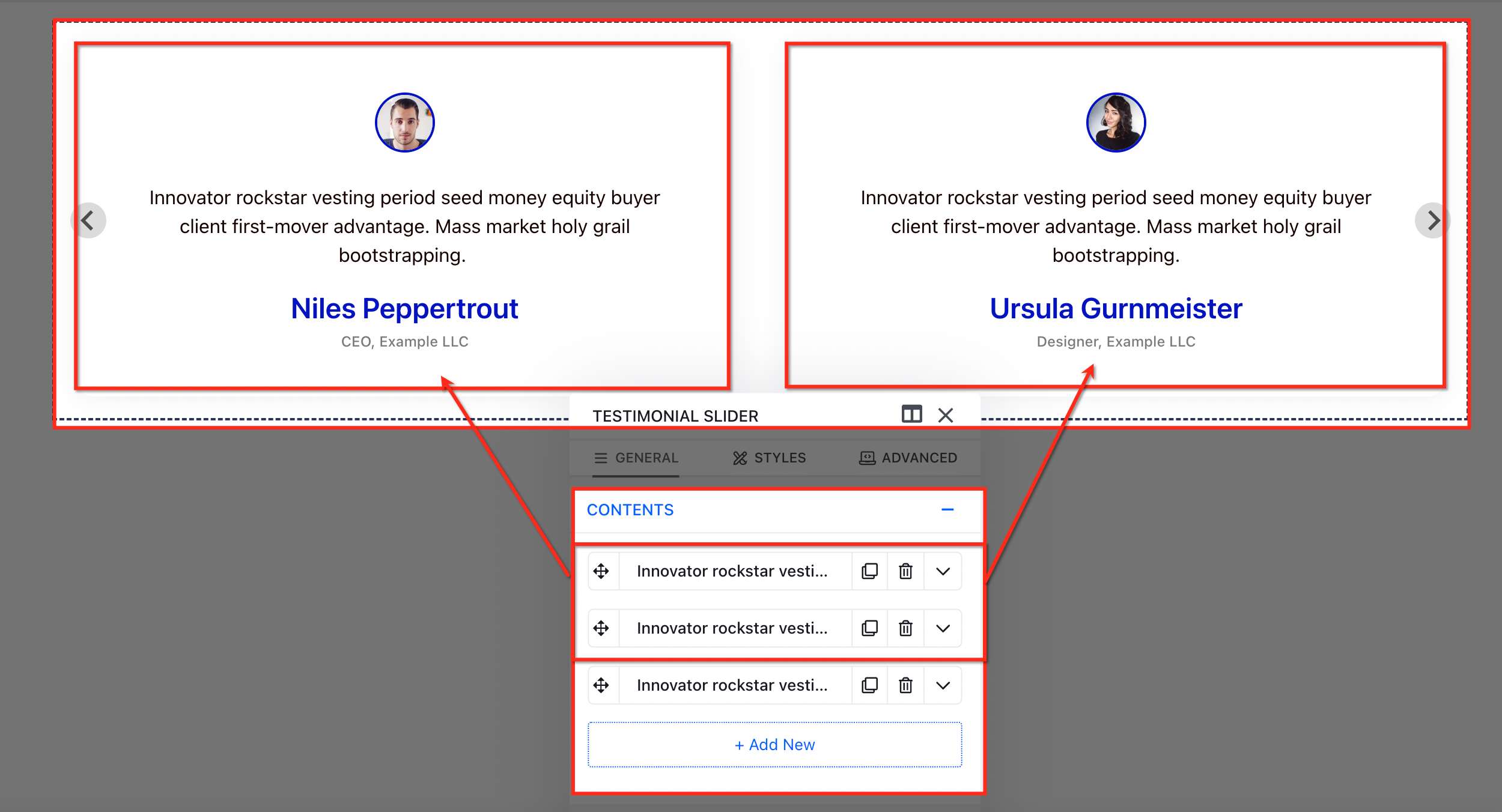
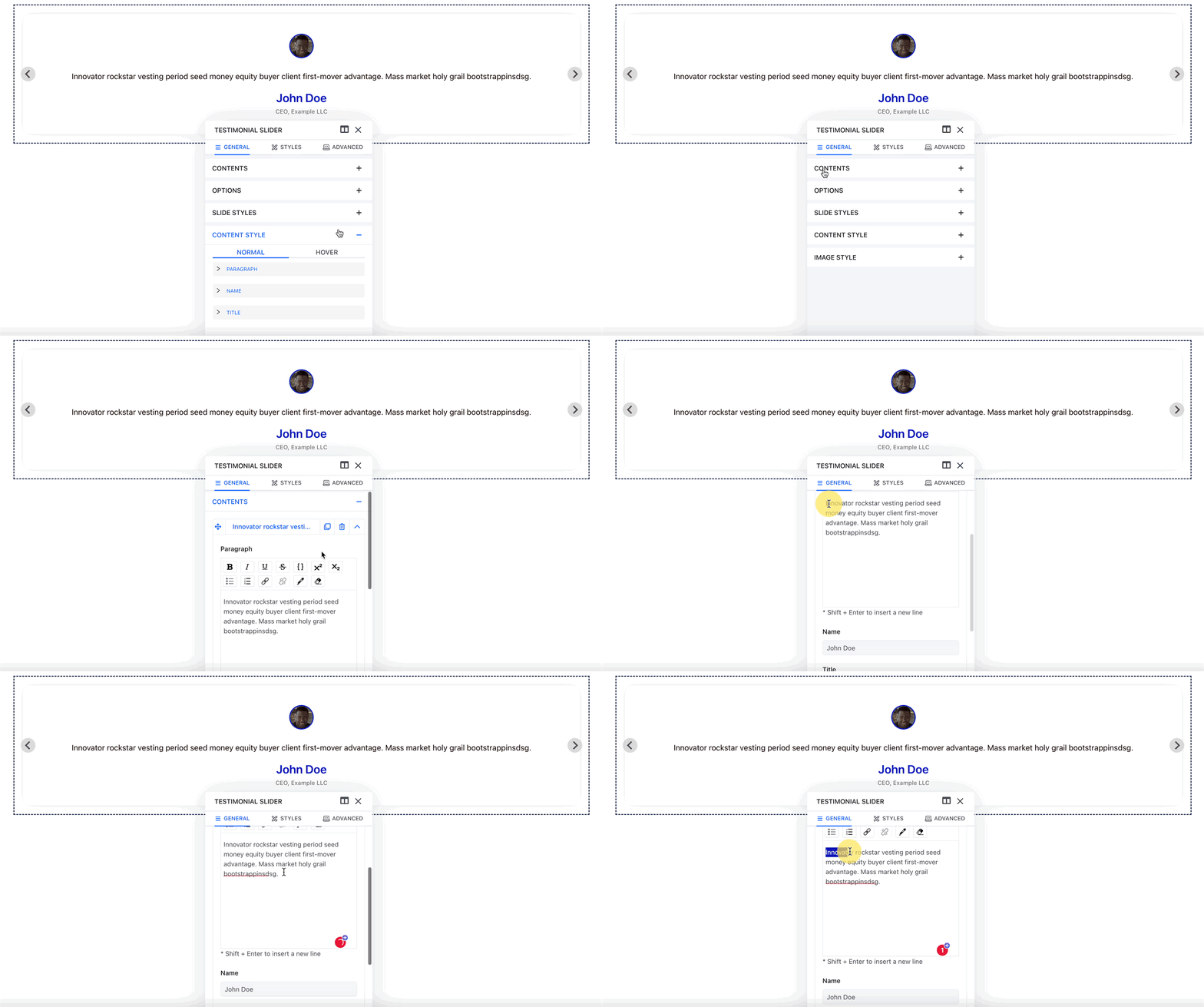
You can change the contents in your testimonial slider inside this option. You can copy, delete, add new, and edit individual content inside your slider from this option.
Refer to the Image and GIF below to see the settings being demonstrated inside this option ⬇️
Options
Inside this option, you can set adjustments to the testimonials on your website.
Refer to the Image and GIF below to see the settings being demonstrated inside this option ⬇️
Slide Styles
You can change the style of your Testimonial slider element using this option.
Refer to the GIF below to see the settings being demonstrated inside this option ⬇️
Content Styles
You can stylize the content inside the testimonials from this option.
Refer to the GIF below to see the settings being demonstrated inside this option ⬇️
Image Style
The images in your testimonials can be stylized in this option.
Refer to the GIF below to see the settings being demonstrated inside this option ⬇️
Related articles
🎚️ Content Slider Image SliderAi nevoie de ajutor? Scrie-ne.