
Integrarea GoDaddy
Getting Started
This article will cover integrating a GoDaddy domain into your website. Follow all the instructions to integrate a GoDaddy domain into your site.
Table of Contents
Custom Domain Integration
Follow the steps below to add a Custom Domain to your site.
- Go to your website dashboard
- Click on Custom Domain under the Styles and Settings Panel on your left
- Step 1: Add your domain name
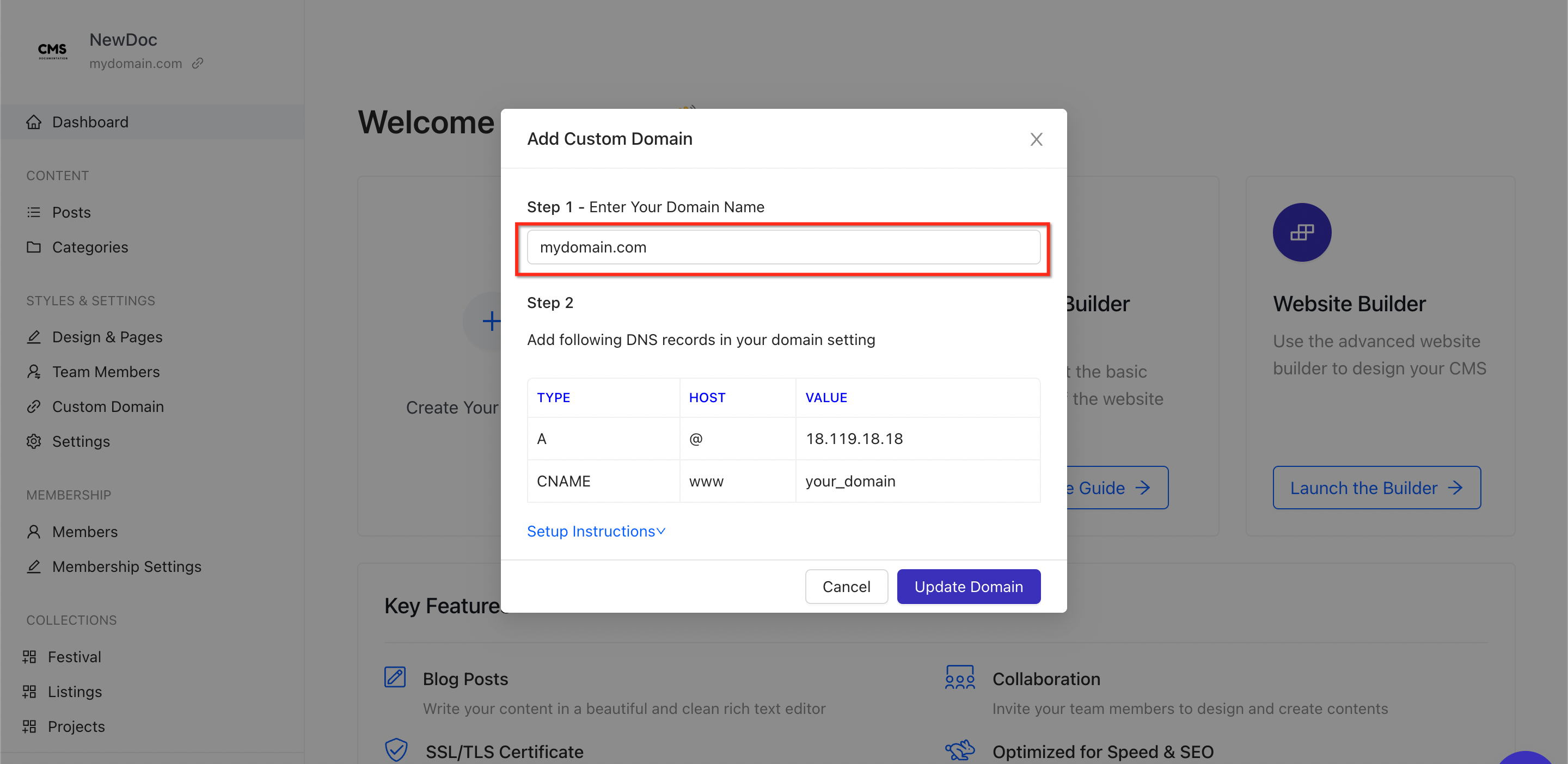
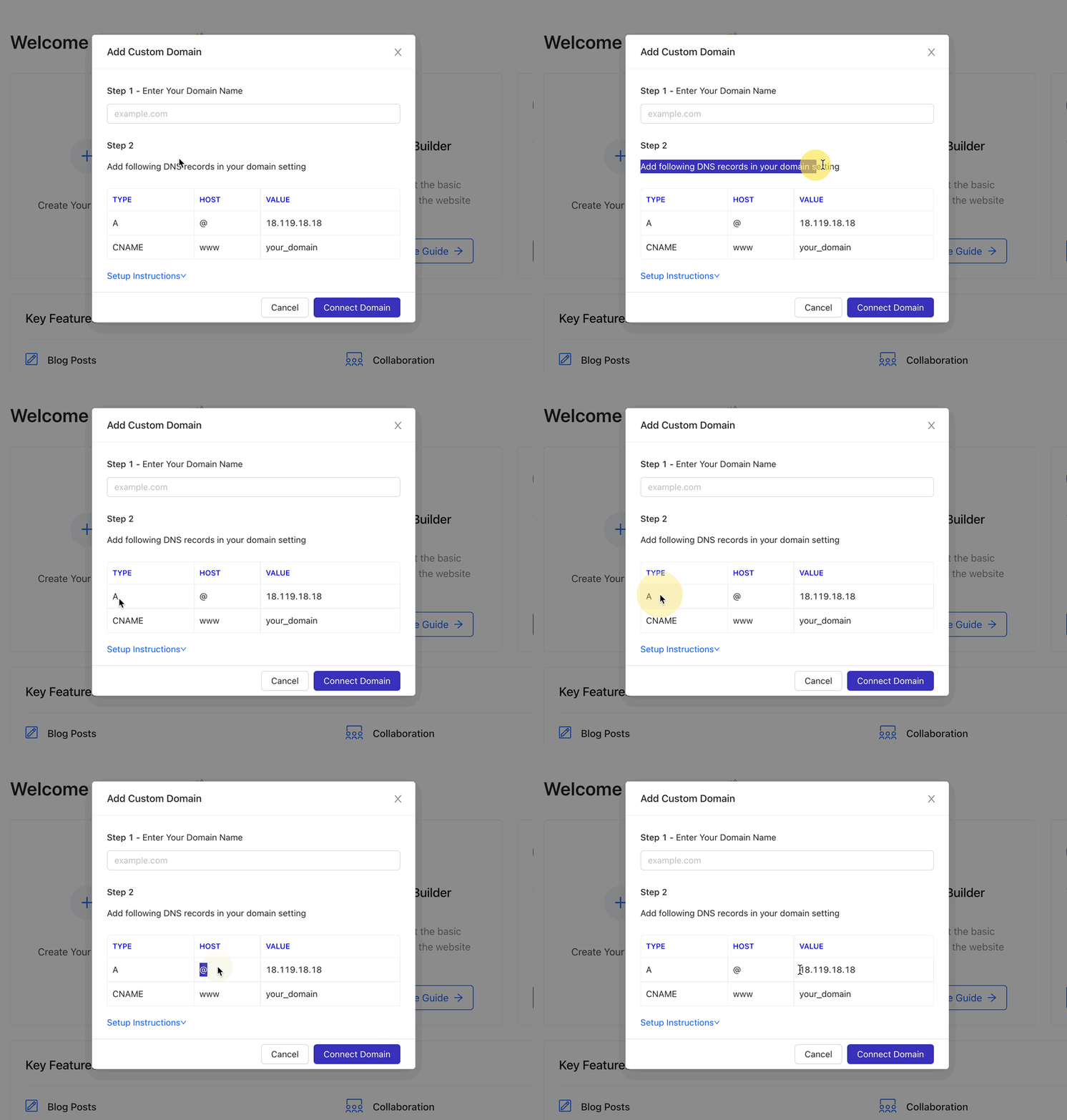
- Step 2: Copy the values from the Type records: A and CNAME, and paste them into your DNS records.
For more information, refer to the Documentation below ⬇️
Fără titluGoDaddy Integration
To integrate a custom domain from GoDaddy to your website, follow the steps given below:
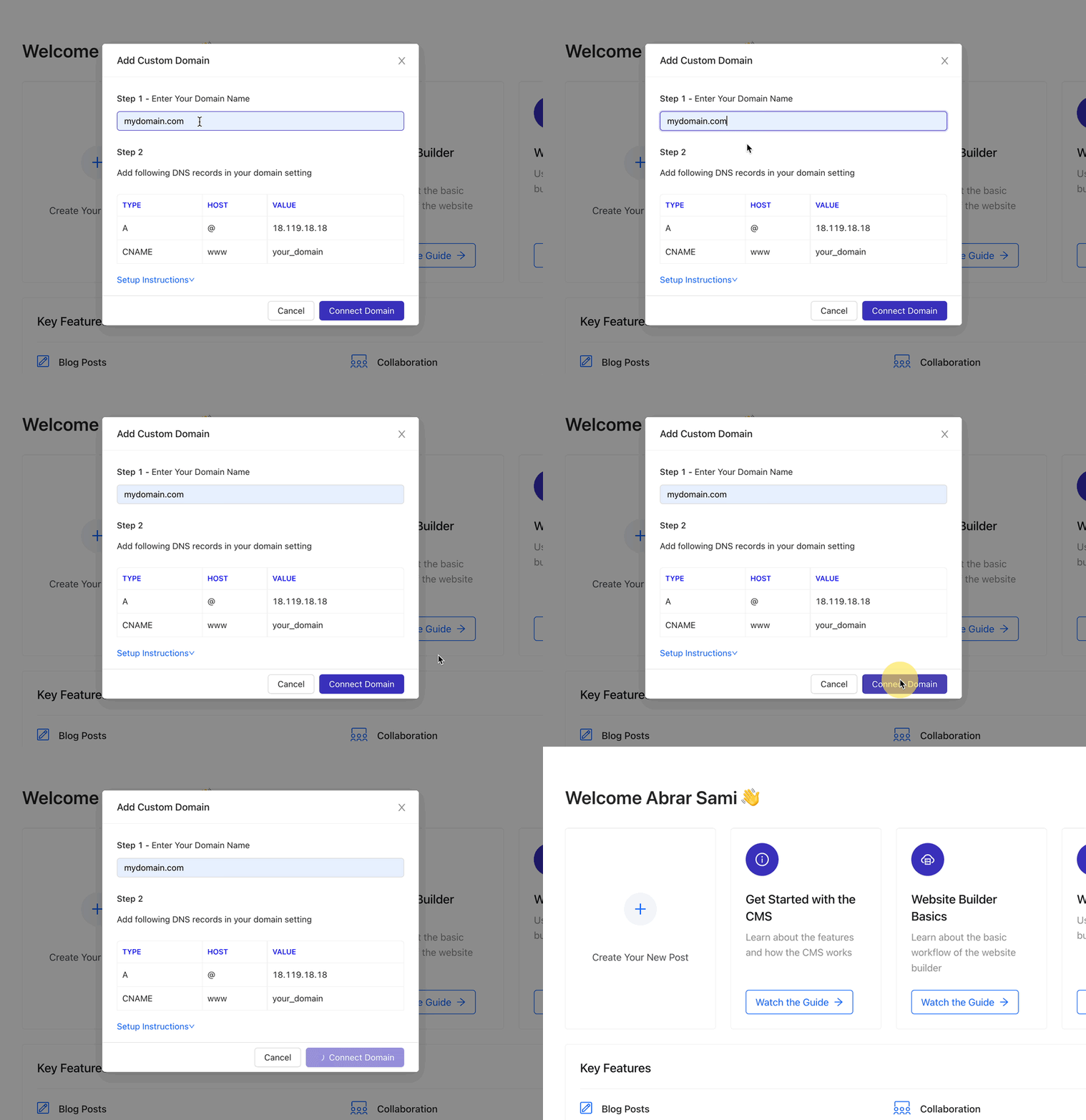
- Type your domain name in the input field as shown below
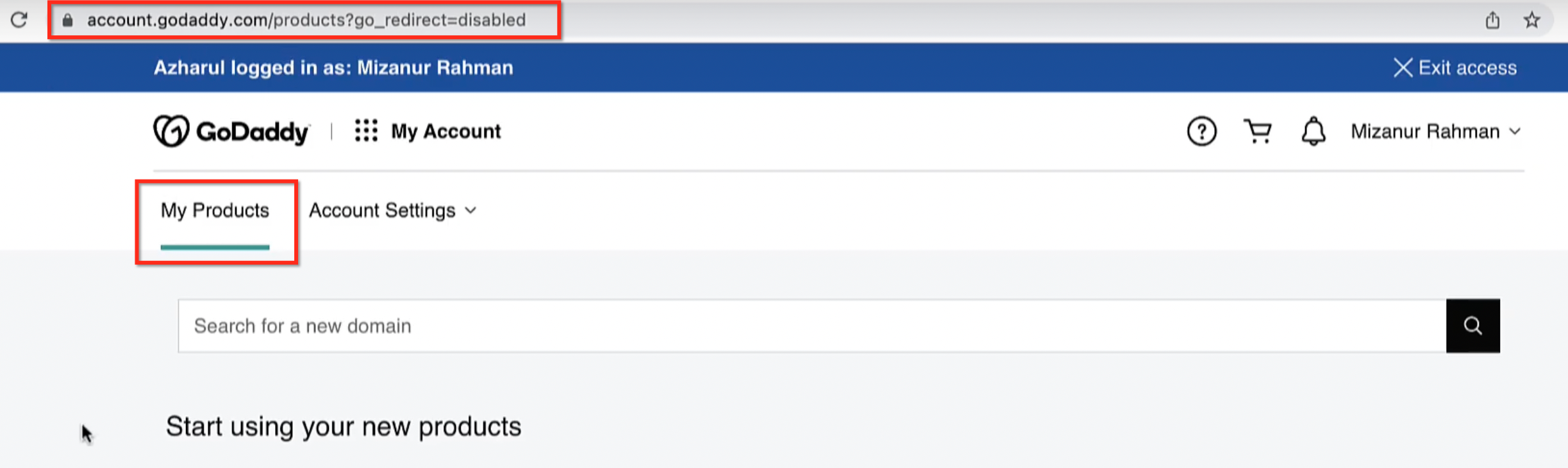
- Log in to your GoDaddy Account and go to the My Products panel.
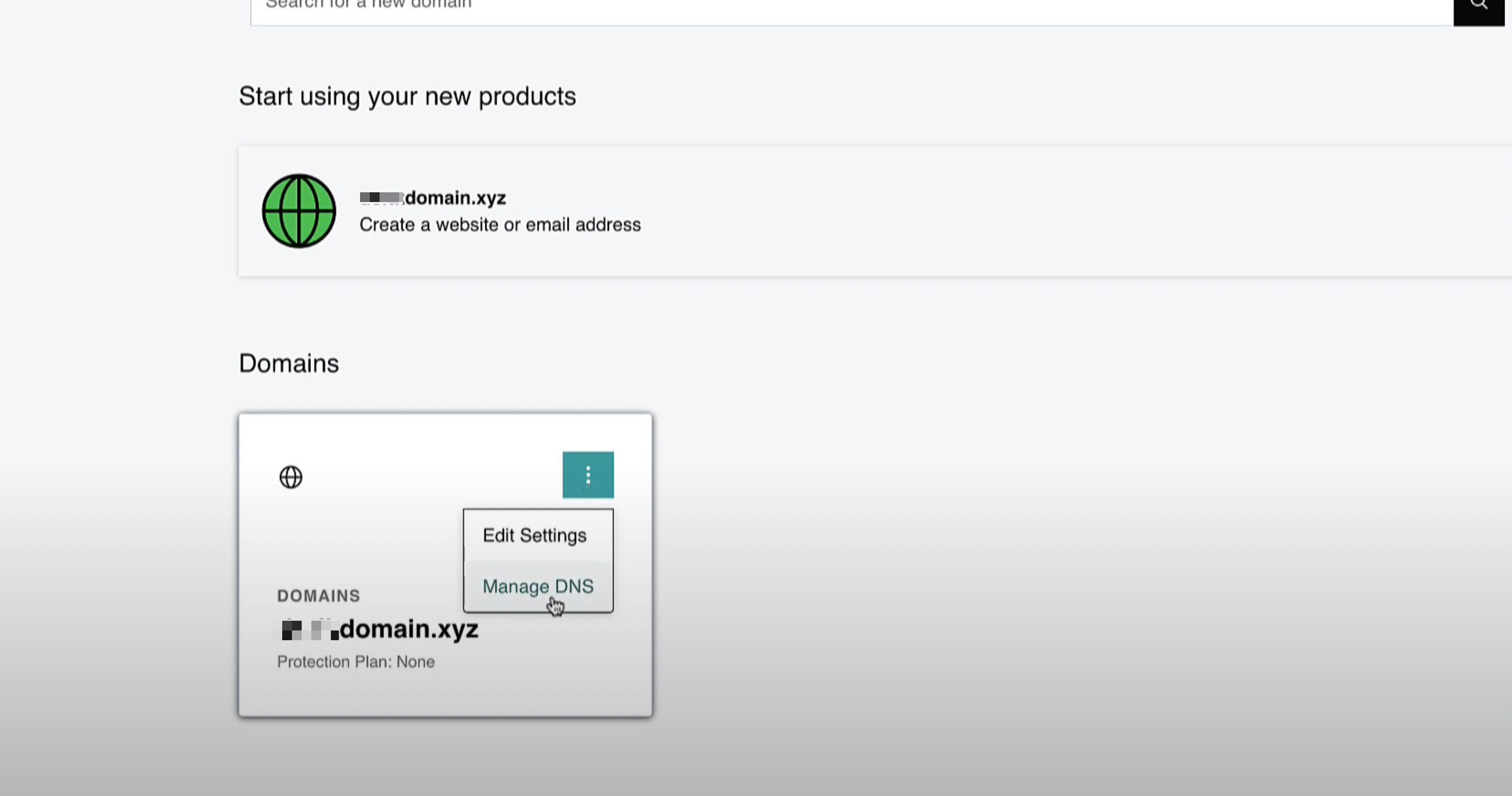
- Select the domain you want to integrate, click on the three-dotted icon on the top-right and click on Manage DNS.
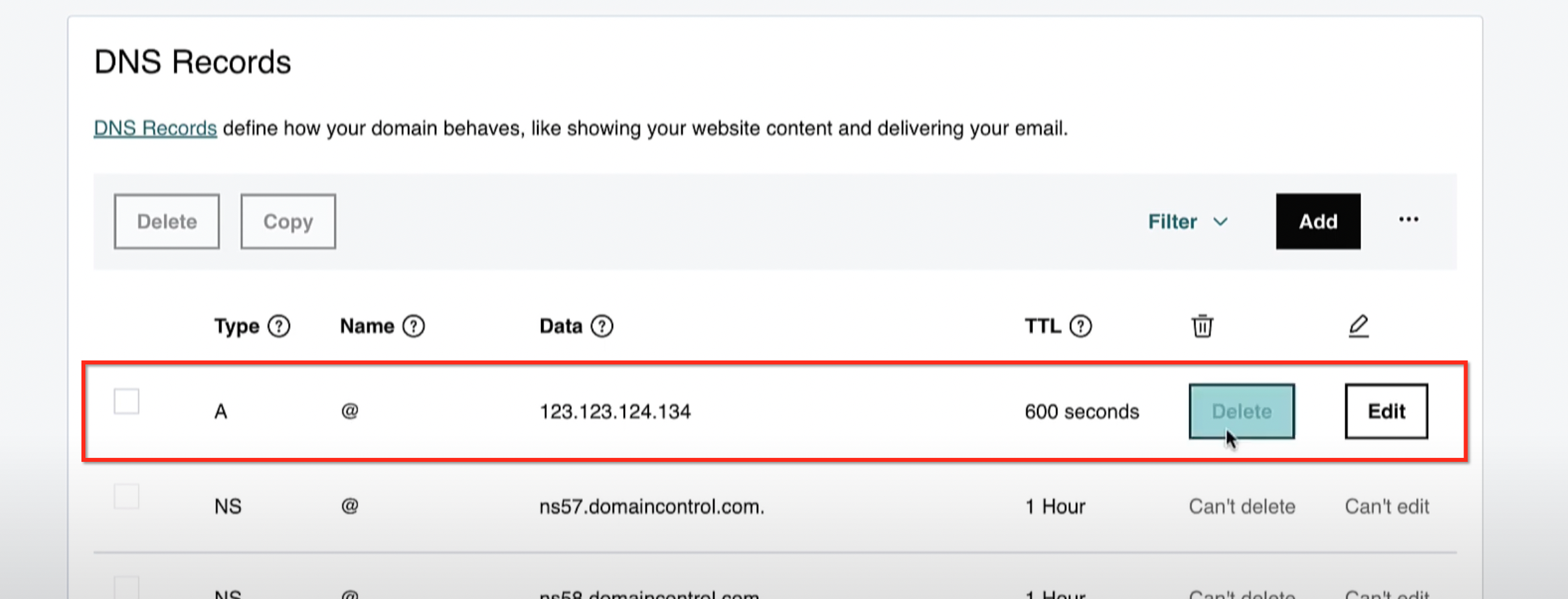
- Delete any existing A records in your DNS records.
- Copy the VALUE from the Type A record
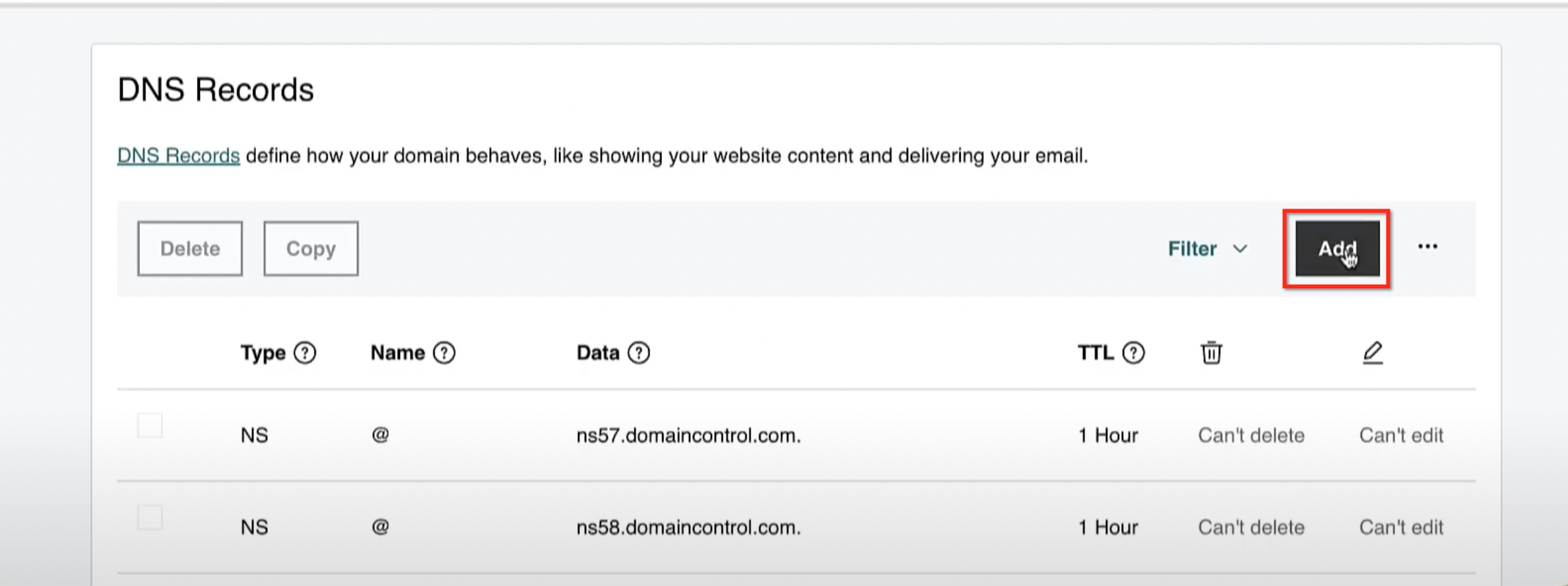
- Click on Add to add a new A record
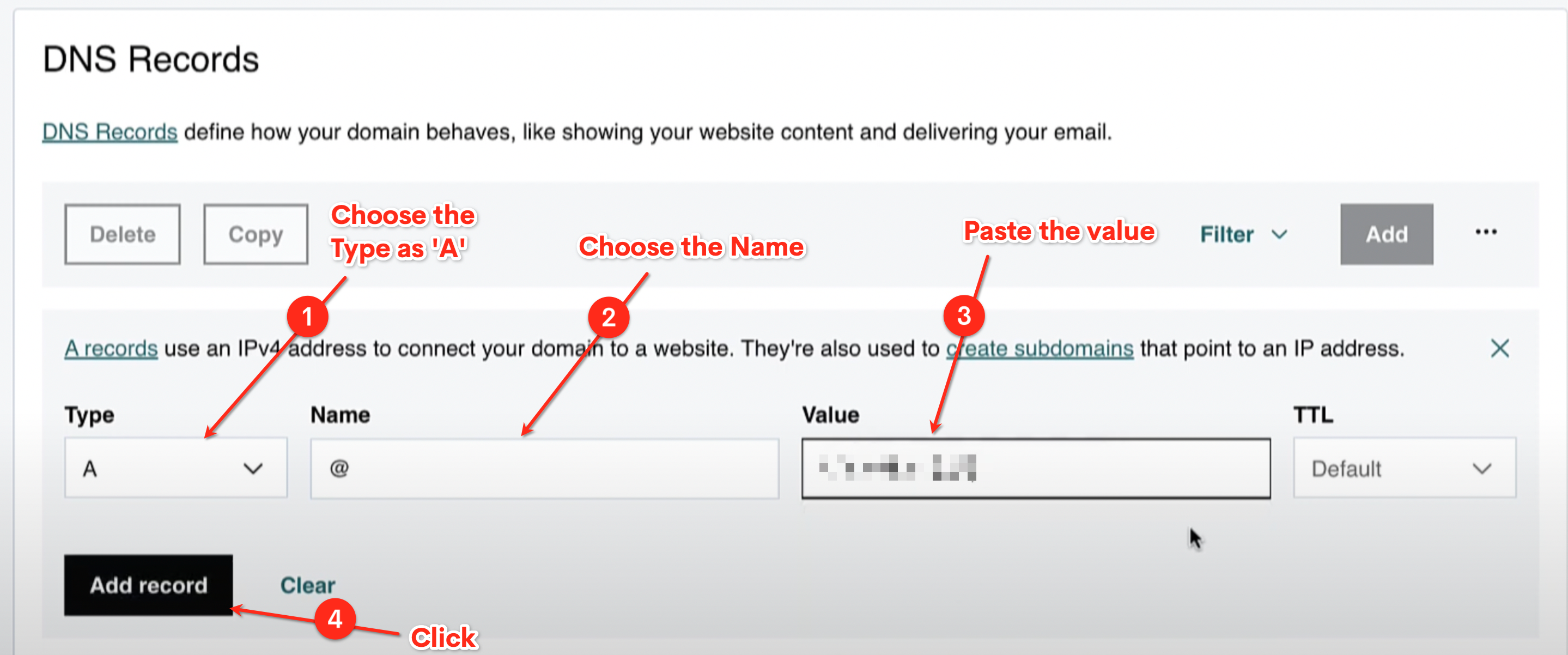
- Follow the instructions below to complete the A record:
- Choose the Type as ‘A’
- Type ‘@’ under the Name input field
- Paste the value you copied earlier in Step 5 and paste it under the Value input field.
- Next, delete any CNAME record from the DNS records
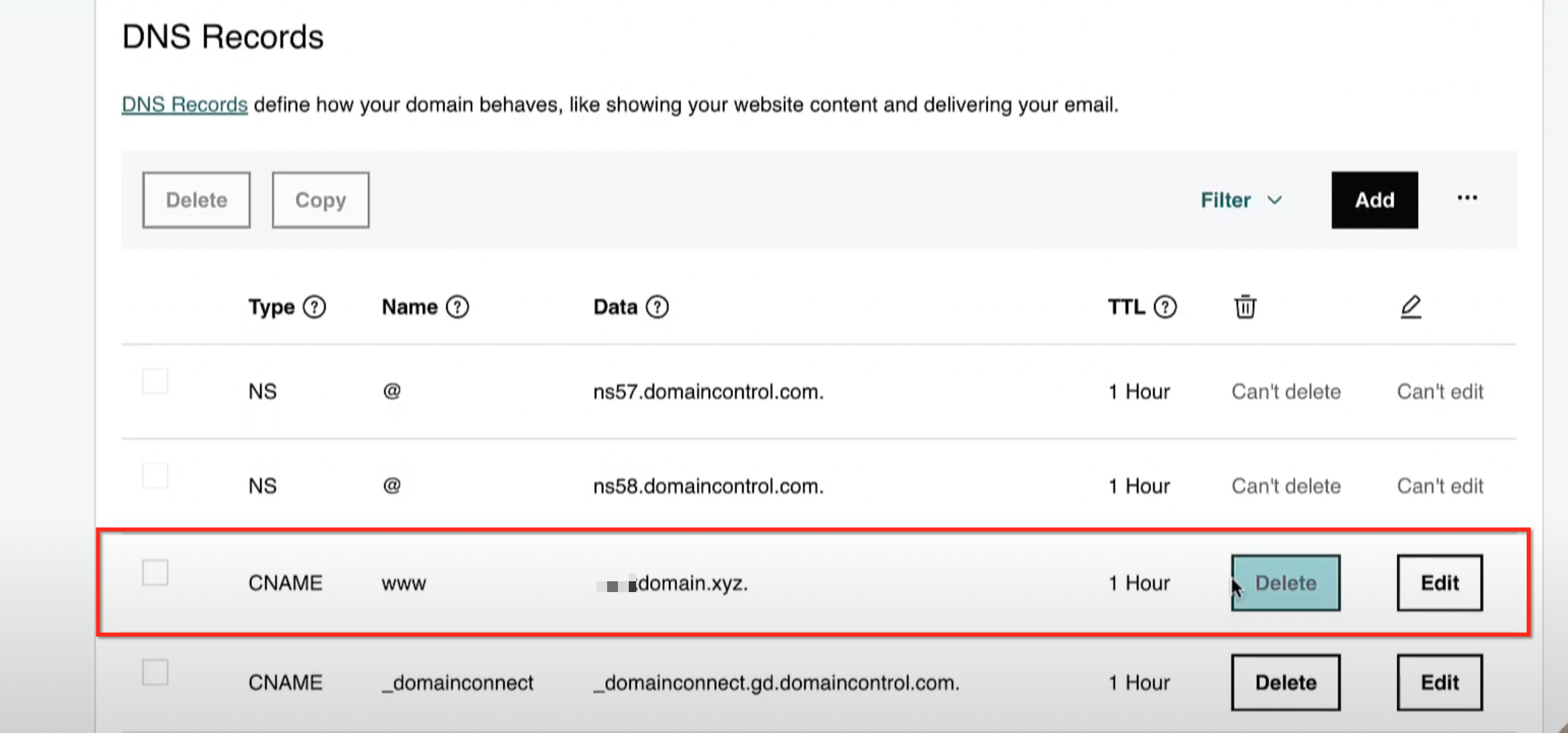
- Click on Add to add a new CNAME record
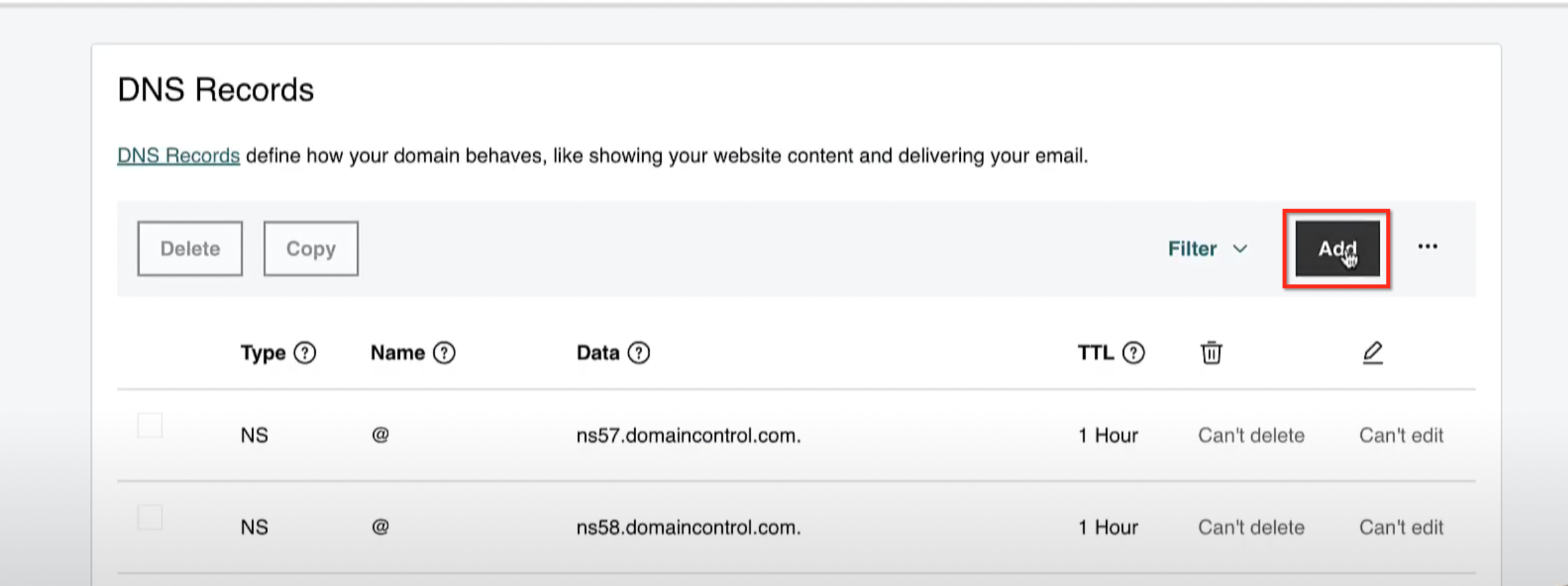
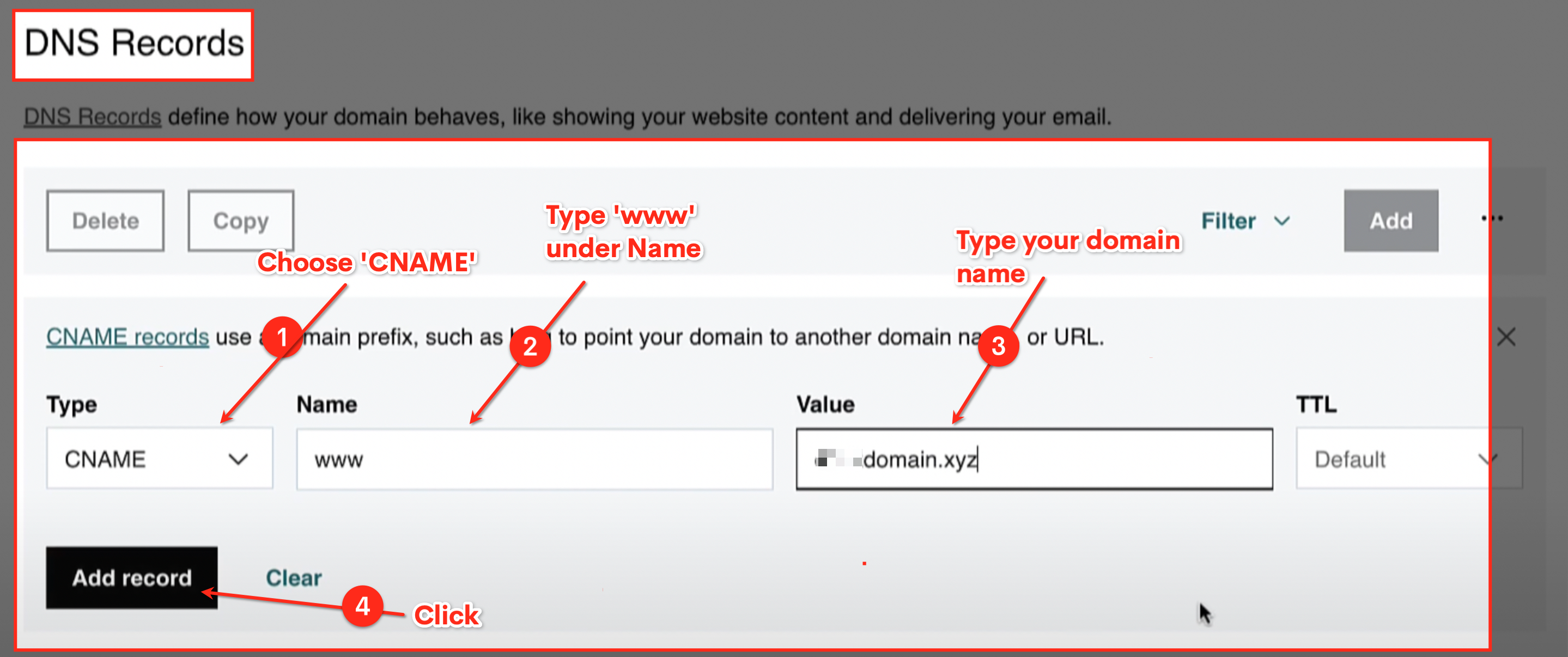
- Follow the instructions below to complete the CNAME record:
- Choose the Type as ‘CNAME’
- Type ‘www’ under the Name input field
- Input your domain name, excluding the ‘www’ in the prefix. E.g., “mydomain.com”
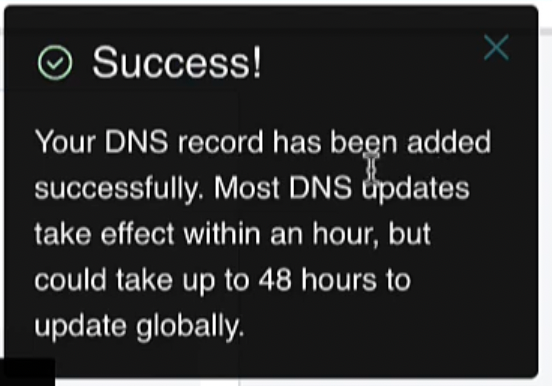
- You will receive the following message:
- Go back to your dashboard and click on Connect Domain to finish connecting your domain.
⚠️
It usually takes 1 to 48 hours to update your domain globally
Related articles
Integrarea Google Domains Integrarea NameSiloAi nevoie de ajutor? Scrie-ne.