
Ajutor › Integrări Formular de Abonare
Integrarea Mailjet
Getting Started
Follow all the instructions accordingly to integrate Mailjet into your subscription form.
Adding a Subscription Form
Follow the below steps to add a Subscription form to your website builder:
- Click Add New Section and select a Custom Section.
- Click on Add New Element.
- Then select Subscription Form from the element list under General Elements
Refer to the GIF below:
For more details, refer to the below documentation:
Integrating MailJet
To integrate MailJet into your subscription form, follow the steps given below:
- After adding the Subscription Form, click on Edit Element
- Expand the Form Configuration option
- Choose MailJet from the Services option of API Configuration Type
- Go to mailjet.com and log in to your account
- Go to https://app.mailjet.com/account/apikeys and select API Key Management
- Scroll down and choose Primary API Key, click on the Generate Security Key button
- Copy your API Key and Secret Key
- Go to your website builder, hover over the Subscription Form element, and click on Edit Element
- Choose Add New API Key on the Subscription Form Configuration option.
- Paste the API key & Secret key that you had copied
- Done! MailJet has been integrated with your subscription form.
Refer to the Screenshot and GIF below for a detailed explanation to see the above steps visualized:
Step 1: Expand the Form Configuration option from the Subscription Form Editor.
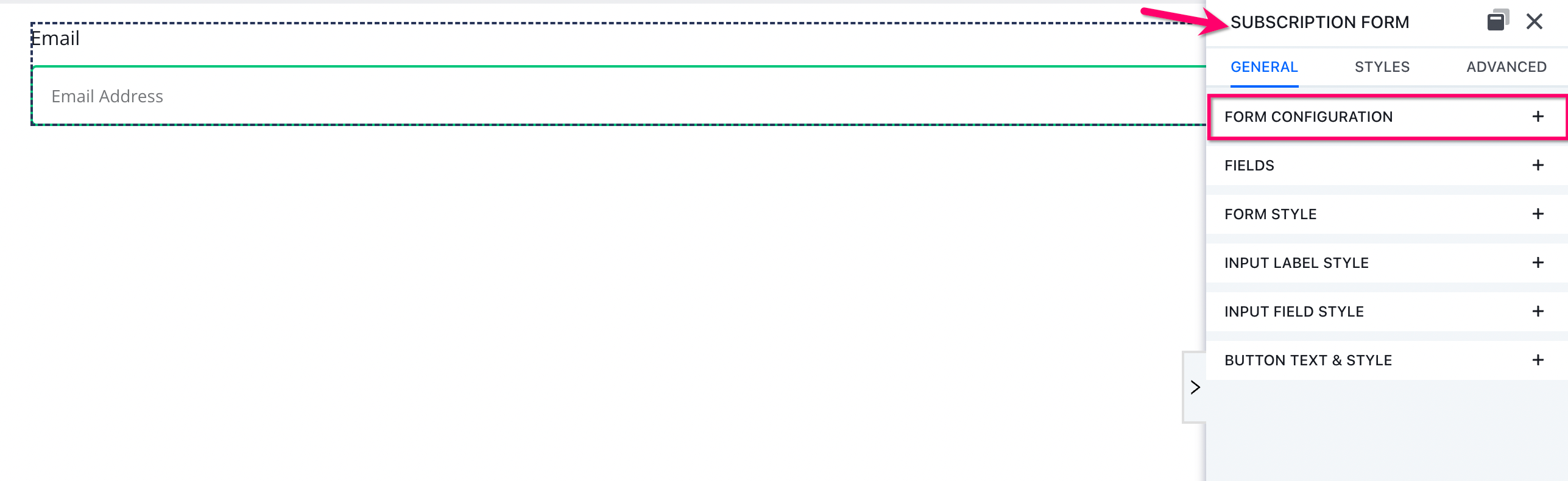
Step 2: Choose API under the Configuration Type option and choose Mailjet as the Service
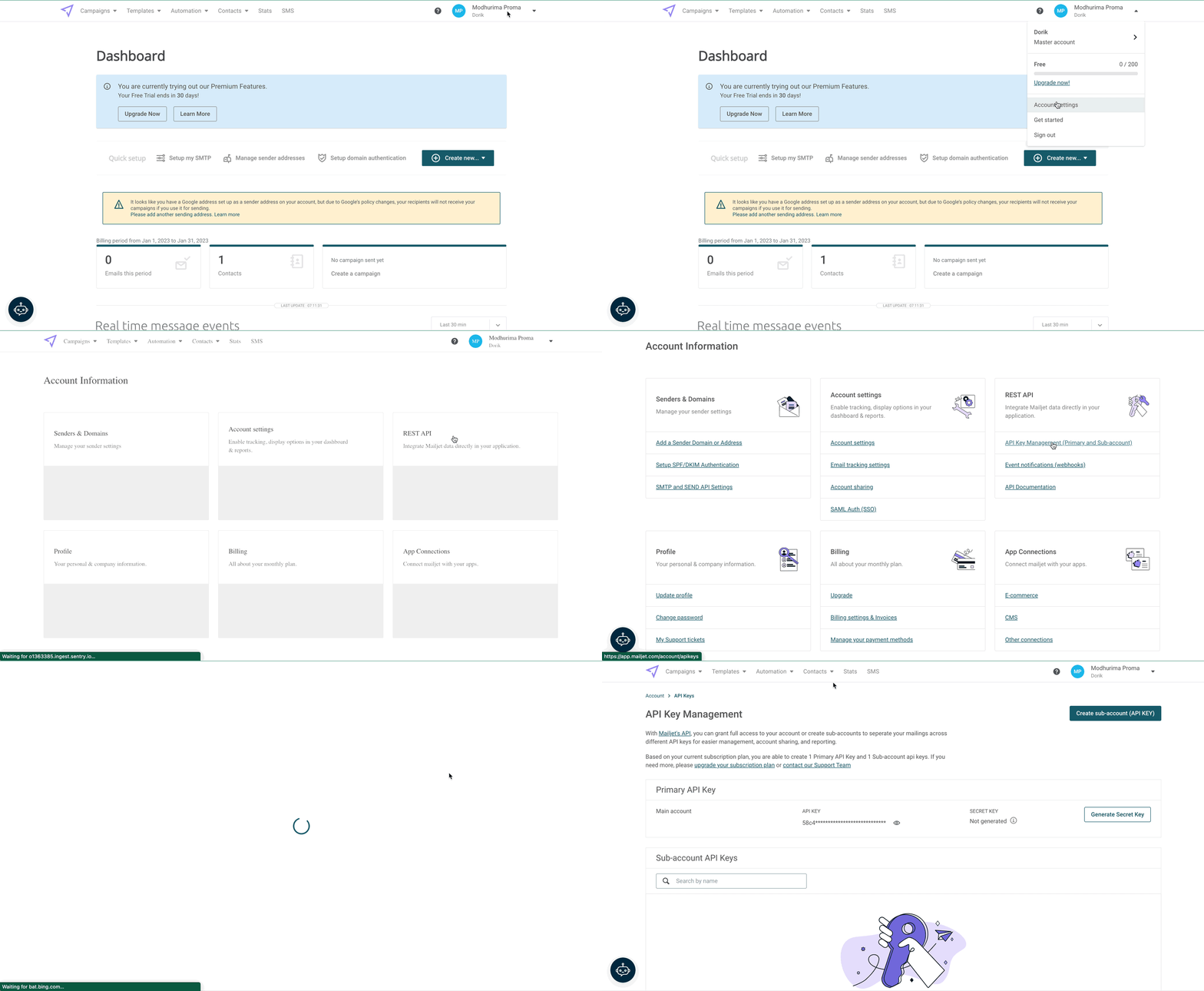
Step 3: From your MailJet dashboard, go to Account Setting from the Rest API, click API Key Management
https://app.mailjet.com/account/apikeys and select API Key Management
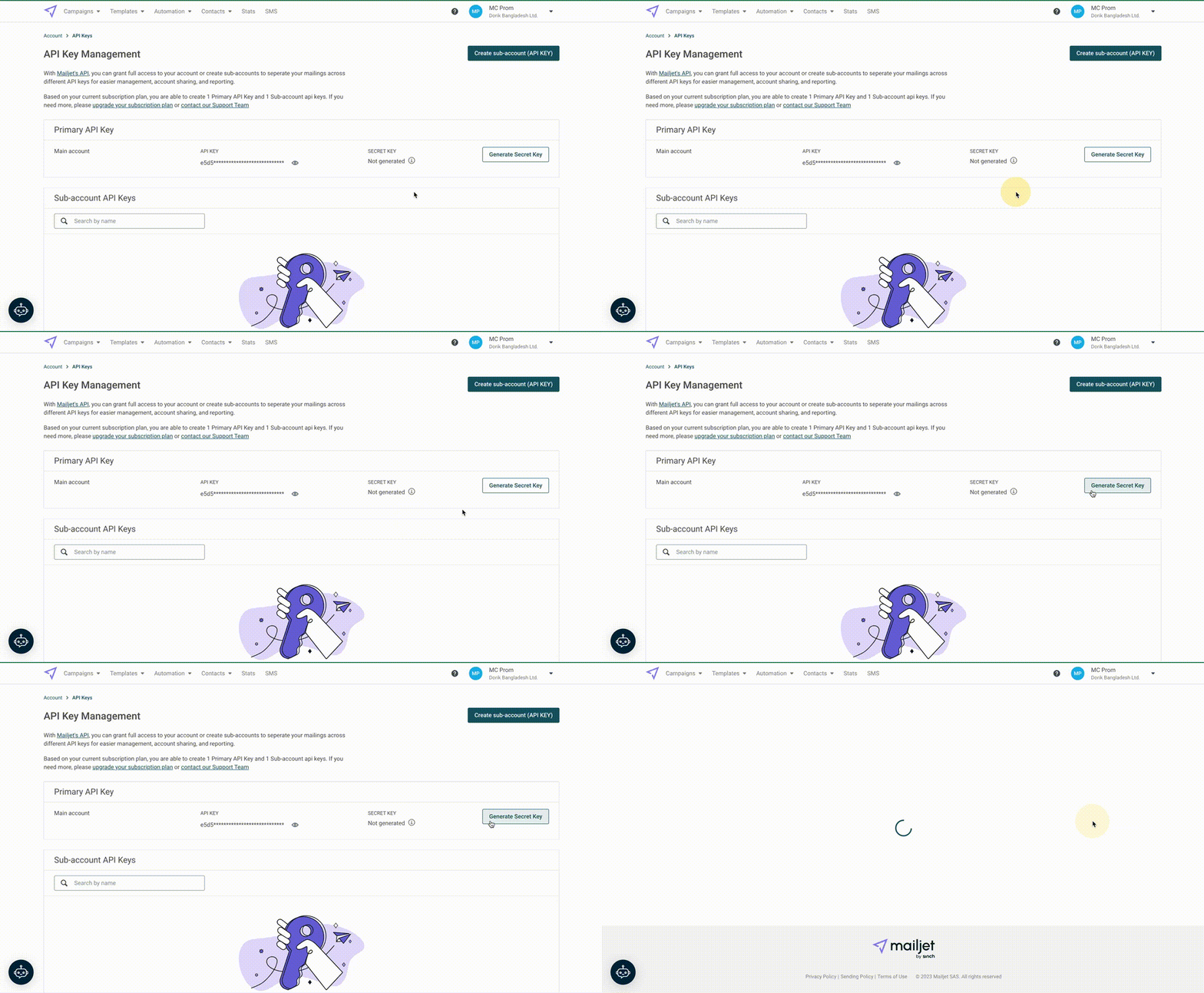
Step 4: Scroll down to Primary API Key, click the Generate Security Key button, and then copy both API Key and Secret Key.
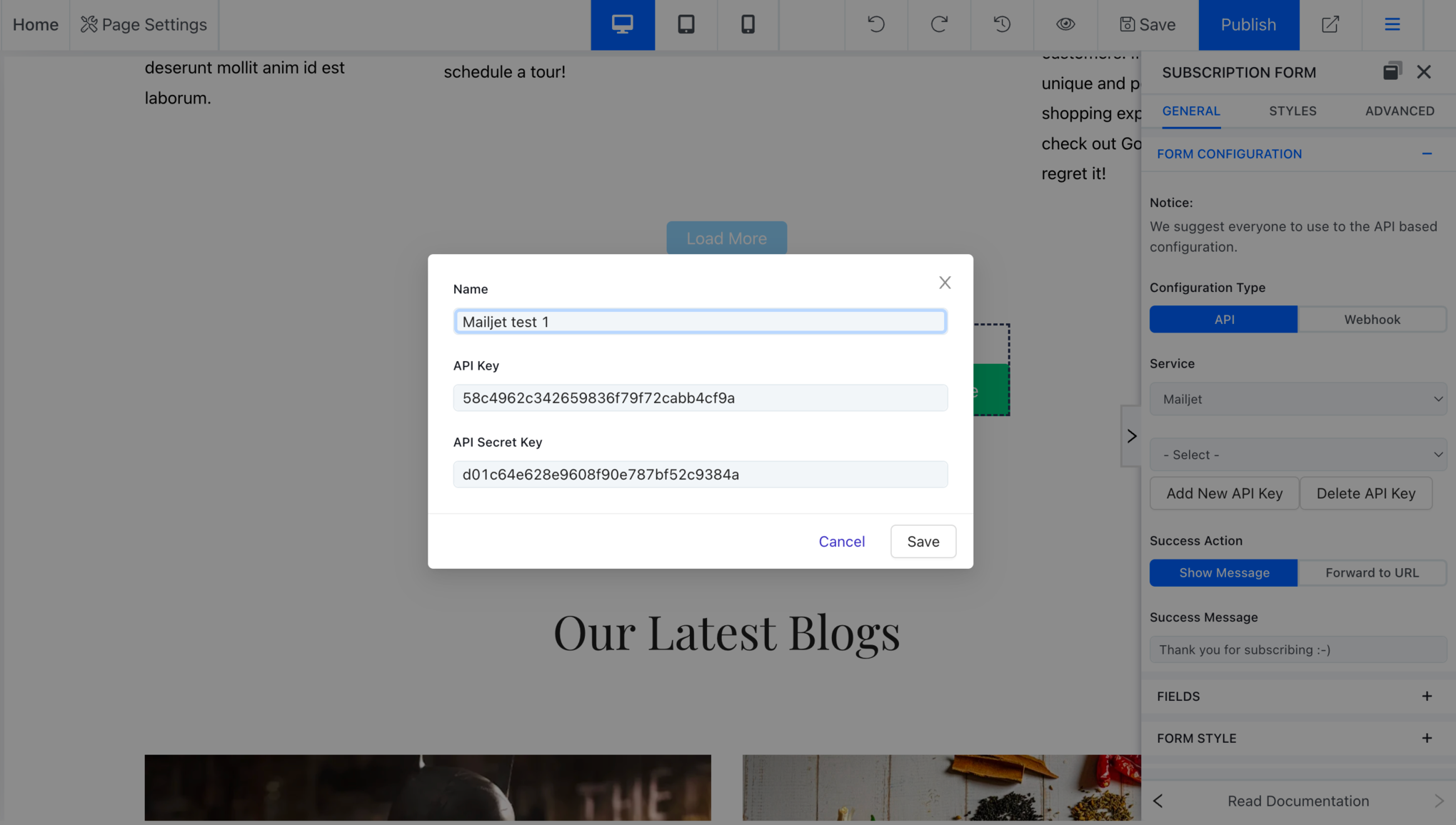
Step 5: Go to your website builder, hover over the Subscription Form element and click on Edit Element, choose Add New API Key on the Subscription Form Configuration option.
Step 6: Give your key a name and paste the API Key and Secret Key you copied in the previous step. Click on Save to integrate Mailjet with your Subscription Form
Testing Mailjet Integration
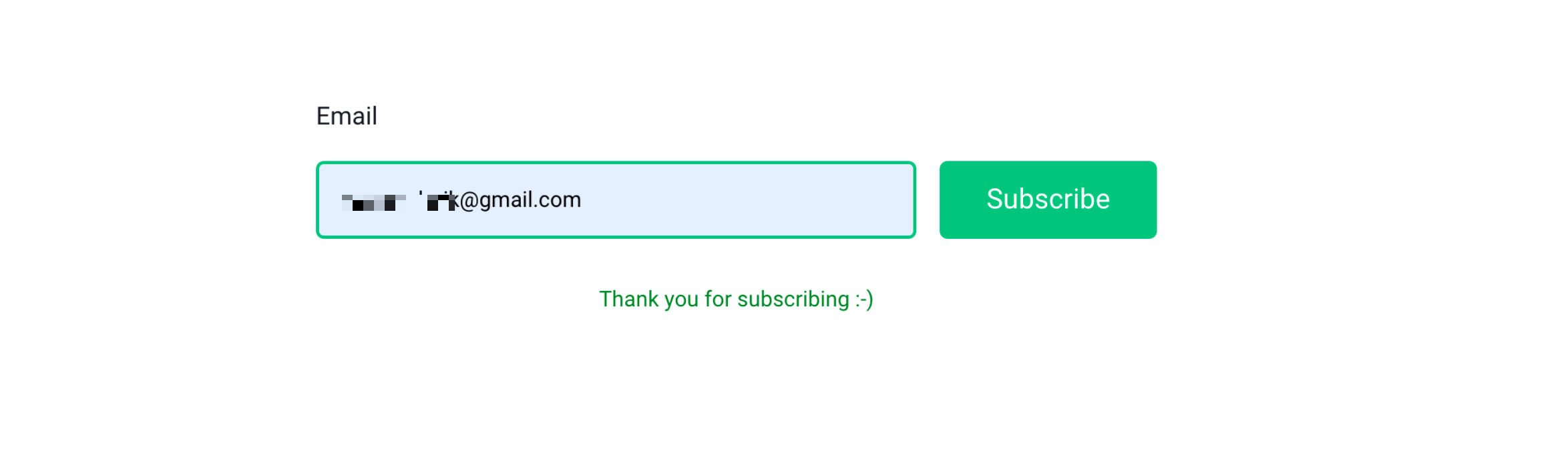
Step 1: To test this, publish your site, visit it externally, and input any email address on the Subscription Form.
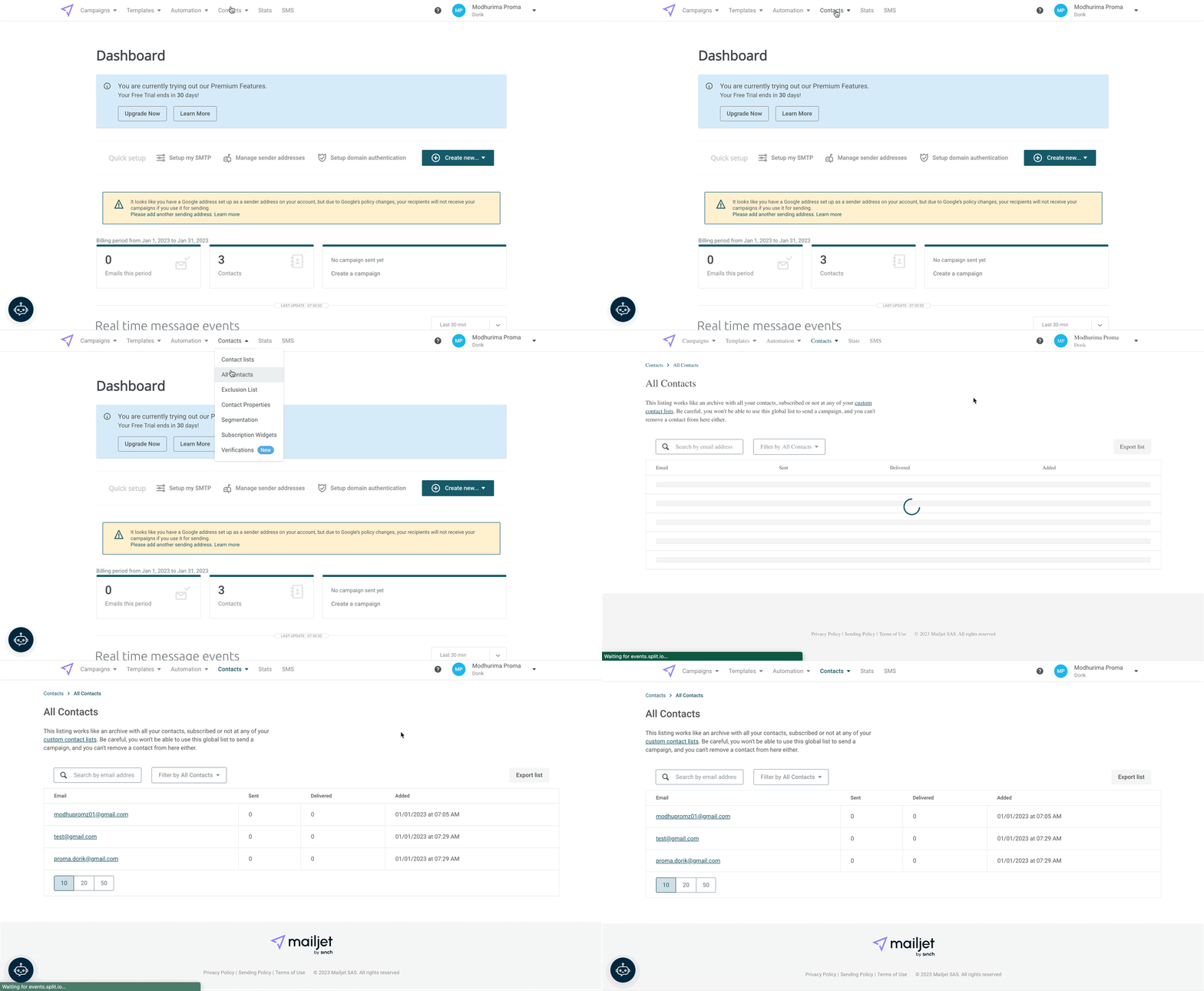
Step 2: From the top nav of the Mailjet website, click on Contacts and choose All Contact.
Related articles
Ai nevoie de ajutor? Scrie-ne.