
Ajutor › Integrări Formular de Abonare
Sendinblue - Subscription Form
Table of Contents
Getting Started
This article will cover integrating Sendinblue into a subscription form on your website. Follow all the instructions accordingly to integrate Sendinblue into your subscription form.
Adding a Subscription Form
Refer to the Documentation below to learn how to add a Subscription Form element to your website ⬇️
📮 Subscription FormIntegrating Sendinblue
To integrate Sendinblue into your subscription form, follow the steps given below:
- After you add the Subscription Form, click on
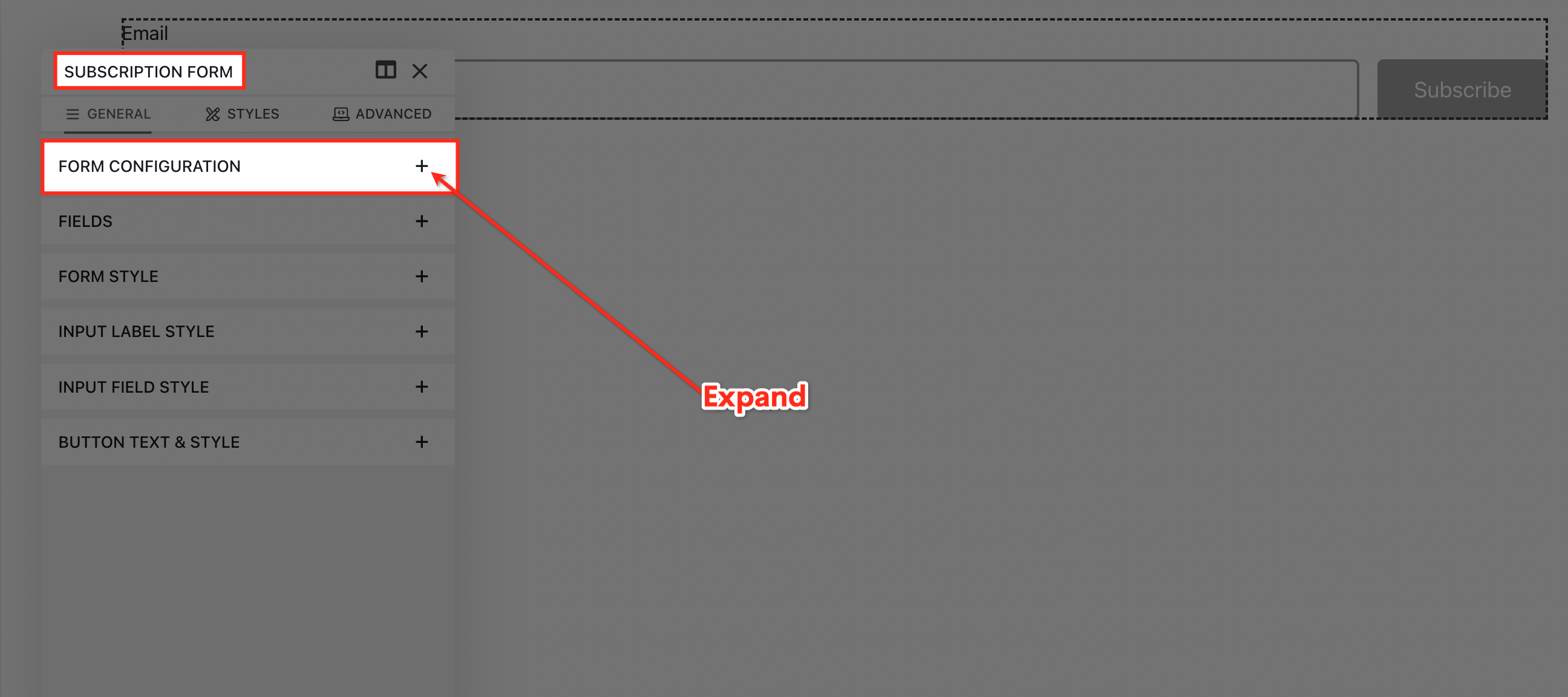
Edit Element - Expand the Form Configuration option
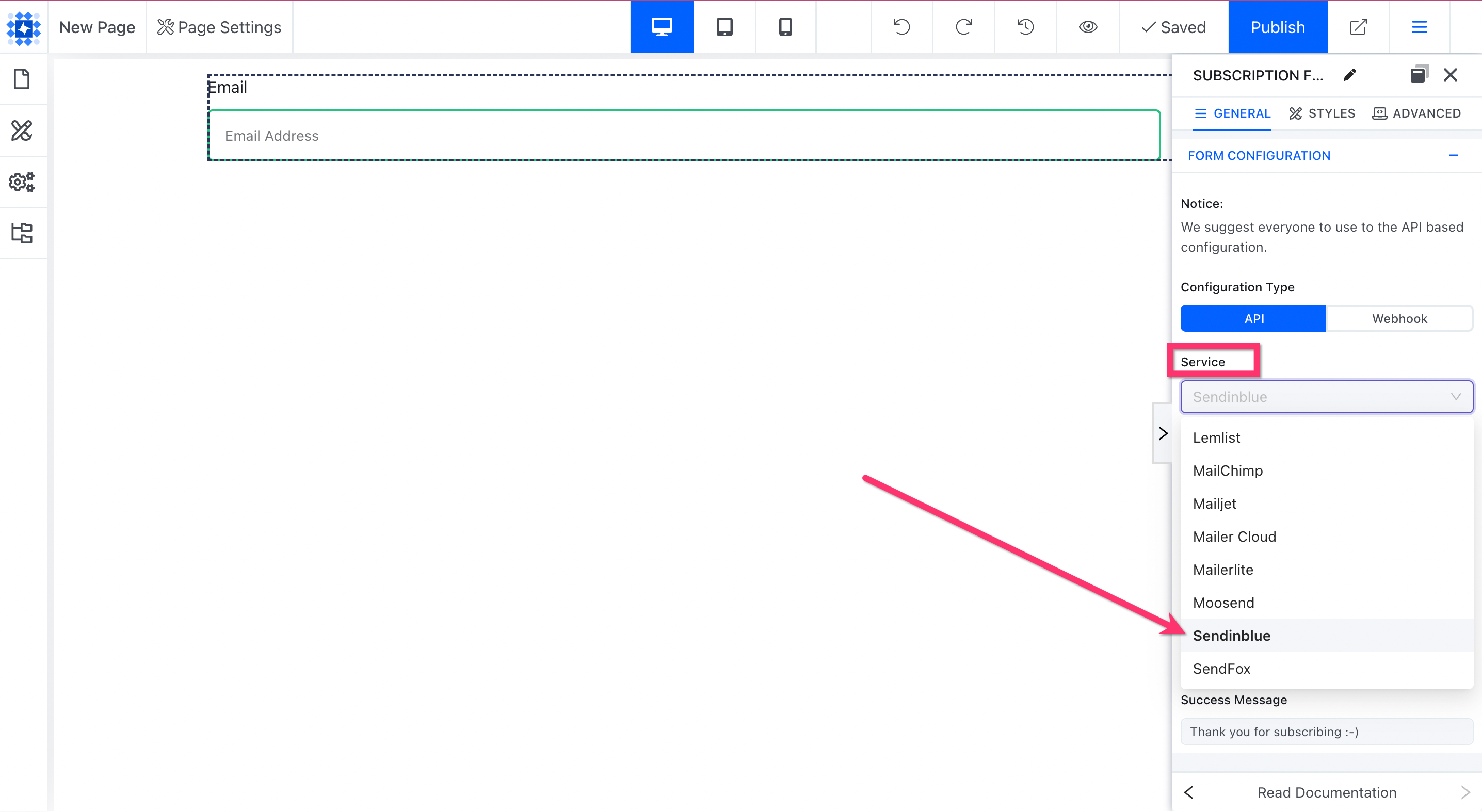
- Select Sendinblue from the Services option
- Login to your Sendinblue account
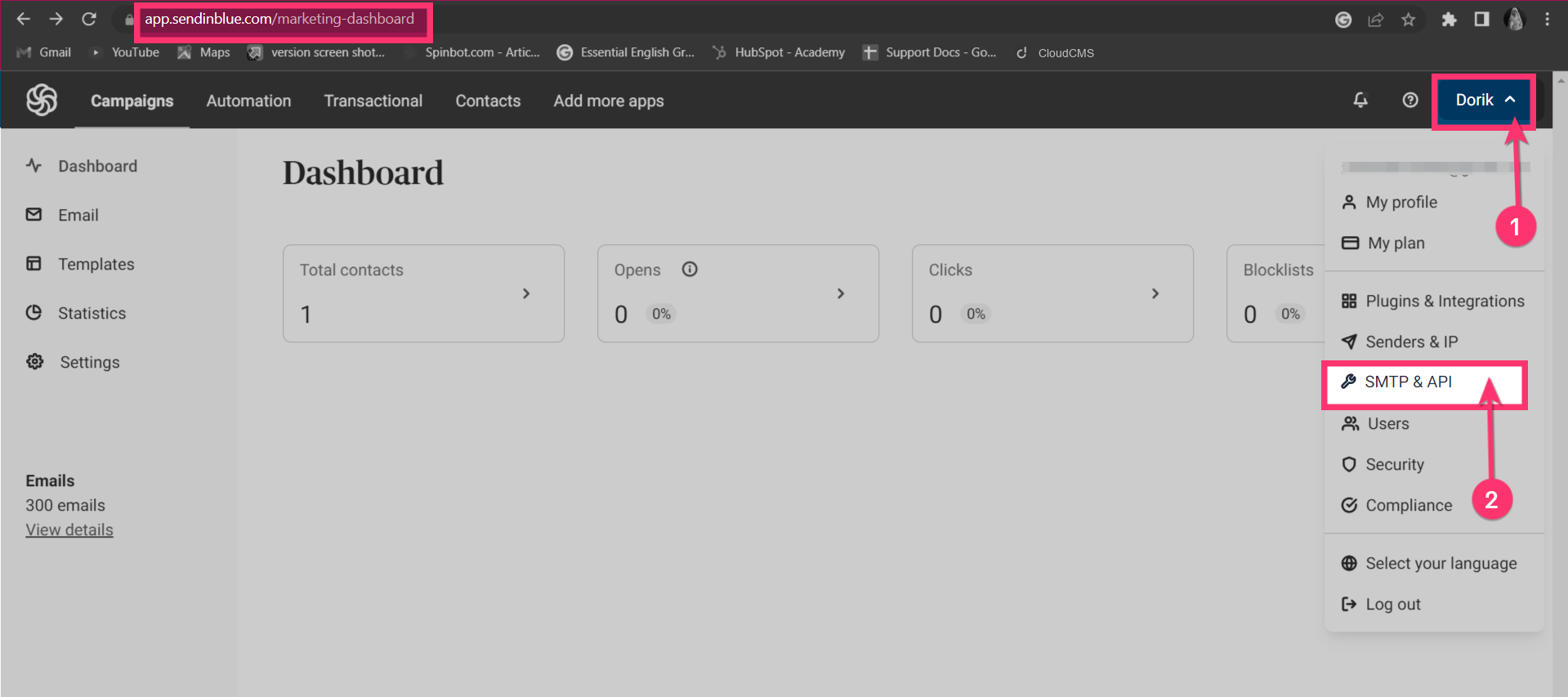
- Go to SMTP & API option from your profile
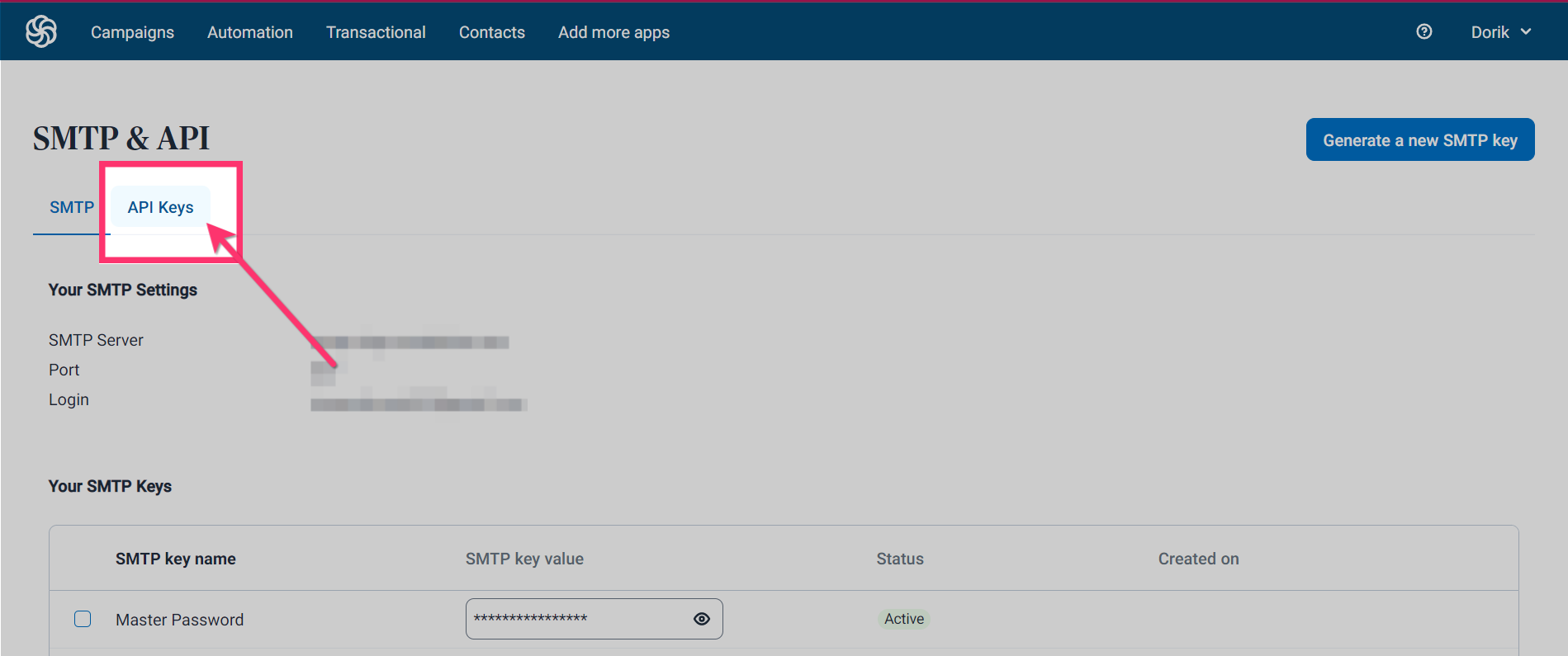
- Choose the API key option
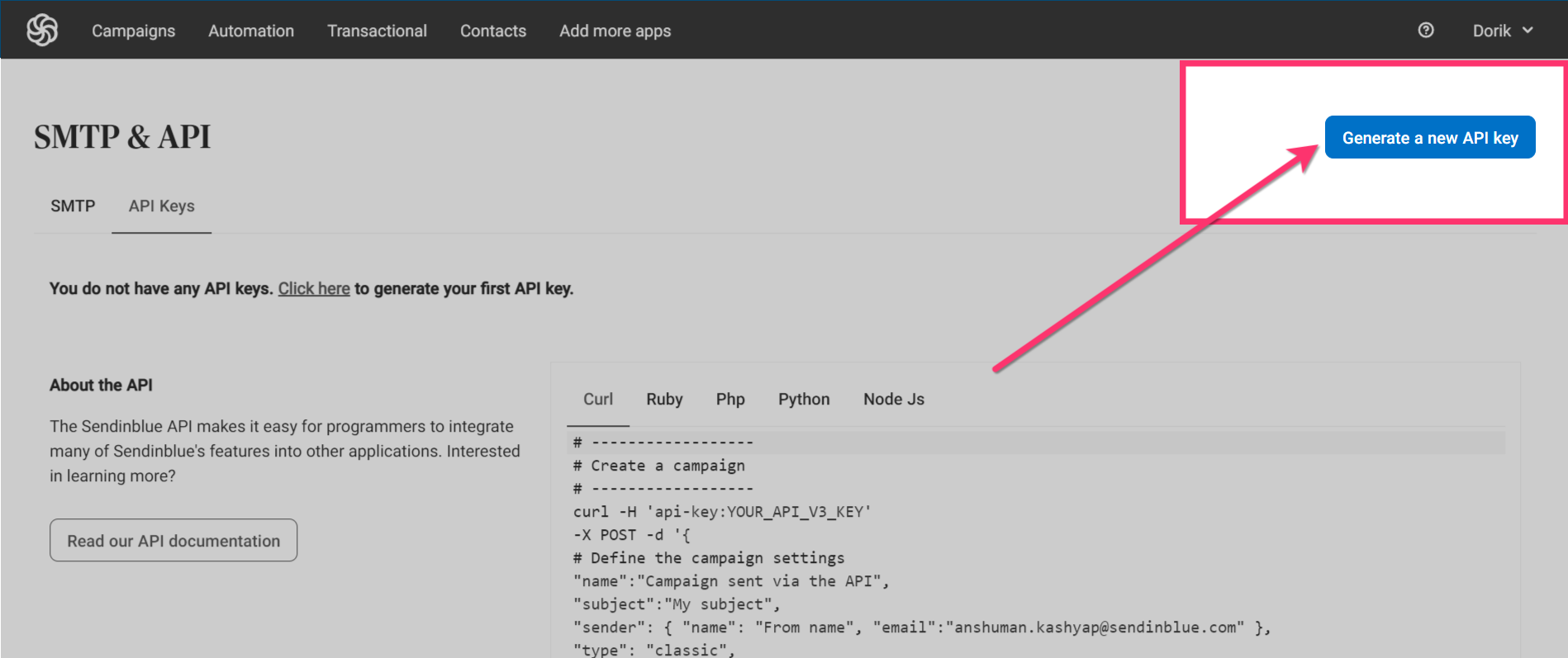
- Click on
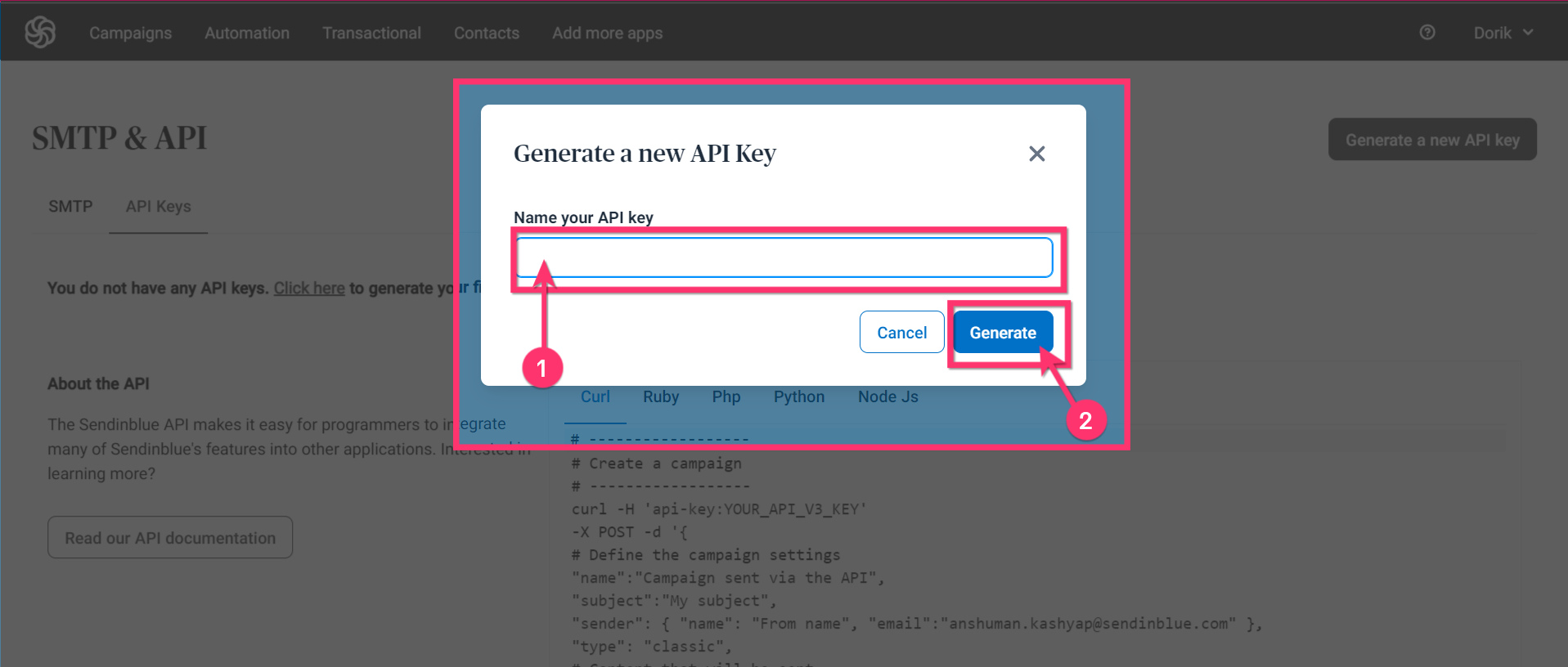
Generate a new API key - Give your API key a name and click on
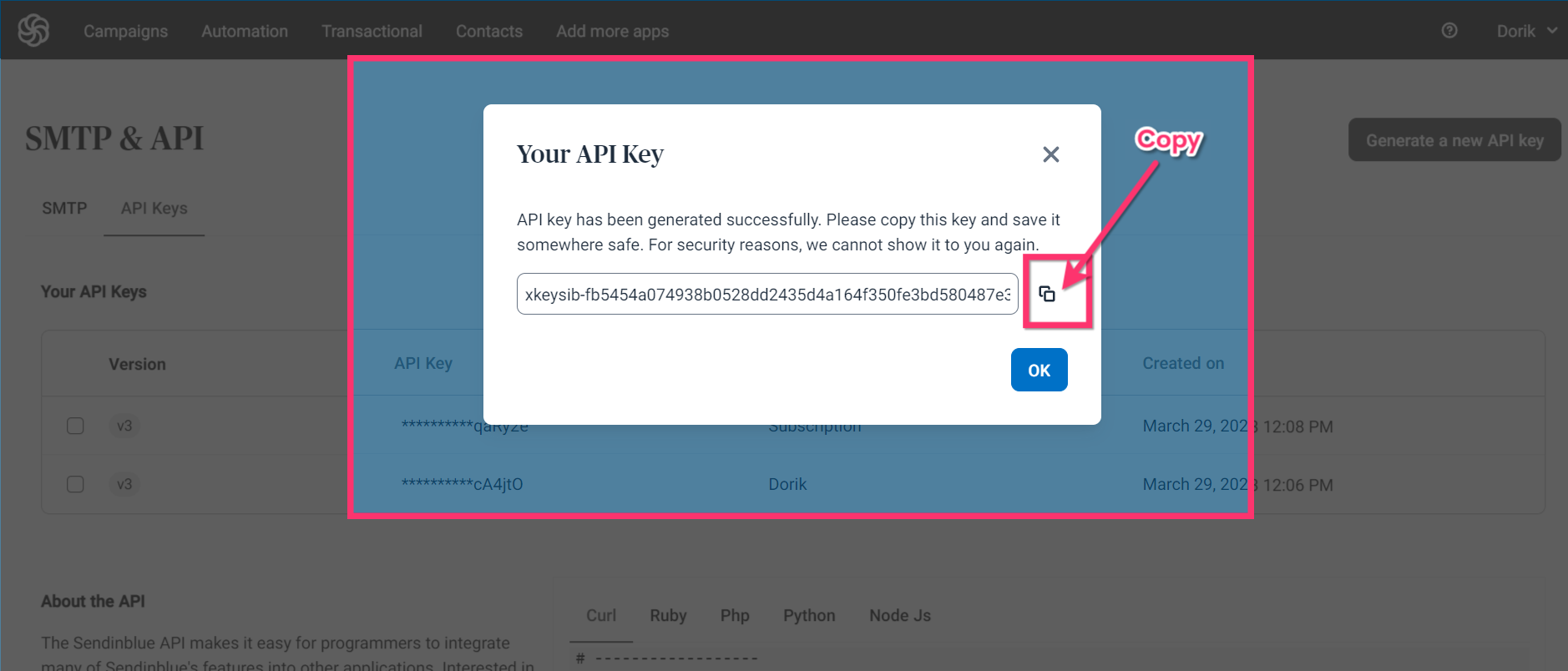
Generate - Copy the API key
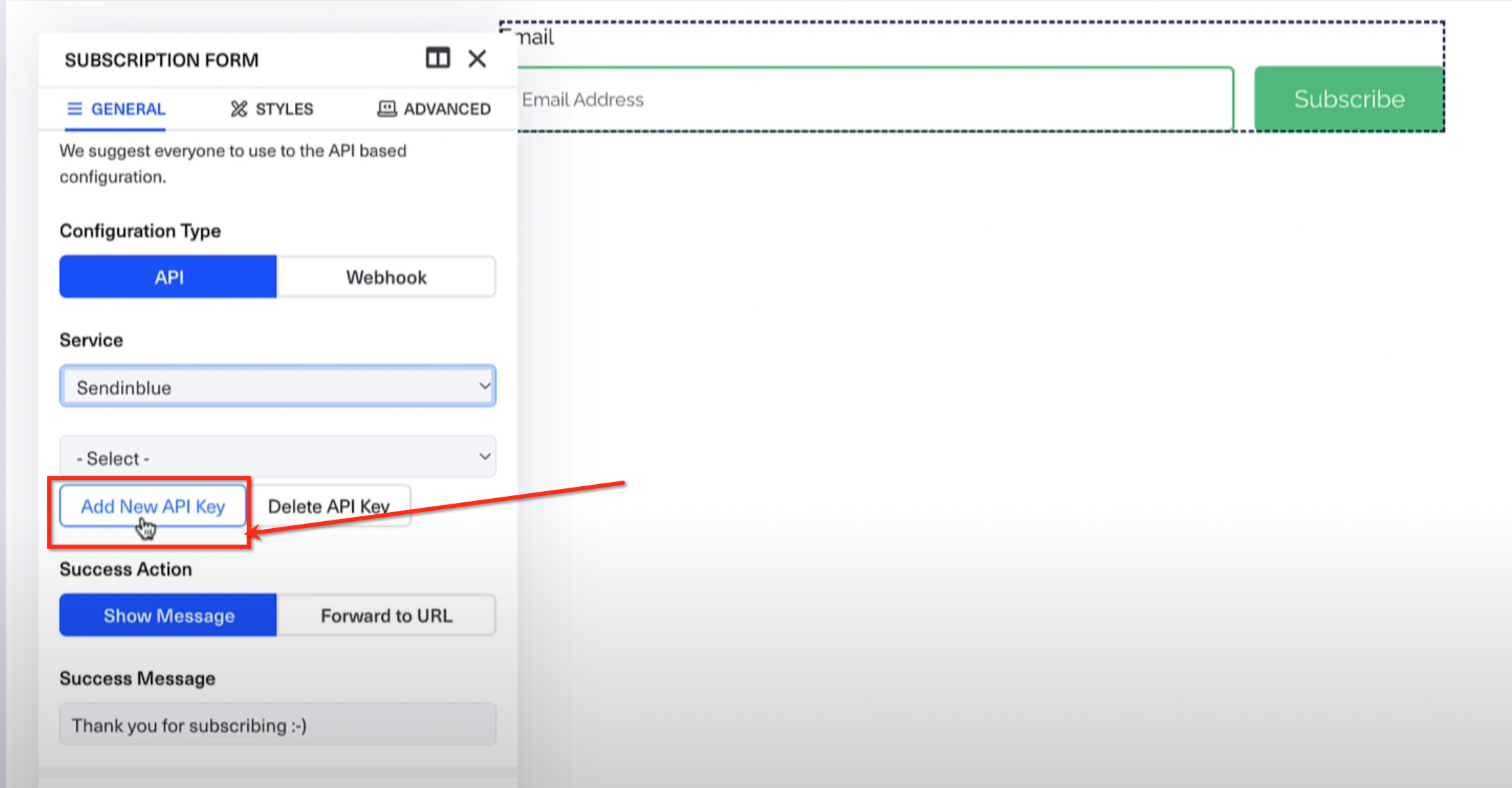
- Go to your website builder and click on
Add New API Keyon the Subscription Form element editor - Give it a name and paste your API key on the input field
- Press
Save - Choose your list name from the Subscription List option
- Done! Sendinblue has been integrated with your subscription form.
- To test this, publish your site and visit it externally and input any email address on the Subscription Form.
- Go to the Contacts option from the Sendinblue navbar.
- You will find the email you input before in step 9 added to your subscription list.
The images below show the whole process being demonstrated visually ⬇️
- Expand the Form Configuration option from the Subscription Form editor
- Select Sendinblue from the Services option
- Login to your Sendinblue account, and from your dashboard, go to the SMTP & API option as shown in the picture below
- Choose API Keys
- Click on
Generate a new API keybutton
- Give your API key a name and click on
Generate
- Copy the API key
- Go to your website builder and click on
Add New API Keyon the Subscription Form element editor
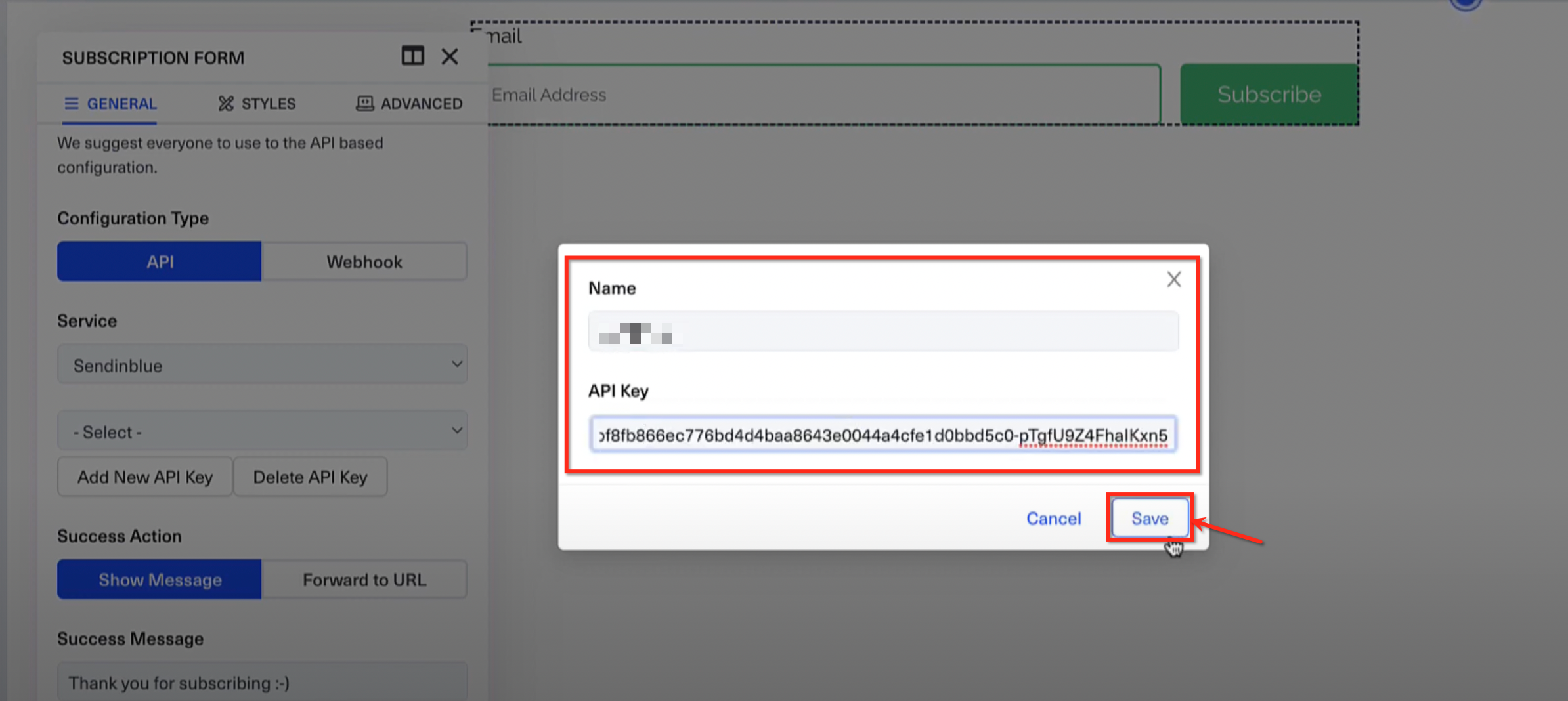
- Give it a name and paste your API key on the input field and press
Save
- Choose your list name from the Subscription List option
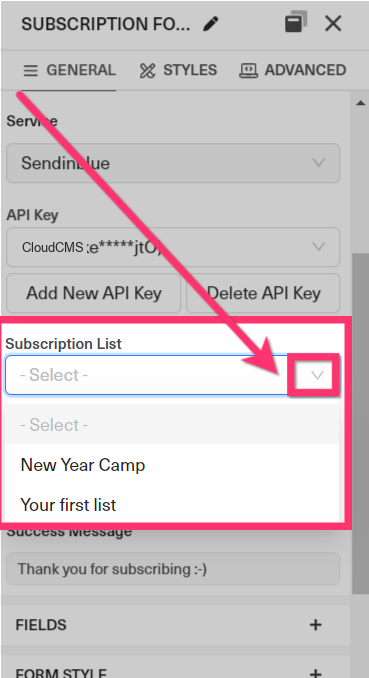
- Done! Sendinblue has been integrated with your subscription form.
- To test this, publish your site and visit it externally and input any email address on the Subscription Form.

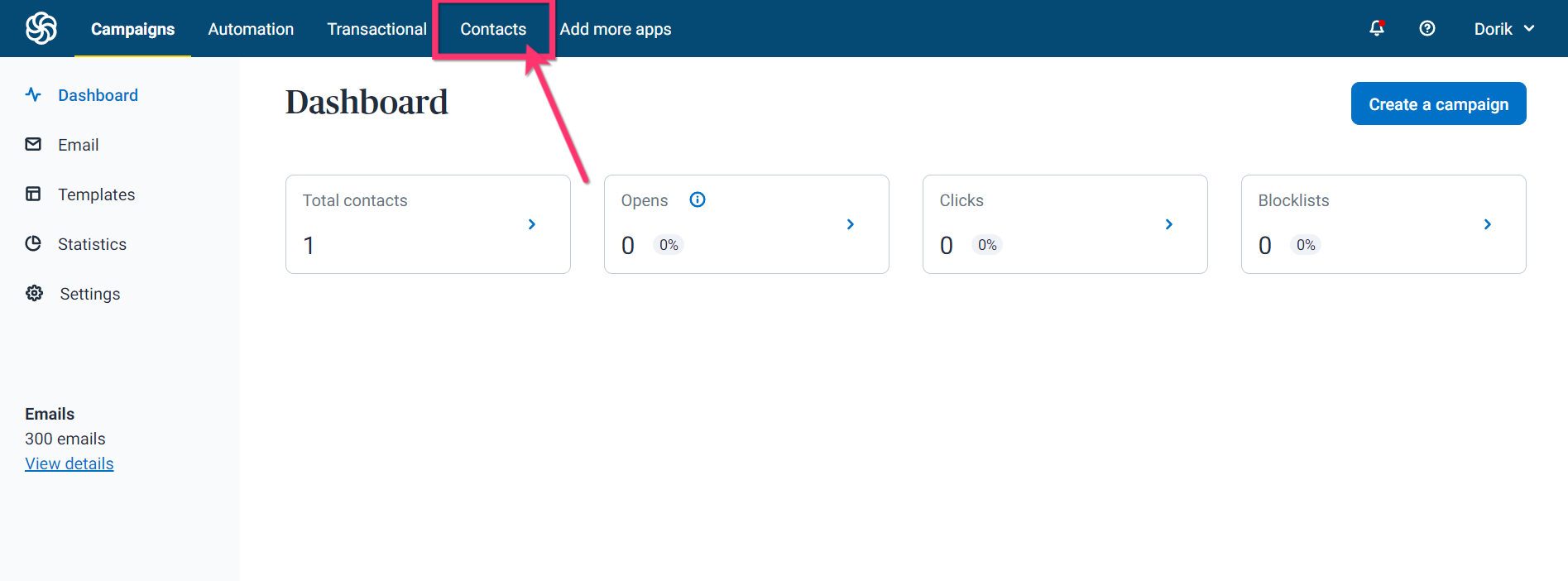
- Go to the Contacts option from the Sendinblue navbar.
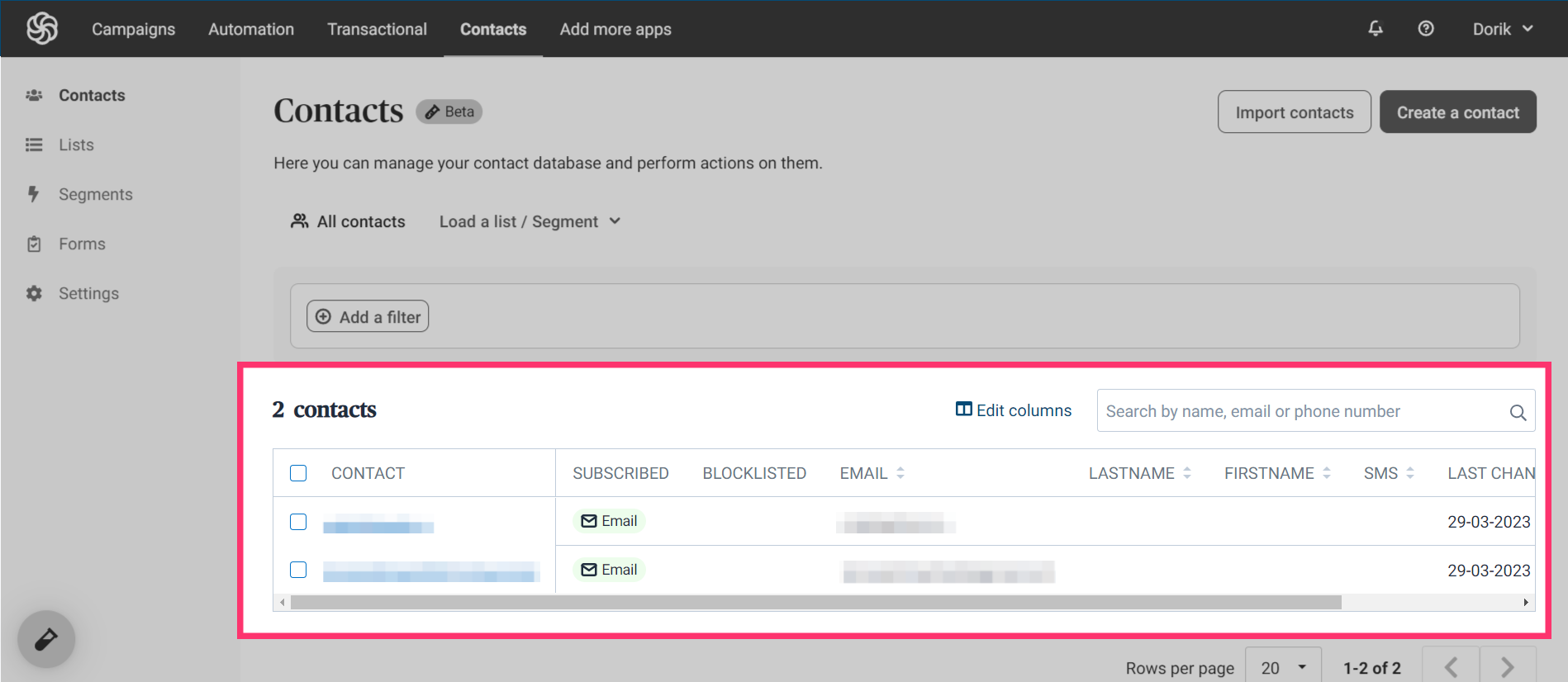
- You will find the email you input before in step 9 added to your subscription list.
Related articles
EmailOctopus - Subscription Form Mailerlite - Subscription Form ConvertKit - Subscription Form Sendinblue - Subscription FormAi nevoie de ajutor? Scrie-ne.