
Ajutor › Builder (Design and Pages)
Global Link colors | Global Styles
Getting Started
Global Styles lets you set default styles and parameters for your entire site. The features in Global Styles enhance users’ control over site aesthetics and layouts. With this feature, a user can:-
- Set the default background color
- Set Body/Paragraph typographies
- Change the heading typography
- Tune the container width and default column gap
- Set link colors
- Set global colors
- Add Google/Custom/Typekit fonts
Table of contents
Finding the Global Style feature
Changing Global Link style
To change the Global Link style, follow the steps given below:
- Go to Global Styles
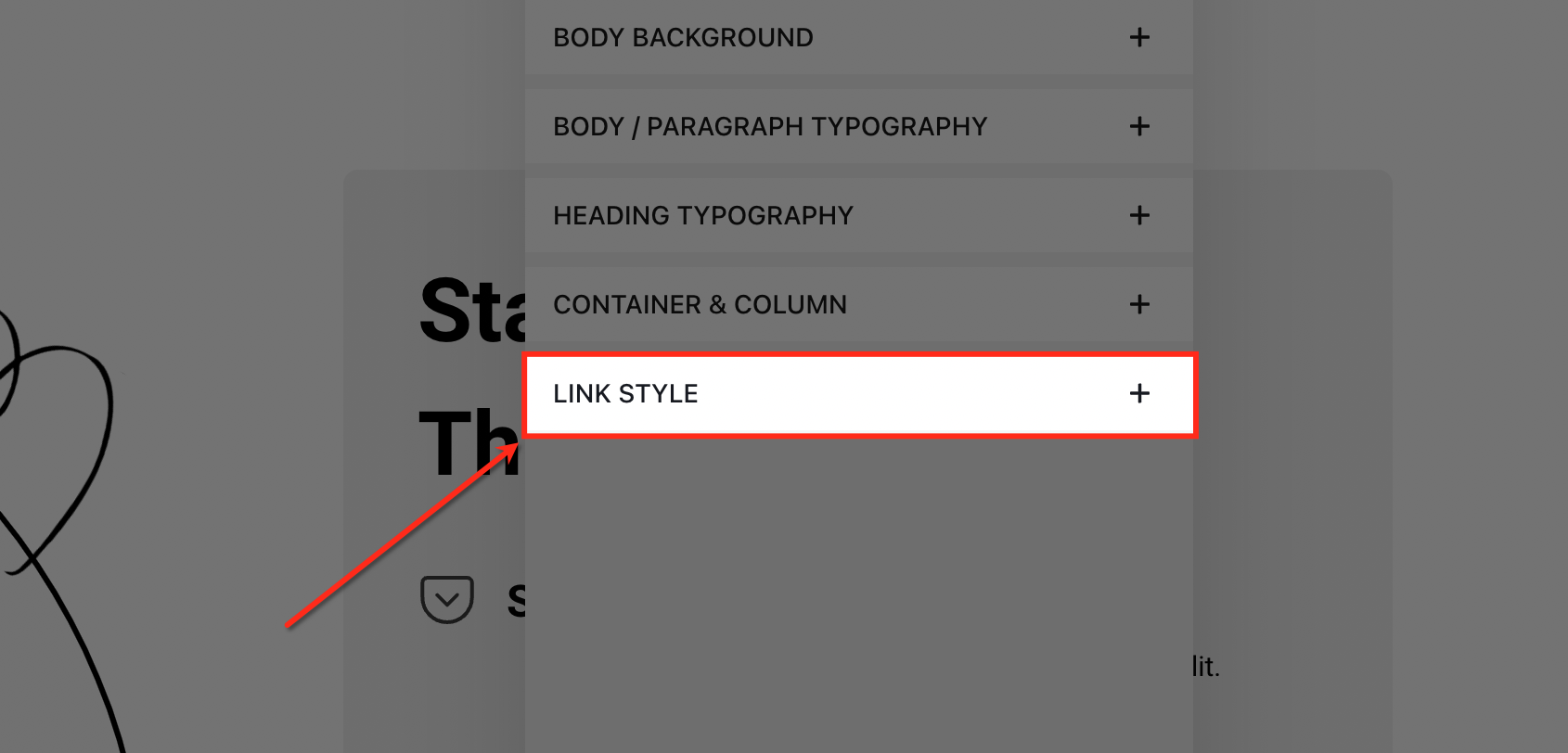
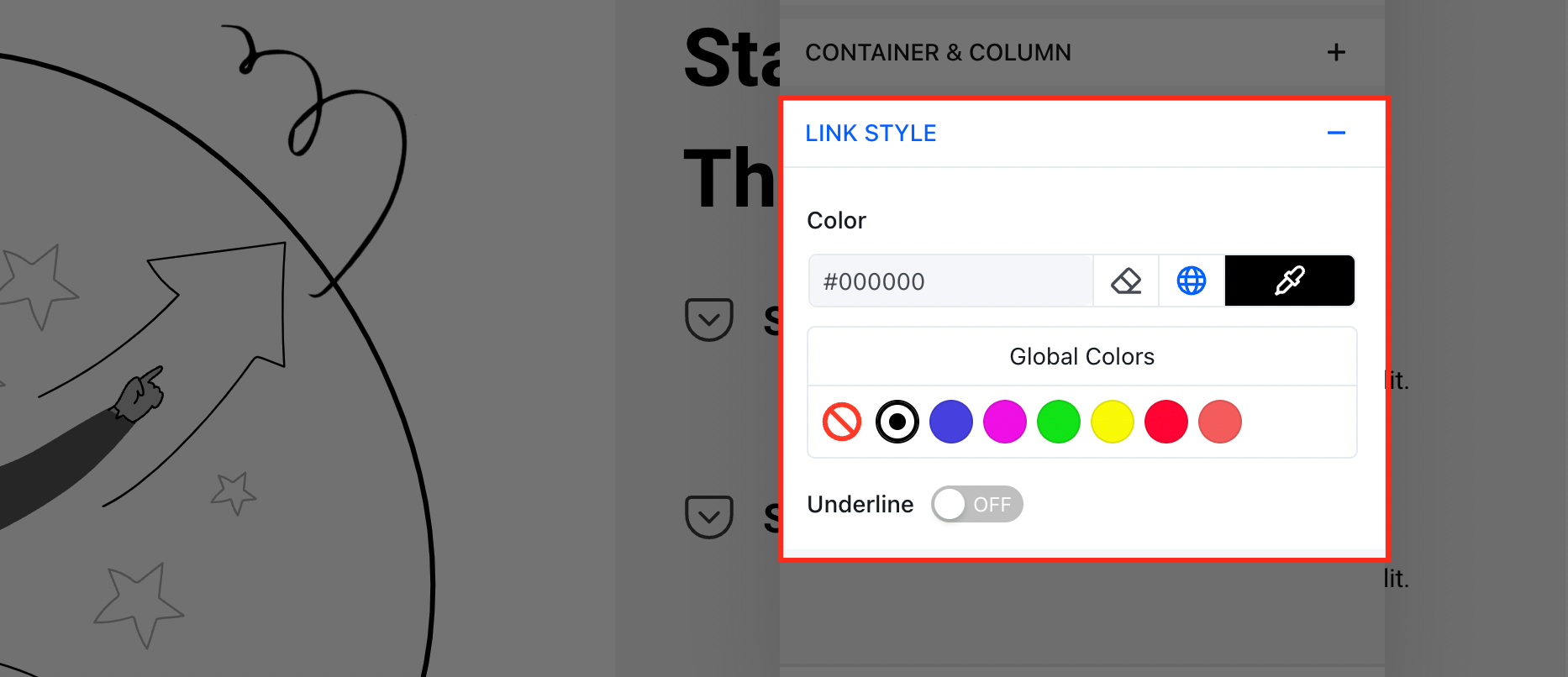
- Under the Styles tab, expand the Link style option
- Start styling your global link
Changing a Global Link element’s color
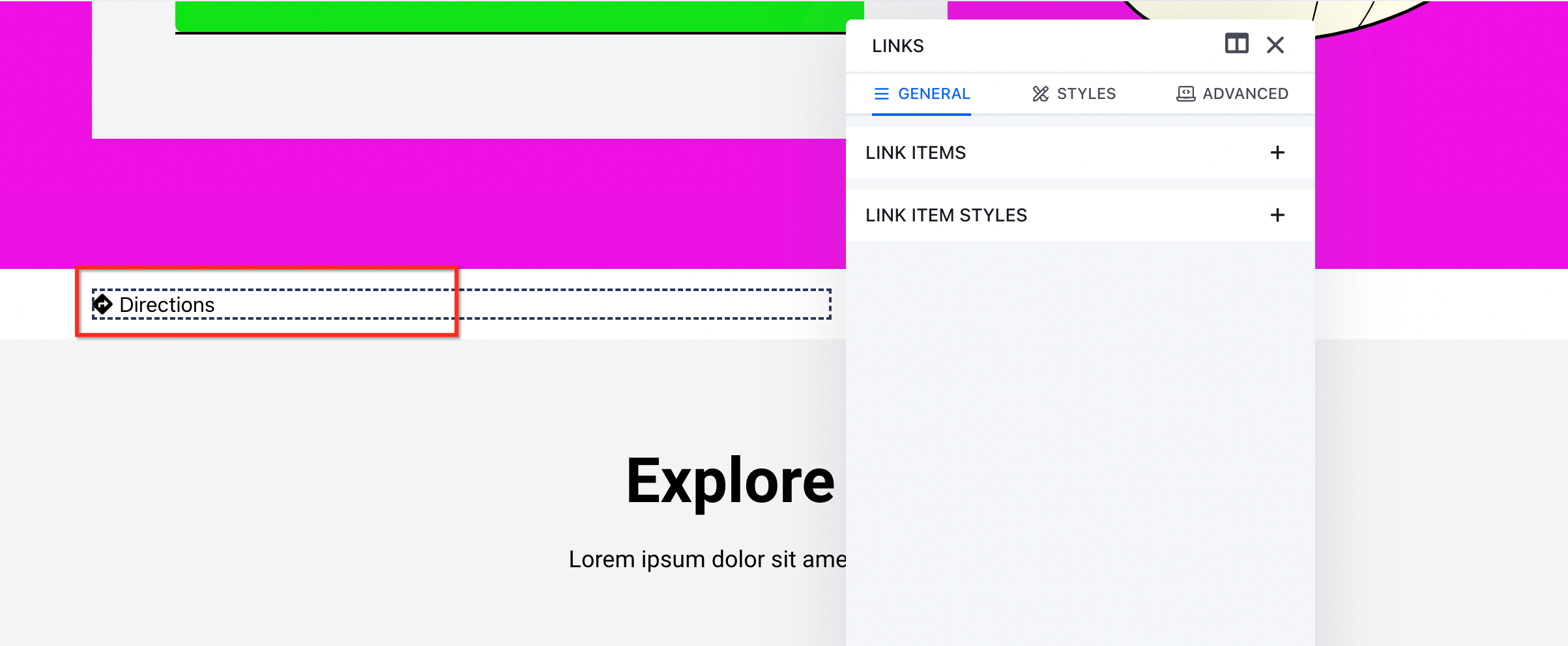
If you add a link element to any section, the default color will be the one you set from what you set on your Global Style setting.
For example, the link added here has the default color tag #000000, which is black.
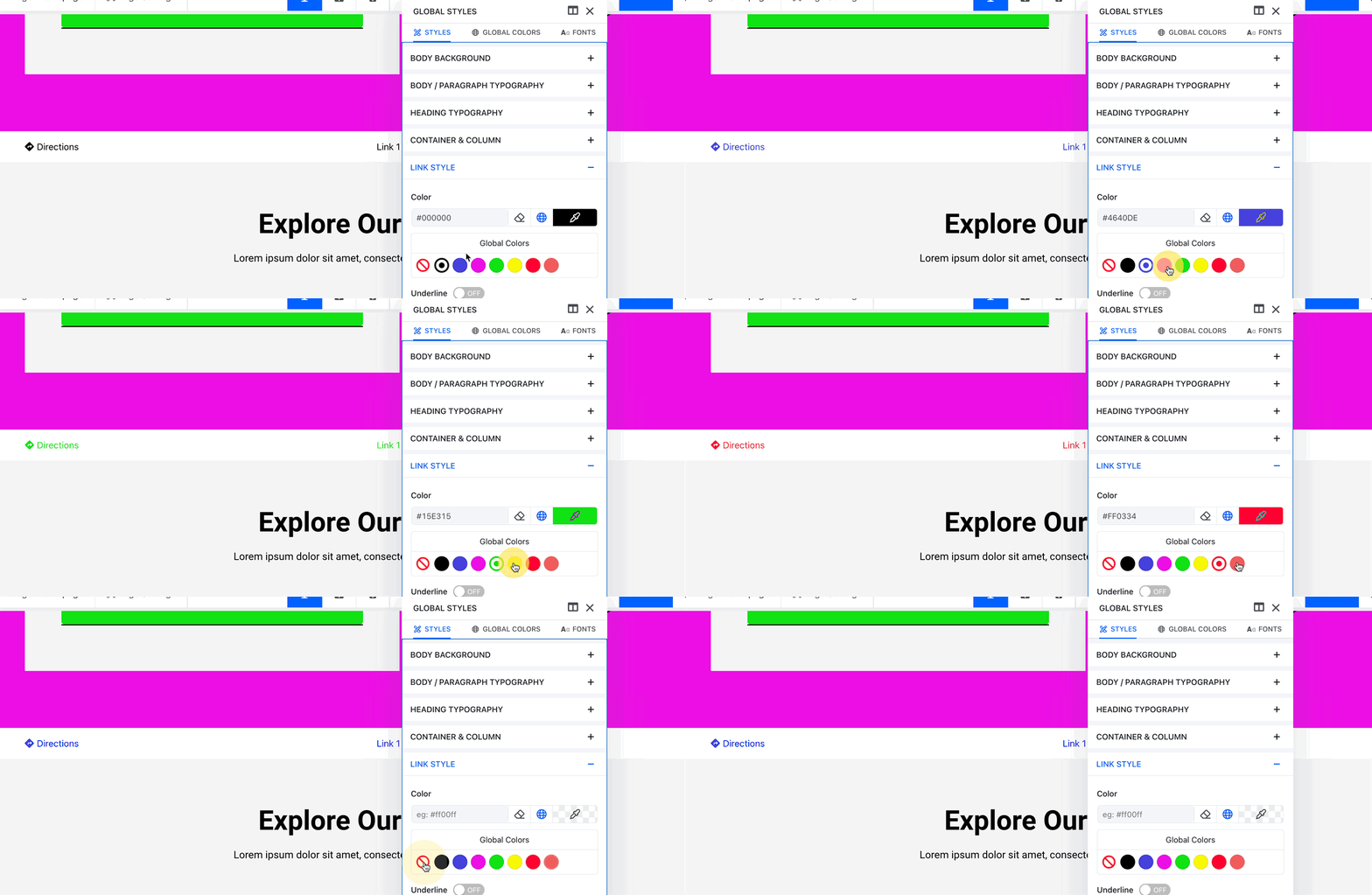
To change the default color change takes place, follow the steps given below ⬇️
Related articles
Global Styles🔠 Global Styles > StylesAi nevoie de ajutor? Scrie-ne.