
Ajutor › Builder (Design and Pages)
Password Protected Page
Table of Contents
Getting Started
Password-protecting a page allows you to restrict access to a page by setting a password and requiring visitors to use the password to view the page's content. This article will cover how you can protect a page on your website with a password.
Add Password to a Page
To Password-Protect a page, follow the steps given below:
- From your Dashboard, click on Design and Pages
- Click on Page Settings
- Click on the Advanced tab
- Expand the Page Guard option
- Enable the Toggle button
- Enter a valid password (Minimum 6 Characters, at least one uppercase letter, one lowercase letter, one number, and one special character)
- Click on Save
- Publish & visit your site to see the outcome
Refer to the GIF below to see how this is done:
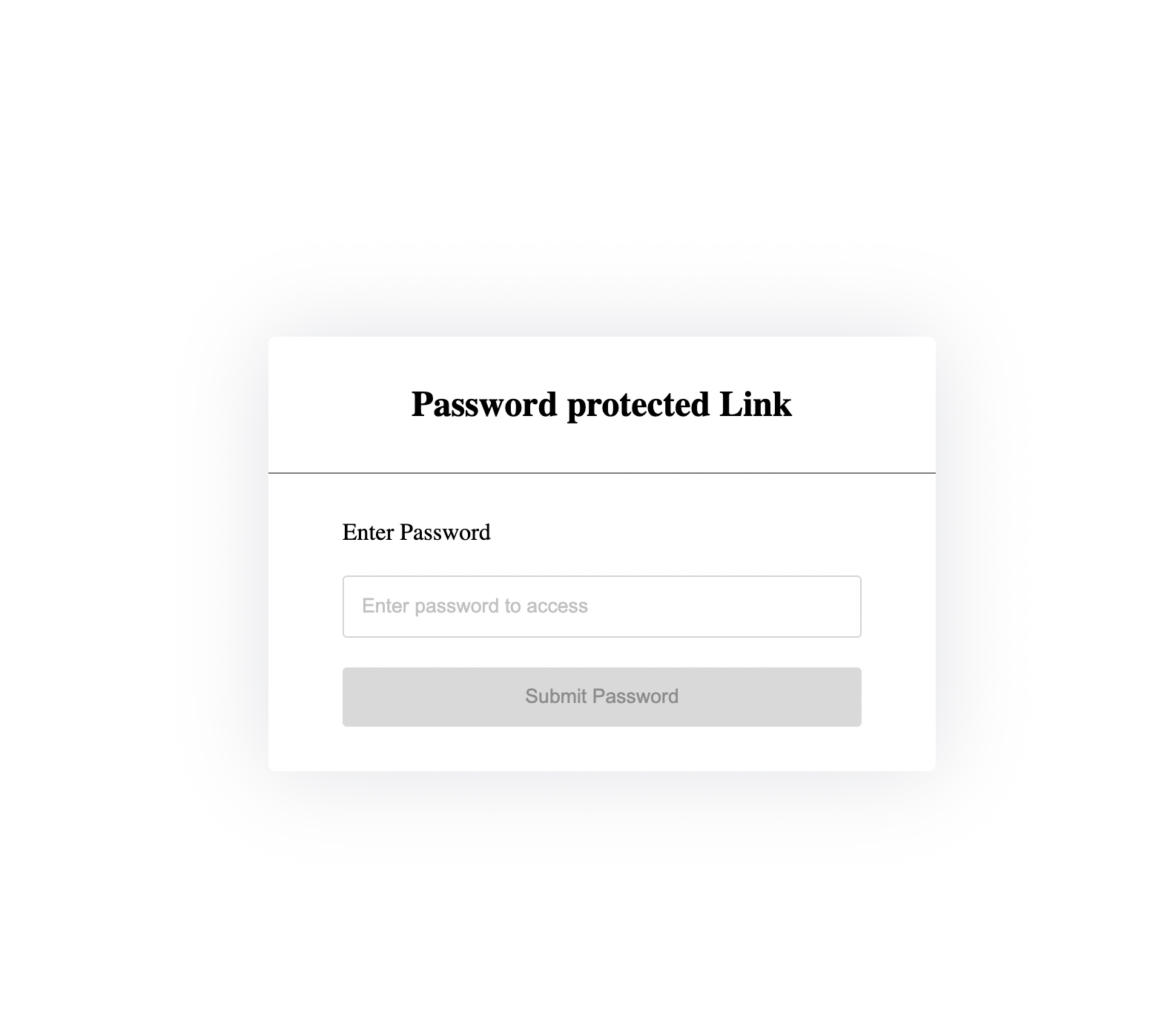
Password Protected Page Interface
Refer to the Image below to see the interface of a password-protected page:
Update Password
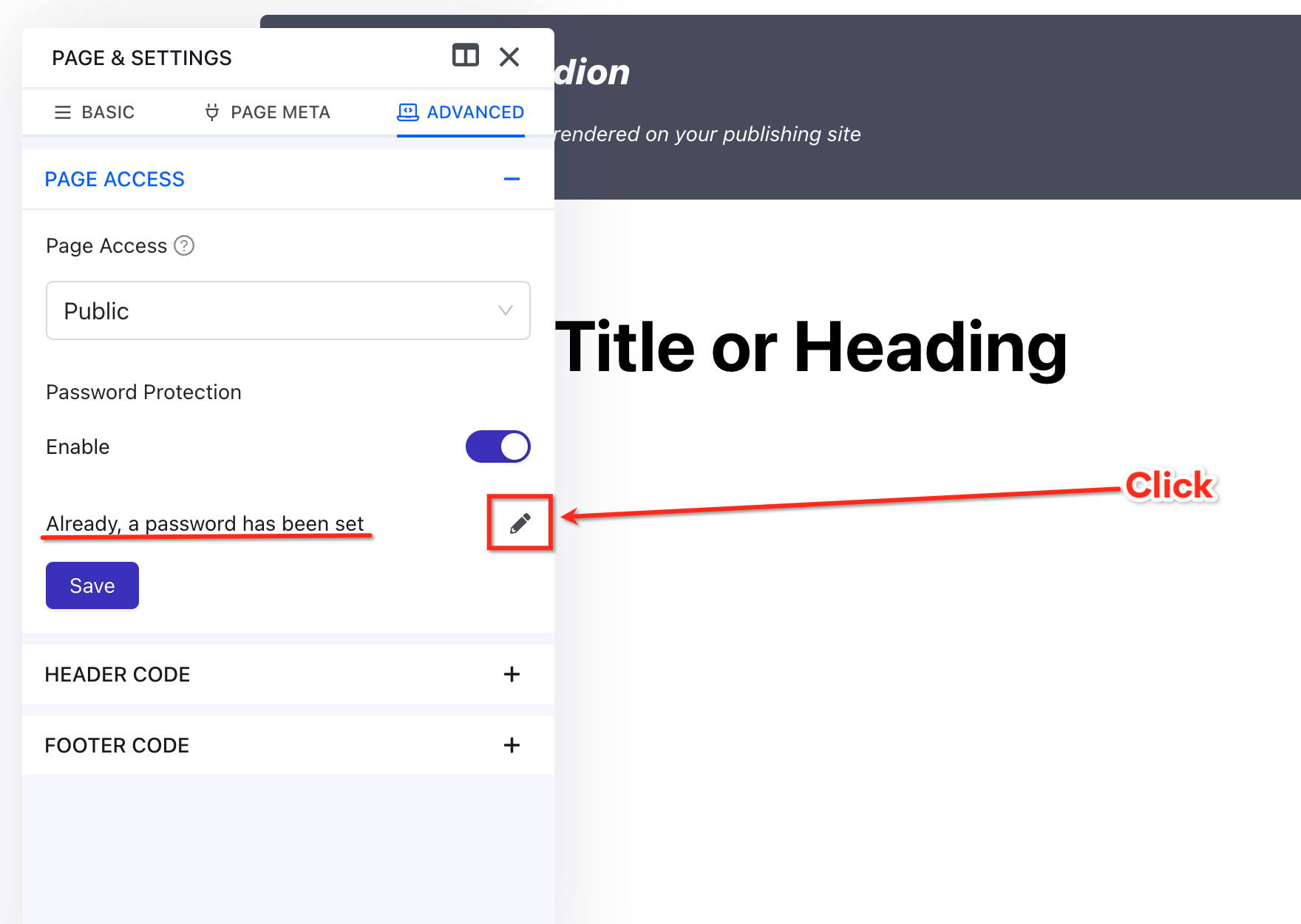
To update your password, follow the steps given below:
- Open the Page Guard option again
- Click the Edit icon
- After an input field appears, give it a valid password again
- Click on Save
Disable Password
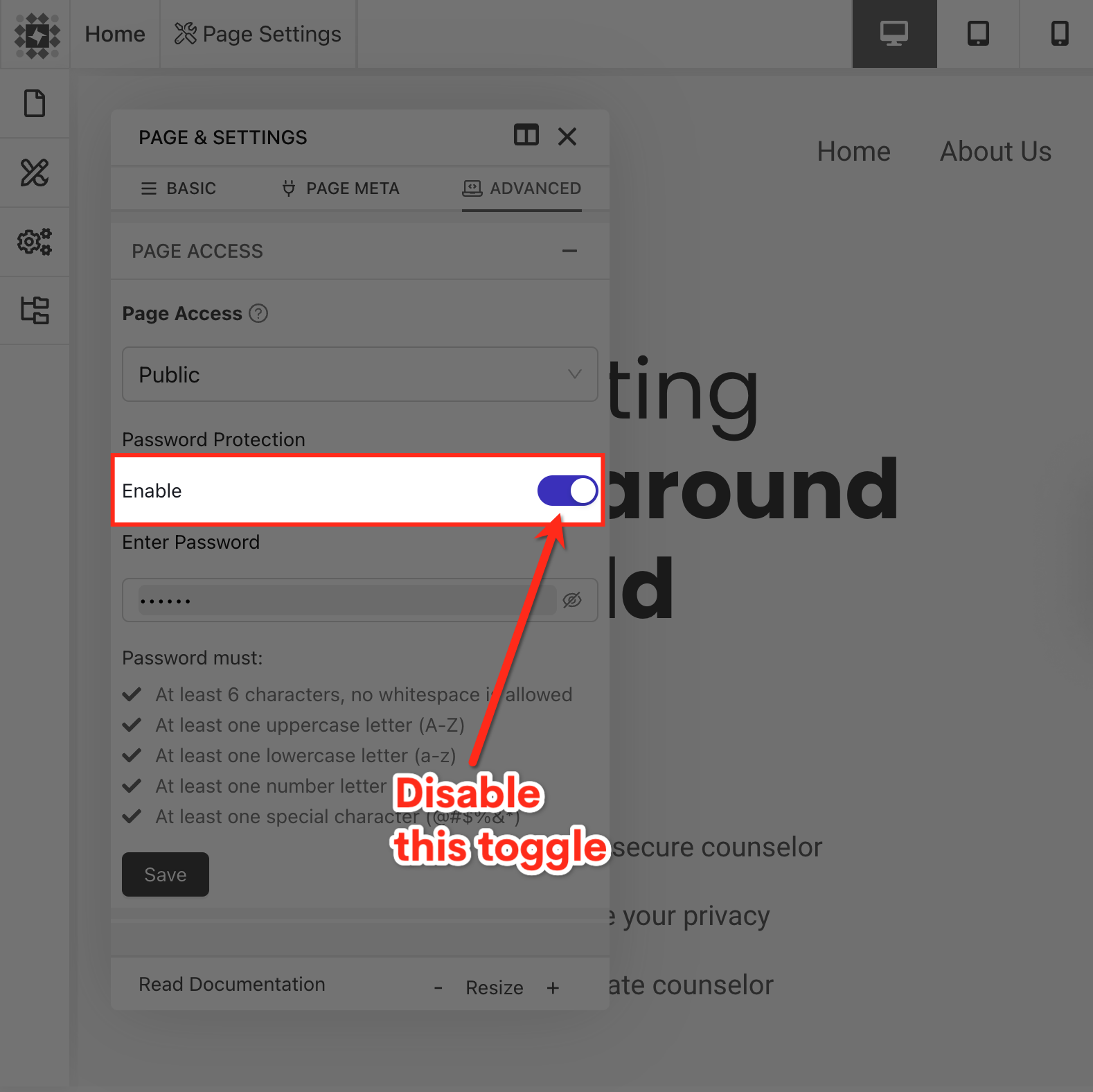
If you don’t want a password on your page anymore, just simply disable the Enable toggle under Password Protection, as shown in the picture below.
Related articles
Fără titlu Version HistoryAi nevoie de ajutor? Scrie-ne.