
Ajutor › Builder (Design and Pages)
Save as Symbol
Table of Contents
Getting Started
Saving an element, row, column, or section on your website as a Symbol allows you to use that same item on other pages of the same website. This article will cover the steps and how Saving as a Symbol works on your CMS Site.
Saving and Unlinking as a Symbol
To save something as a Symbol on your site, follow the steps below:
- Hover over the edit tab on any element, row, column, or section on your website
- Right-click on it
- Select Save as a Symbol
- Give it a name
- Press Save
- To unlink it, hover over the edit tab again
- Press the Globe icon
- Press Yes on the pop-up to unlink the particular item
Refer to the GIF below to see how this is done —
Pasting a Saved Symbol
To use a Saved Symbol on any part of the same or a different webpage, follow the steps given below:
- Click on the
+icon on the edit tab of any Section, Row, Column, or Element of your website.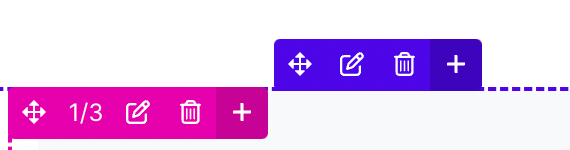
Edit Tabs (Row and Column)
- Go to a Section Symbols/Column Symbols/Row Symbols or Element Symbols tab to view your respective Saved Symbol item.
- Click on it, and your saved symbol will be pasted accordingly
Refer to the GIF below to see how it is done (in this example, a Section Symbol was used):
Symbol Sync 🔄
Any saved symbols are synced or linked with each other, meaning any changes applied to the linked Row, Column, Section, or Element will reflect on all the others.
Refer to the GIF below to see how this works —
To learn more about how Collections work, refer to the link below:
💾 Save as CollectionRelated articles
💾 Save as CollectionAi nevoie de ajutor? Scrie-ne.