
Ajutor › Builder (Design and Pages)
Global Styles > Global Colors
Table of contents
Getting Started
In this article, you will learn about how all the Sections of 🌐 Global Colors and their editing options work under Global Styles. To know the process, follow the instructions below.
Global Styles
To know the basic of Global Styles, refer to the article below —
Global StylesSections of Global Colors under the Global Styles
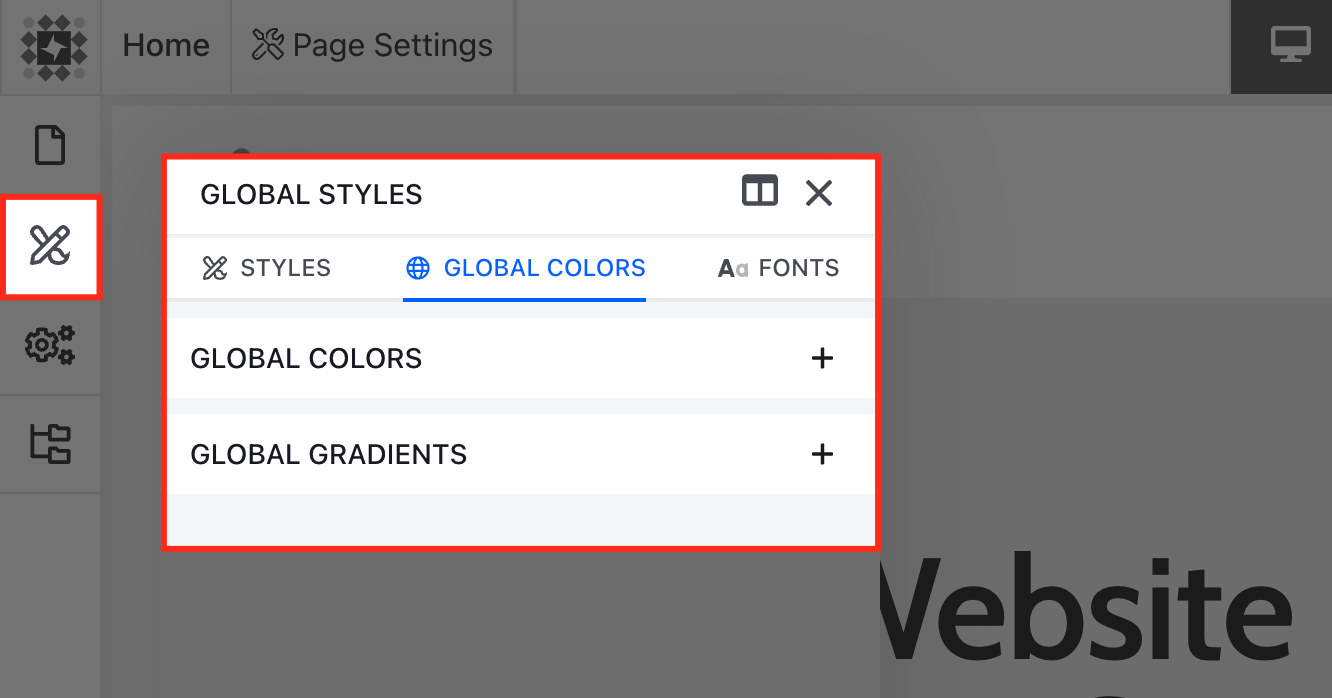
Inside the Global Colors under Global Styles settings, you will find these below options —
- Global Colors
- Global Gradients
To learn how to find these sections, refer to the Gif & Image below —
Global Colors
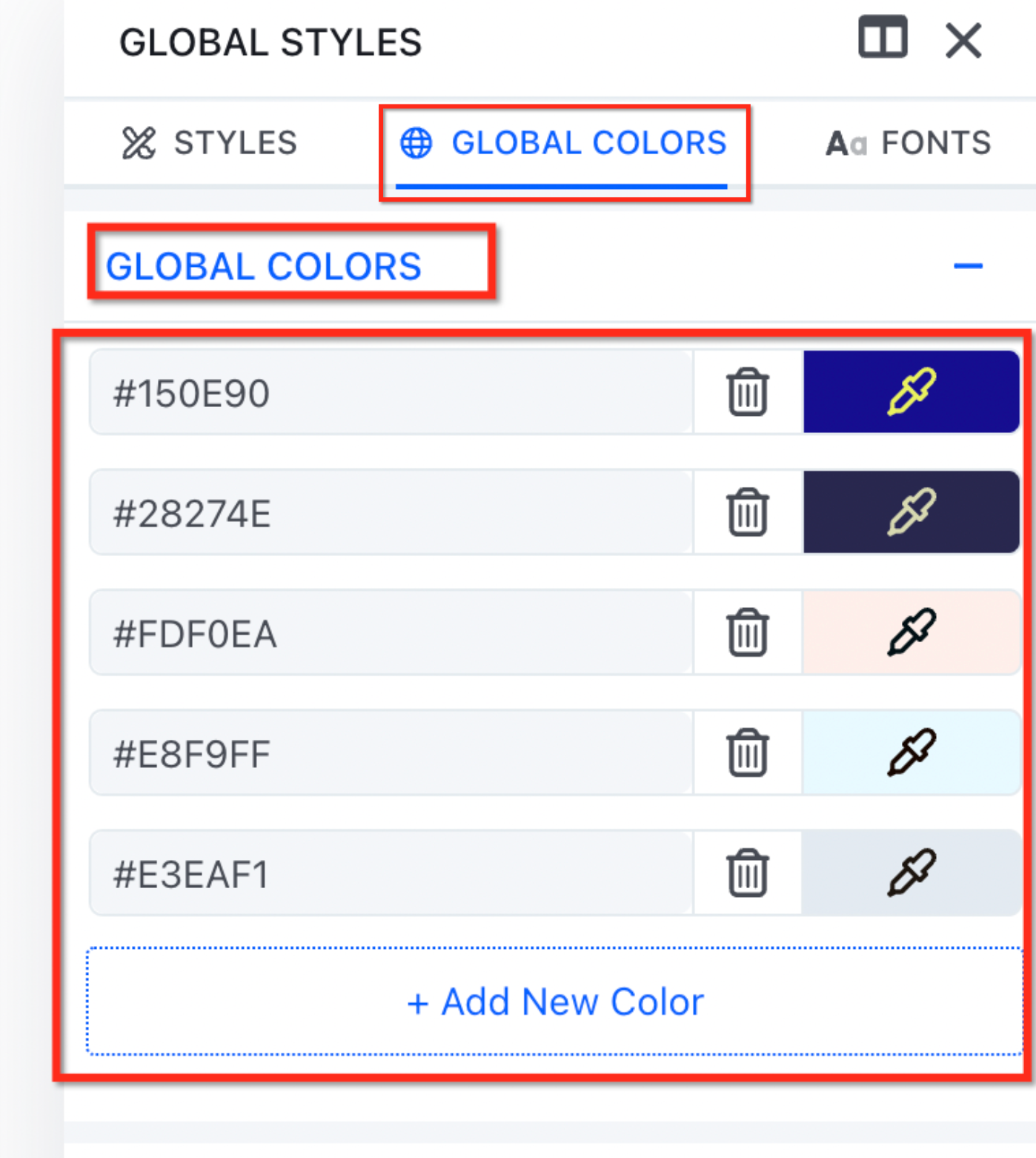
In this section, you can set the global or universal colors throughout your website without always setting them separately every other time.
Follow the Image & Gif below to see how this option works ⬇️
Apply Global colors to a particular place on your site
Let us apply Global colors to this button text on this website. We will go through the step-by-step procedure.
- Click on the 🖊️ Edit Element option on the edit tab of the element, or click on the element itself.

- Under the Button Background Color option, you will find all your pre-set global colors, as shown in the picture below ⬇️
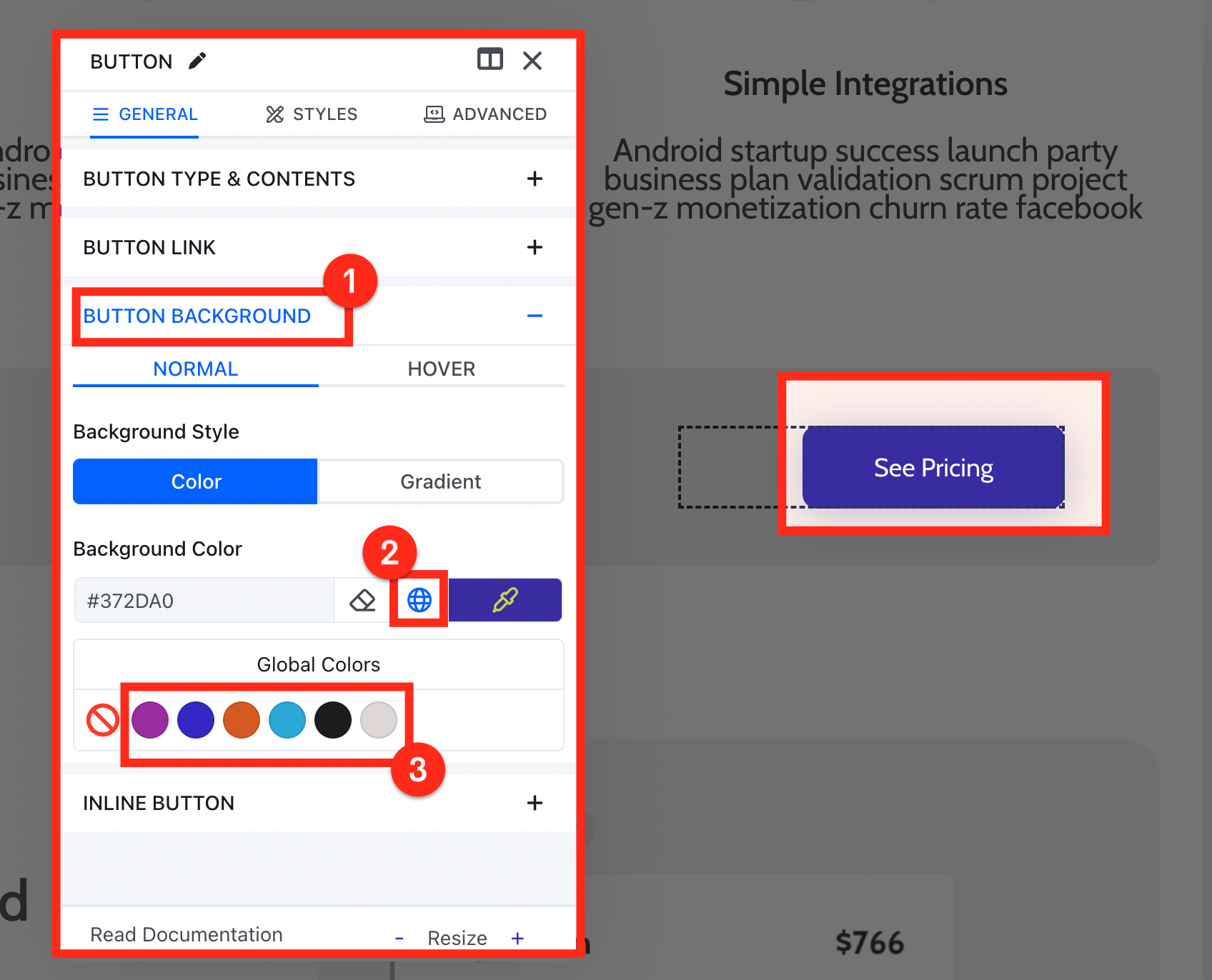
- Pick any color!
Global Gradients
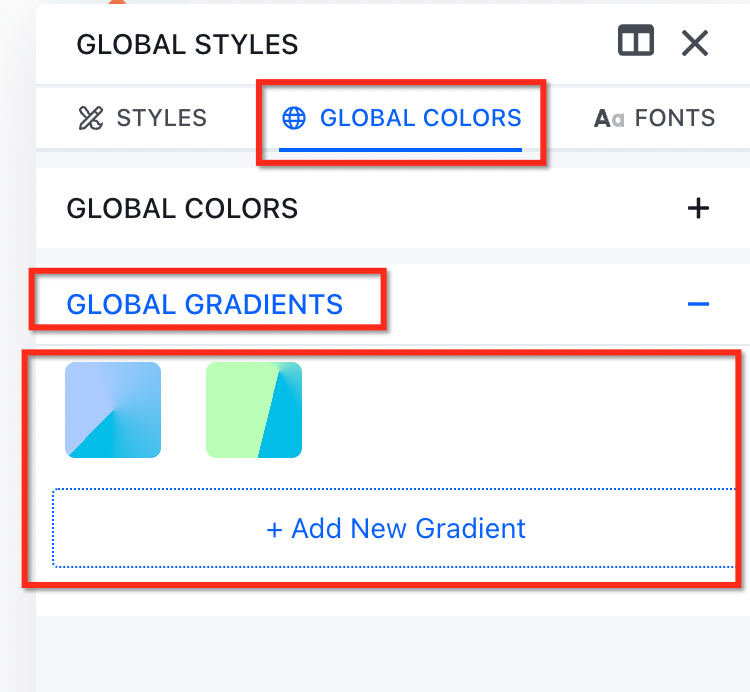
In this section, you can set the global or universal gradients throughout your website without always setting them separately every other time.
Follow the Image & Gif below to see how this option works ⬇️
Apply Global Gradients to a particular place on your site
Let us apply Global Grediants to this button text on this website. We will go through the step-by-step procedure.
- Click on the 🖊️ Edit Element option on the edit tab of the element, or click on the element itself.

- Under the Button Background Color option, you will find all your pre-set global colors, as shown in the picture below ⬇️
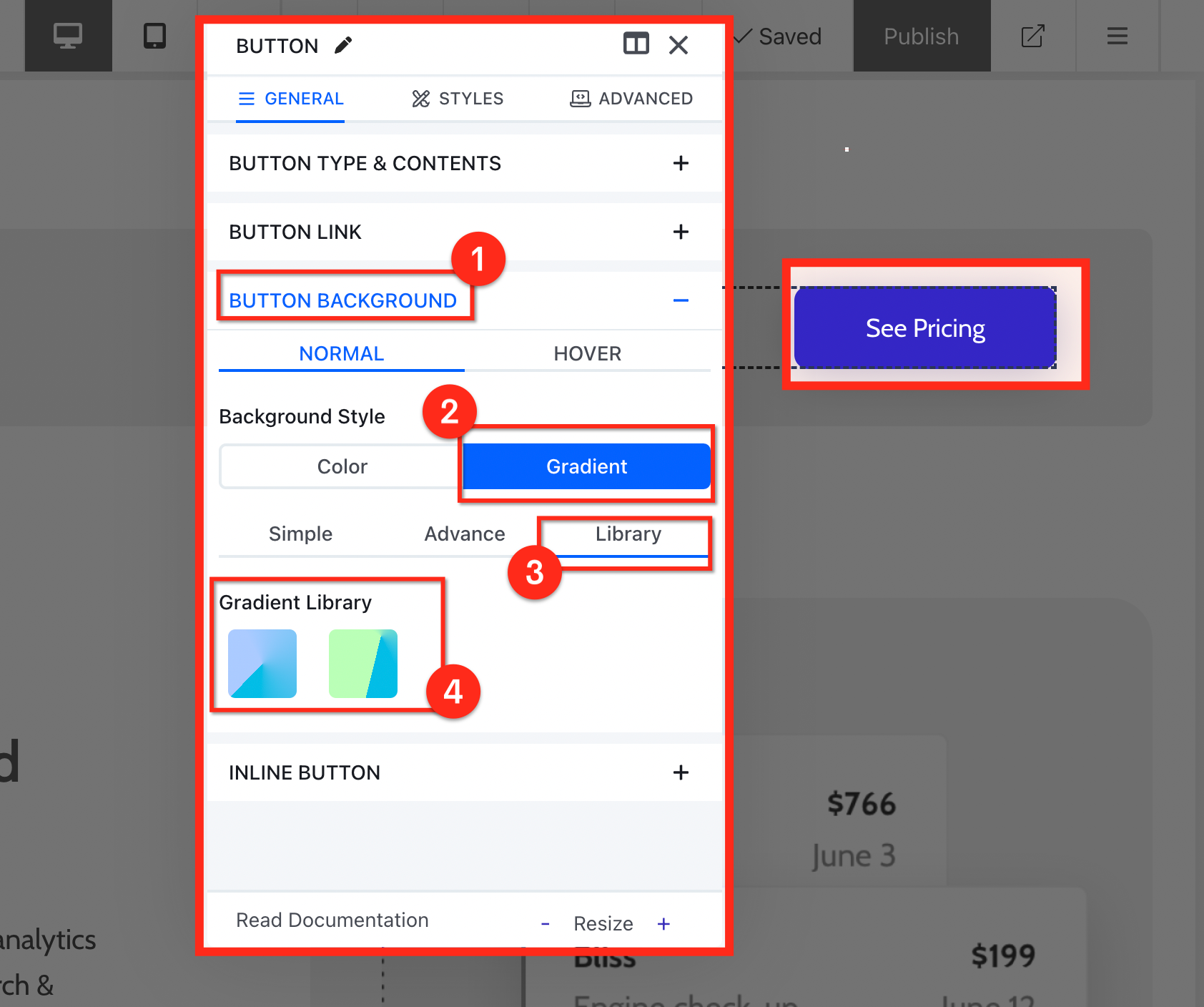
- Pick any color!
Related articles
Global Styles Global Link colors | Global StylesAi nevoie de ajutor? Scrie-ne.