
Ajutor › Builder (Design and Pages)
Global Styles > Styles
Table of contents
Getting Started
In this article, you will learn about how all the Sections of Styles and their editing options work under Global Styles. To know the process, follow the instructions below.
Global Styles
To know the basic of Global Styles, refer to the article below —
Global StylesSections of Styles under the Global Styles settings
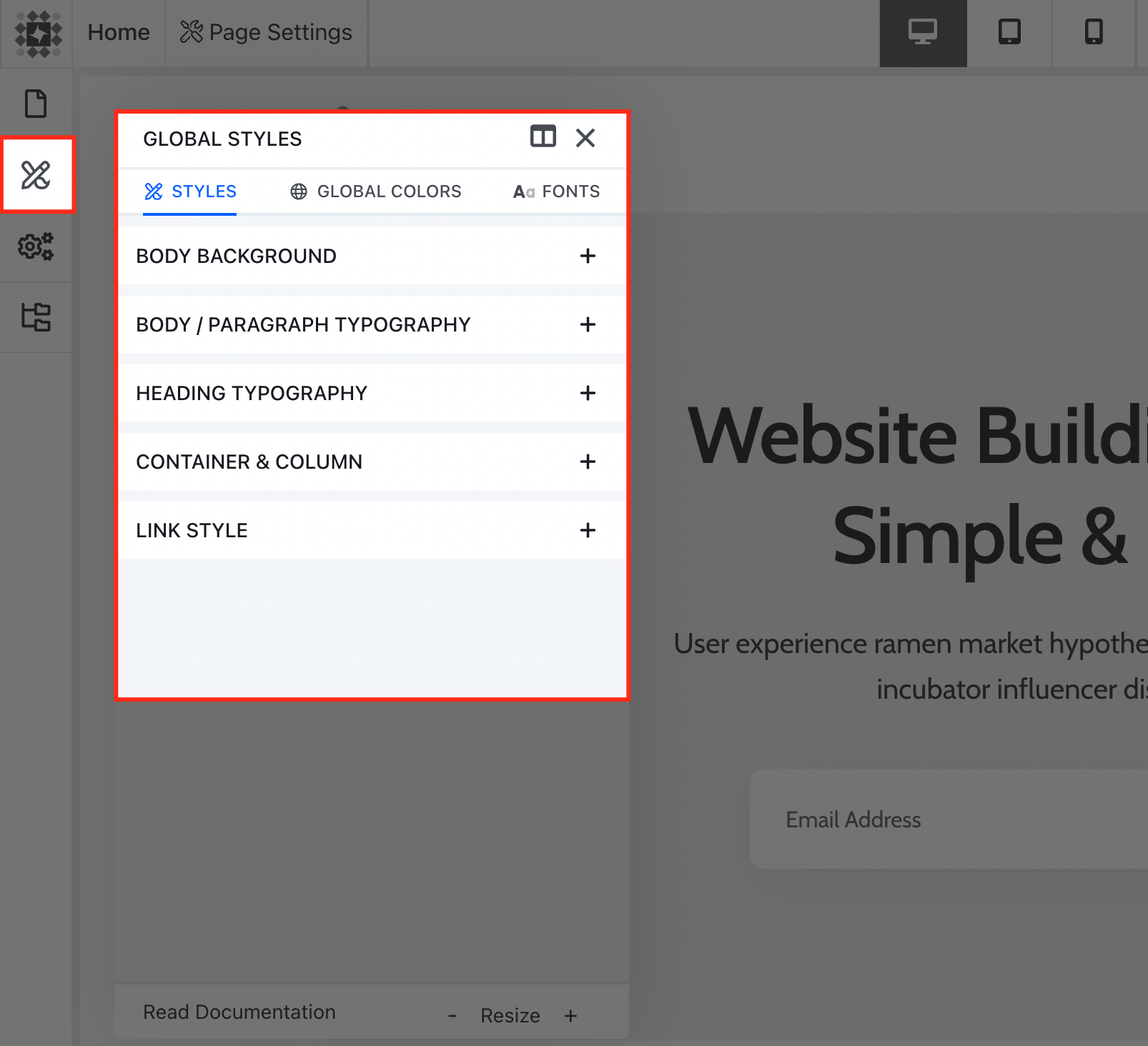
Inside the Styles under Global Styles settings, you will find these below options —
- Body Background
- Body/paragraph Typography
- Heading Typography
- Container & Column
- Link Style
To learn how to find these sections, refer to the Gif & Image below —
Body Background
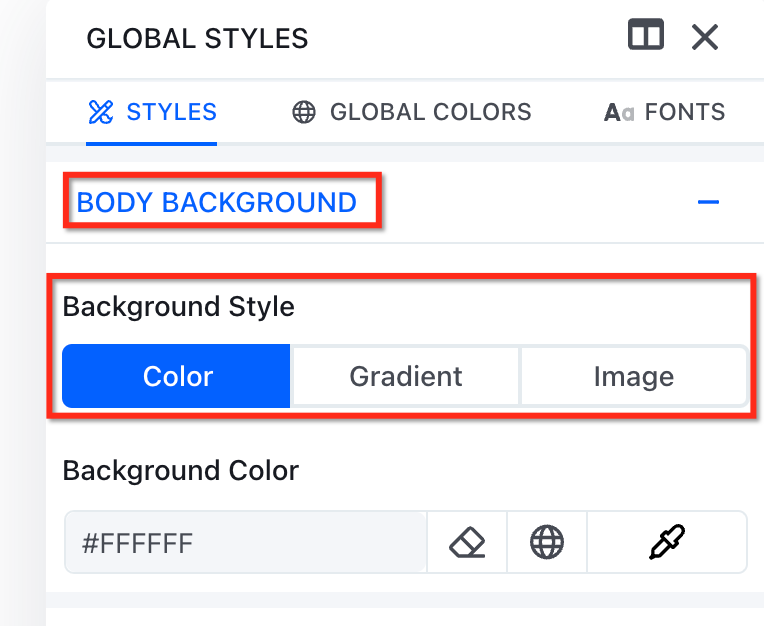
In this section, you will find the below-mentioned editing option under Body Background to change the background style in three different options; Color/Gradient/Image.
- Background Style (Color/Gradient/Image)
Follow the Images & Gifs below to see how these options work ⬇️
Body/Paragraph Typography
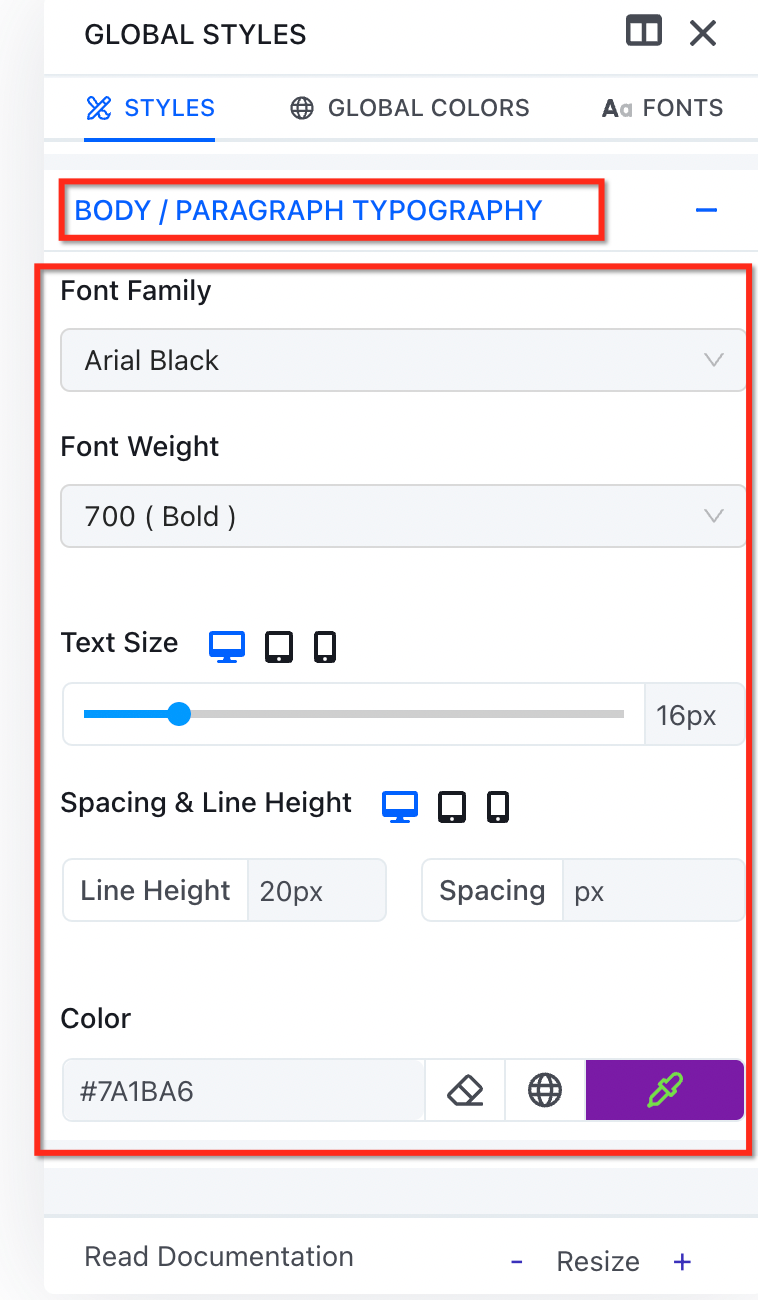
In this section, you will find the below-mentioned editing options under Body/Paragraph Typography to change important global settings of the body & paragraph typographies of your site.
- Font Family
- Font Weight
- Text Size
- Spacing & Line Height
- Color
Follow the Images & Gifs below to see how these options work ⬇️
Heading Typography
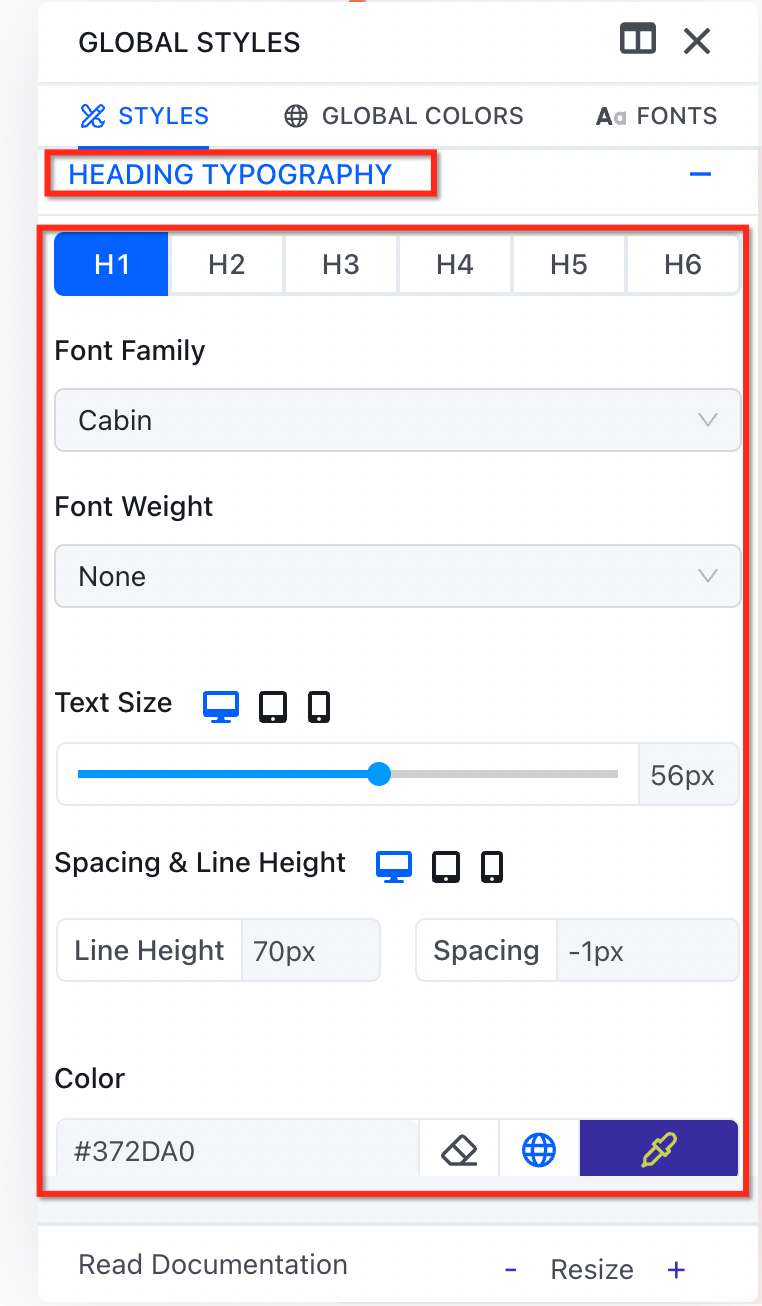
In this section, you will find the below-mentioned editing options under Heading Typography to change important global settings of the heading typographies of your site.
- Font Family
- Font Weight
- Text Size
- Spacing & Line Height
- Color
Follow the Image & Gif below to see how these options work ⬇️
Container & Column
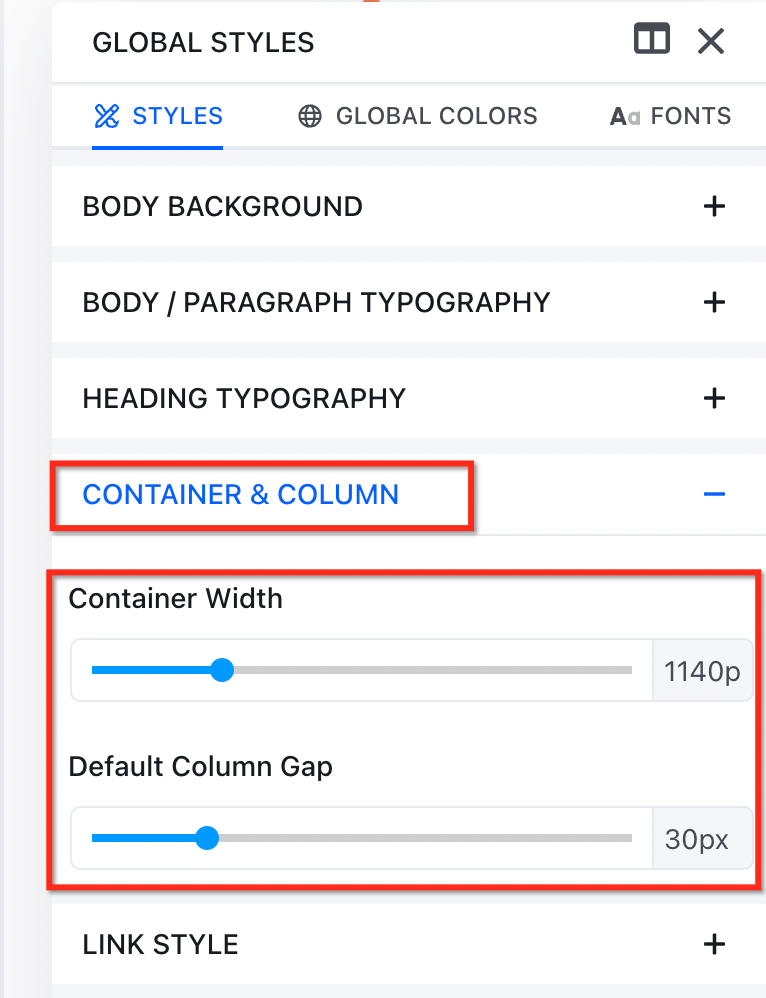
In this section, you will find the below-mentioned editing options under Container & Column to adjust the container width and the default column gap of your site.
- Container Width
- Default Column Gap
Follow the Image & Gif below to see how these options work ⬇️
Link Style
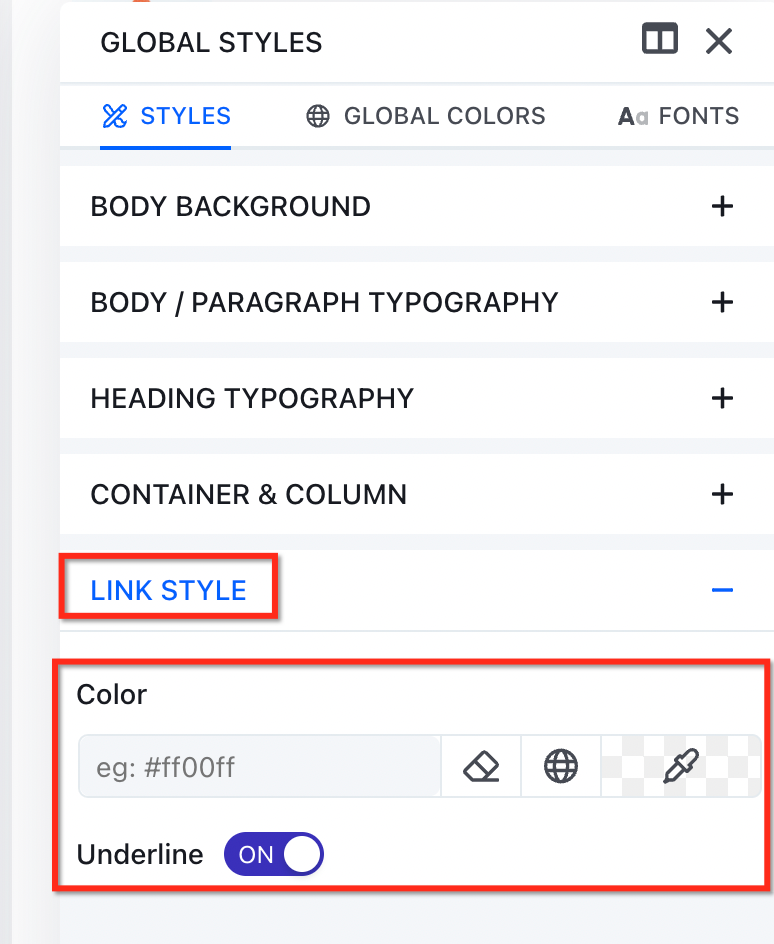
In this section, you will find the below-mentioned editing options under Link Style to change the style of your site’s links by changing their colors and underlining them.
- Color
- Underlining
Follow the Image & Gif below to see how these options work ⬇️
Related articles
Global Styles > Global Colors Global StylesAi nevoie de ajutor? Scrie-ne.