
Ajutor › Builder (Design and Pages)
Navigation Tree
Table of Contents
Getting Started
The navigation tree on your website builder allows you to quickly navigate to any specific Section, Row, Column, or Element on your web page. This also helps you keep track of the structure and keep count of the existing items on your webpage
Using Navigation Tree
To use the Navigation Tree, follow the steps below:
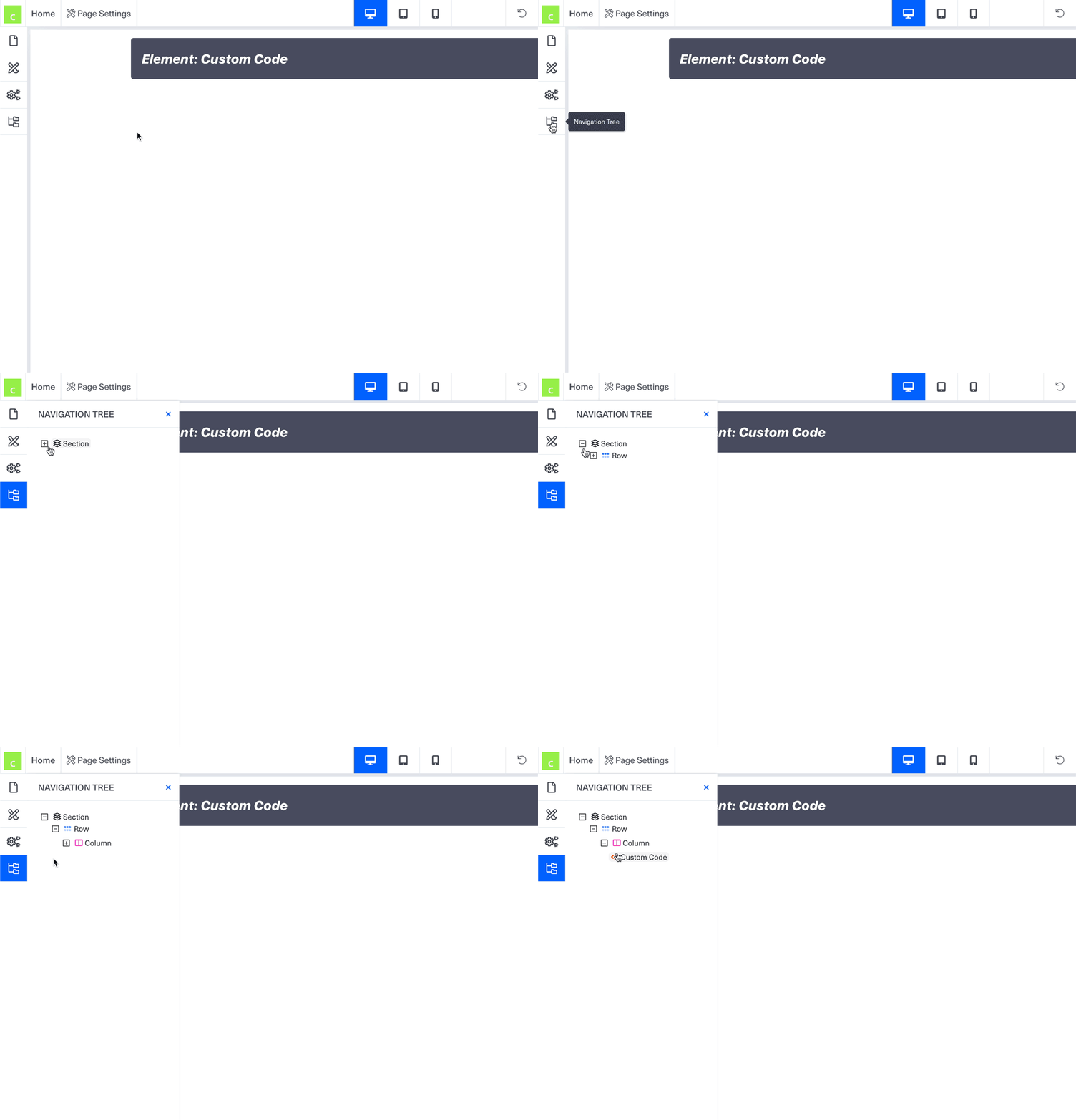
- On your website builder, move your cursor to the left and click on the option below Site Settings
- A sidebar will appear, displaying a tree-like structure consisting of Sections, Rows, Columns, and Elements on that particular web page.
Refer to the GIF below —
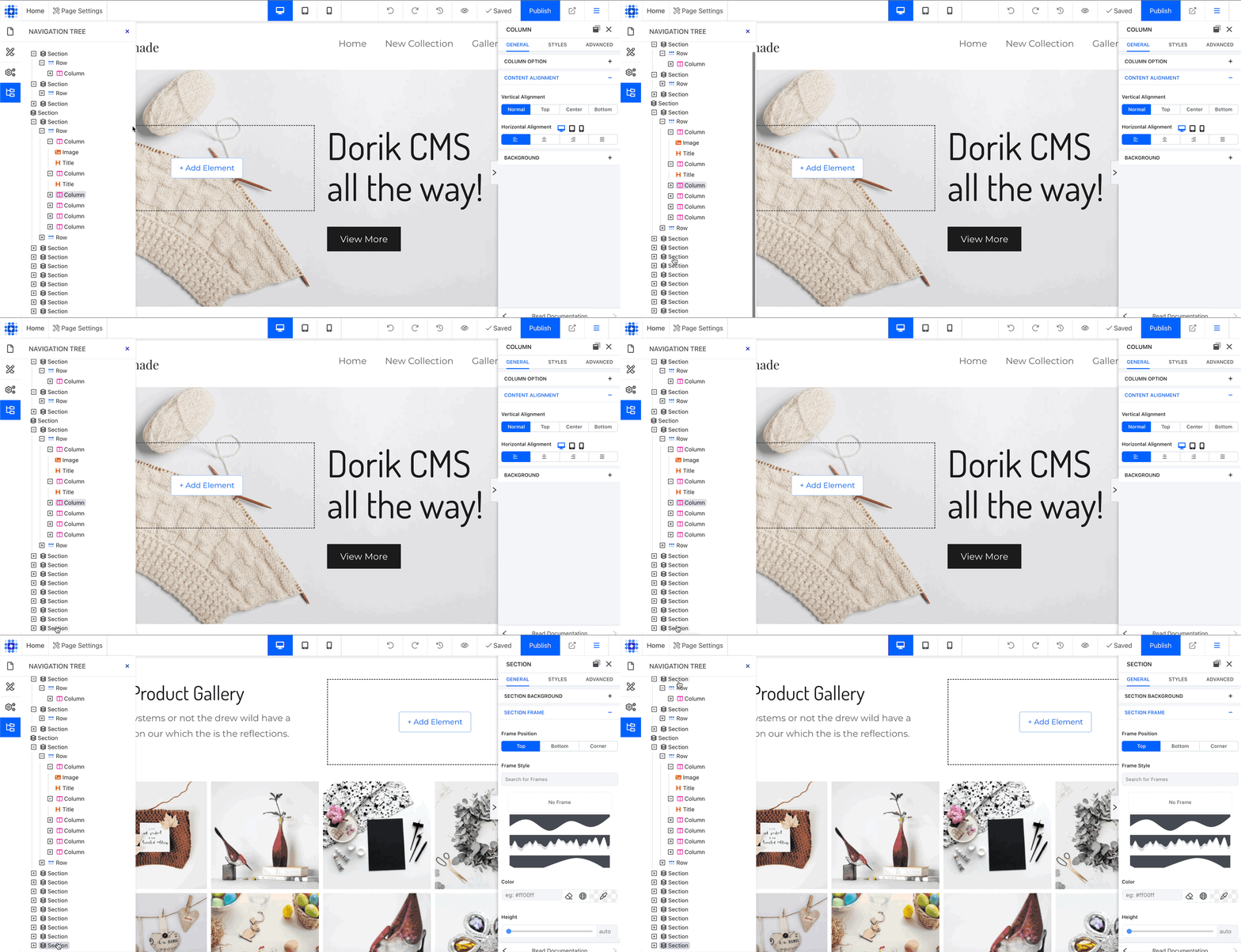
- Upon clicking any of the Sections, Rows, Columns, or Elements in the navigation tree, you will be automatically scrolled to the position of that specific component on your builder.
Refer to the GIF below —
Drag-and-Drop Components
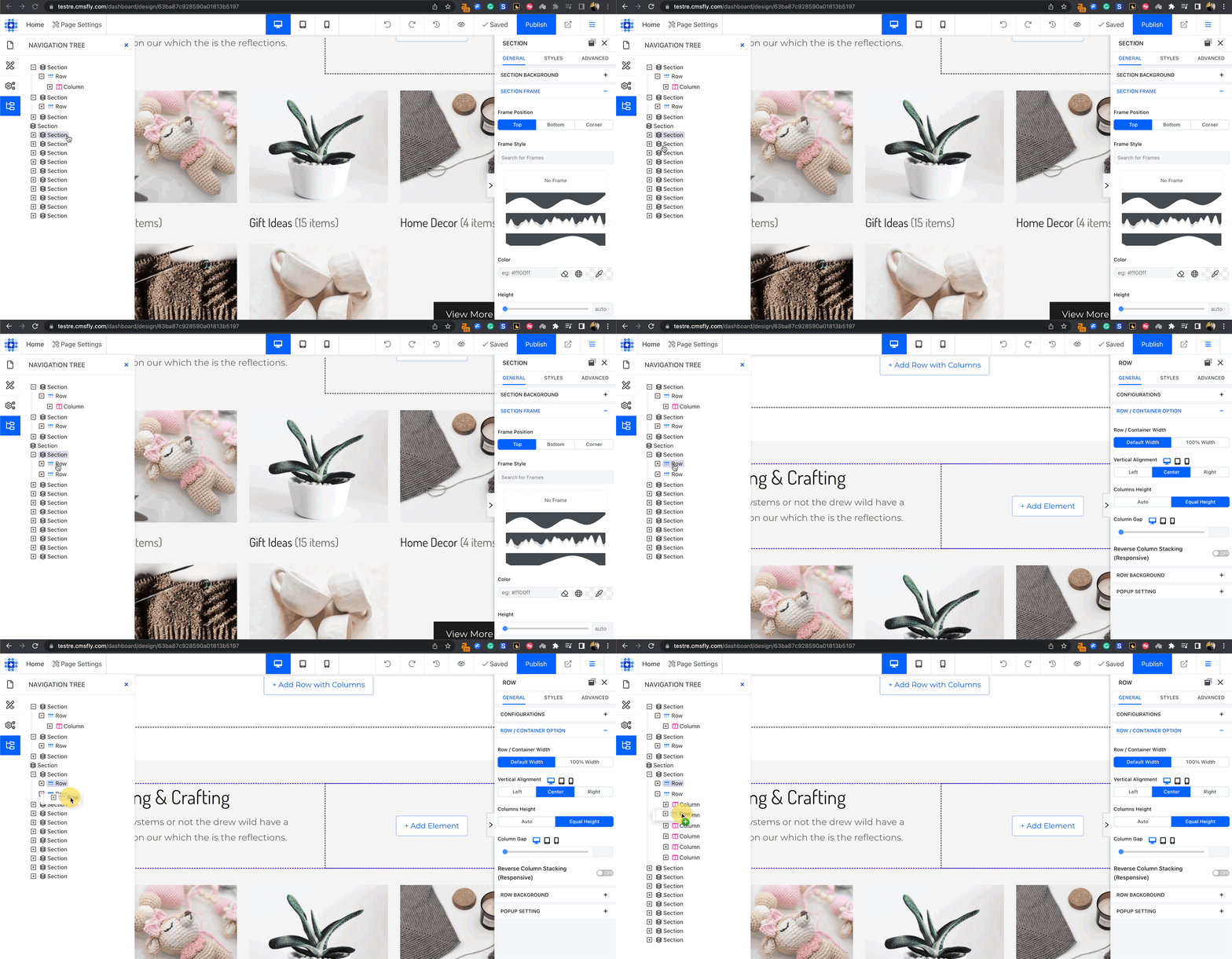
You can drag and drop the components in your builder by dragging them from the navigation itself.
Refer to the GIF below to see how it works —
Related Articles
👨🏭 Builder Basics◼️ Section, Row, Columns, ElementsAi nevoie de ajutor? Scrie-ne.