
Ajutor › Builder (Design and Pages)
Pages
Table of Contents
Getting Started
The Pages option on your builder lets you make changes to your existing pages, hover and view those pages, and add new pages. In this article, you will learn how to use these settings for your website.
How to add a new page
To add a new page to your website, follow the article given below:
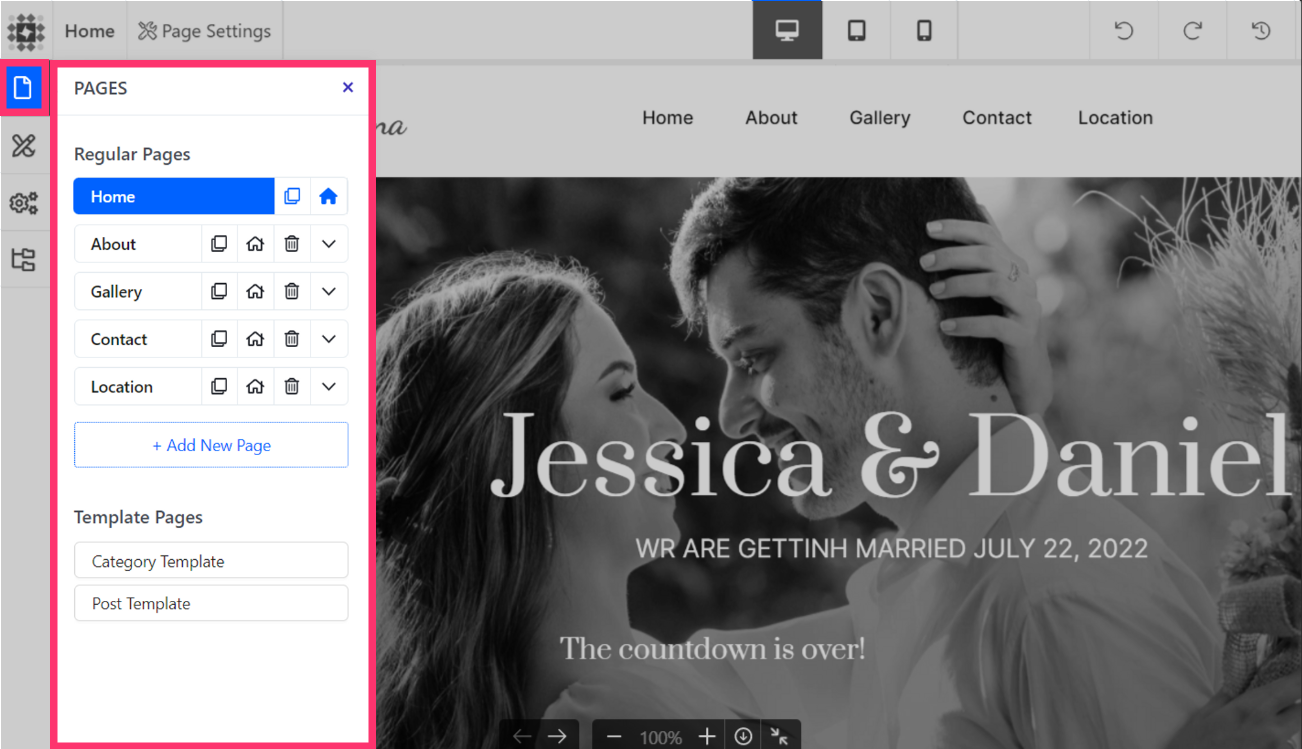
- Once you are in your website builder, click on 📑 Pages from the upper left corner
- After clicking Pages, a sidebar will appear
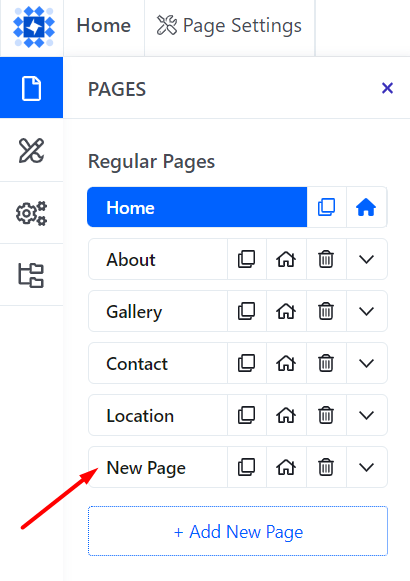
- To add a new page, press
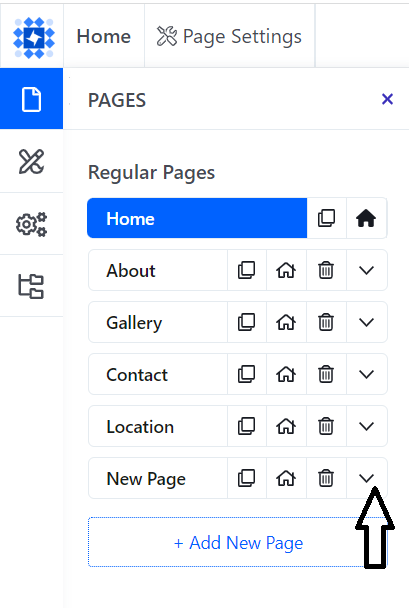
+ Add New Page& a New Page box will appear - Click on the Dropdown arrow from the right-side panel of the New page box
- Set a page name and slug for that new page
- Press
Save& a new page will appear in your builder - To save your page as a draft, uncheck the Published option
The Images below show the whole process being demonstrated visually ⬇️
- Once you are in your website builder, click on 📑 Pages from the upper left corner & the following sidebar will appear:
- Press
+ Add New Page& a New Page box will appear like the image below:
- Click on the Dropdown arrow from the right-side panel of the New page box
- Set a Page name and Slug for that new page & press
Save
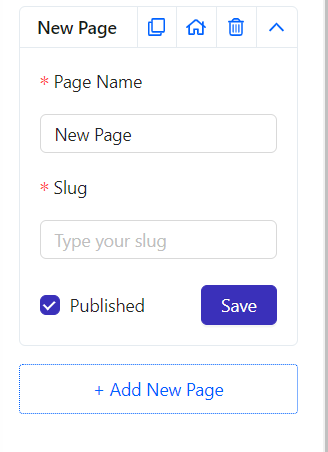
- To save your page as a draft, uncheck the Published option & this way you can add multiple pages to your site
💡
However, the above-mentioned Published option in the eighth number step is only for the CloudCMS site.
- Duplicate the page, Set it as the home page, and Delete the page
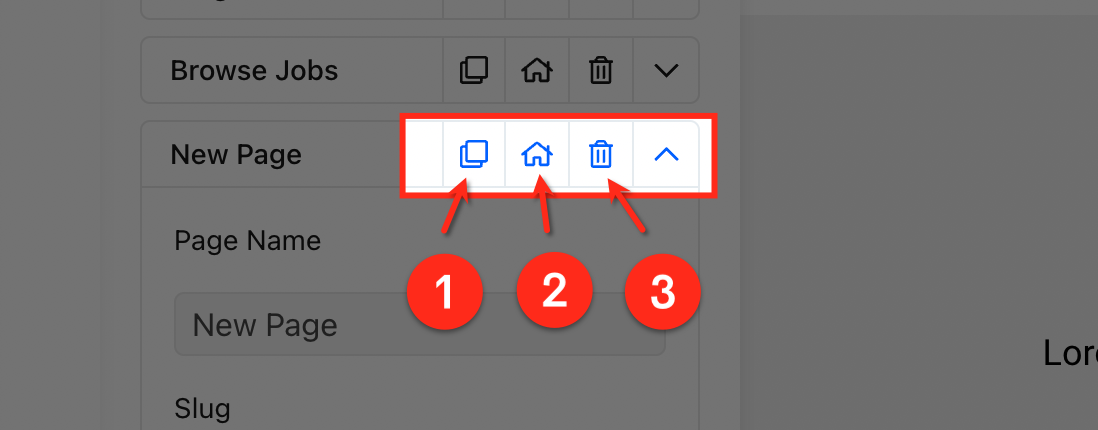
- Duplicate the page
- Set it as the home page
- Delete the page
Related articles
🌍 Changing page language | Page Settings Post templateAi nevoie de ajutor? Scrie-ne.